Summary
- A Google Maps Business Pin is the most important digital sign your business can have—making you visible to local customers searching nearby.
- Setting up your first pin involves checking for an existing listing, creating a Google Business Profile, completing all business details, and verifying your location.
- Managing your pin requires continual updates, adding photos, responding to reviews, posting updates, and correcting issues like misplaced pins.
- Service Area Businesses (SABs) can still use Google Maps effectively by hiding their address and defining service areas, making them visible to the right customers.
Have you ever wondered why your competitors seem to be getting all the local foot traffic? You know you have a better product or service, but customers just aren’t walking through your door. It often feels like you’re invisible, and that’s a frustrating place to be. A huge reason for this might be that you haven’t claimed your digital spot on the map with a google maps business pin. It’s the single most important sign you can put up for your business in the online world. Getting your own google maps business pin is like planting your flag for everyone to see.
Table of Contents
So What Is a Google Maps Business Pin?
Let’s keep it simple. You know those little red teardrop shaped icons you see all over Google Maps? That’s it. That’s the pin. A google maps pin, sometimes called a map pin, is a visual marker that shows the exact location of a business on the map.
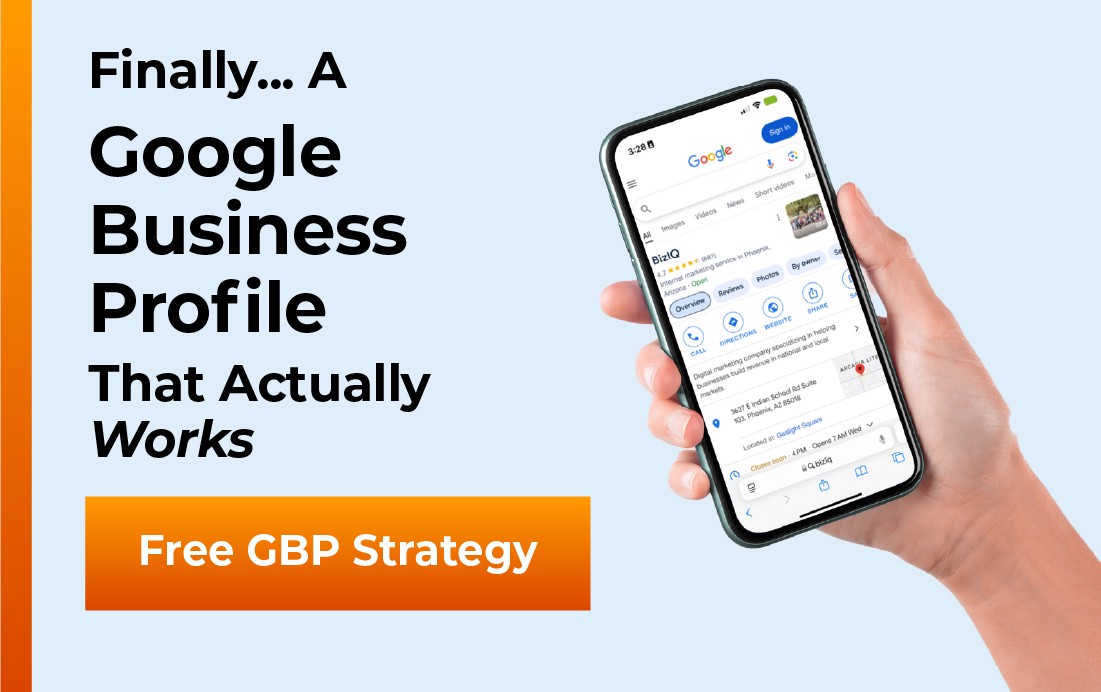
But it’s much more than just a red icon. Each google maps business pin is directly tied to a Google Business Profile. Think of the business profile as the brain behind the pin; it contains all the essential business details that customers need.
This connection is what gives your pin its power. It’s not just a location marker; it’s a gateway for potential customers to learn about you. They can tap on your maps pin and instantly see your hours, business phone number, and even get directions straight to your door. This integration is a cornerstone of effective local SEO.
Why Your Business Desperately Needs a Pin
Putting a pin on the map is not just a nice thing to have; it’s a core part of modern digital marketing. If people can’t find you online, you barely exist to them. It’s the new version of being listed in the phone book, but with far more reach and functionality for any business owner.
The first big reason is pure visibility in local search. People use their mobile device to find everything, and many of these searches have local intent. When someone searches for “law firm near me” on their phone, Google uses map pins to populate the results, often in a highly visible section called the “local pack.” If your business doesn’t have a pin, you will not show up in those critical results on the search engine.
Next up is credibility. A verified google maps business pin tells potential customers you are a legitimate operation. You’ve taken the time to prove to Google that your business is real and located at the correct location. This gives people confidence to visit or call you, which is crucial for gathering customer trust before they even step foot inside. An established online presence on a major google product builds immense trust.
Getting Your First Google Maps Business Pin: The Simple Guide
Getting your pin on the map is a straightforward process. You just have to follow the steps carefully. It might seem like a lot of steps, but it’s totally manageable for any small business, and the payoff in increased visibility and foot traffic is huge.
Step 1: First, See if You Already Exist
Before you build anything new, it’s smart to check if Google has already created a basic business listing for you. This can happen from public data or user suggestions. Go to Google Maps and type your business name and business address into the search bar.
If you see your business pop up with a pin, but you’ve never touched it, that’s great news. It means half the work is done. You’ll just need to click on the listing and look for an option that says “Own this business?” or “Claim this business.” This will begin the process to access google business account controls for that profile listing.
If nothing shows up, don’t worry. That just means you get to build your profile from scratch, giving you full control from the start. Creating a new profile ensures all the information is accurate from day one.
Step 2: Create a Google Business Profile
This is where it all begins. You need to create the profile that your pin will connect to. Head over to the main Google Business Profile homepage and click the “Manage now” button. You will need a Google account to proceed.
If you don’t have one, you’ll need to create a free one first. It’s best to use a Google account associated with your business, not a personal one. This helps keep your business assets separate and professional.
Google will then ask for your business name. Start typing, and if an unmanaged business profile listing exists, it will pop up for you to claim. If not, you’ll be prompted to create a new one, allowing you to enter business details from scratch.
Get Your Business on the Map—Literally
Setting up your pin is the first step to customers finding you. We’ll handle verification, setup, and all the details that help you appear in local searches.
Step 3: Fill Out All Your Business Details
This step is critical for your google maps business pin. Google will walk you through a series of questions about your local business. Be prepared to provide key information, as a complete profile performs much better in google searches.
Make sure the name and business address are exactly the same as what you use on your website and other online directories. This consistency, often called NAP (Name, Address, Phone Number), is very important for local SEO. Inconsistent information can confuse search engines and harm your ranking.
You’ll then add more details like your phone number, website, and operating hours. Fill out everything you possibly can. The more information you give Google, the more helpful your profile will be to customers Google sends your way and the better the search engine can match your business to relevant queries.
Step 4: The All Important Verification Process
This is the final hurdle to getting your business live on the map. You must prove to Google that your business is a real entity at the address you provided. This security step stops people from creating fake pins or malicious business profiles.
The most common method of verification is a postcard sent by mail. Google will mail a postcard with a unique verification code to your business address. Once you receive it, usually in about 5 to 7 business days, you just log back into your business account and enter the code. After you enter it and click the save button, your listing will be verified.
In some cases, you might get other options, like verification by phone call, text, or even a live video call where you show your place of business. Google usually decides which options are available based on various factors like your business category and history. Once verified, your red pin will go live on the map.
Managing and Improving Your Pin for More Business
Getting your pin on the map is just the start. To truly leverage this tool, you have to manage it actively. An active and updated profile will perform much better than one that just sits there, helping you attract customers consistently.
Keep Your Information Accurate and Fresh
Life happens and businesses change. Did you extend your hours for the holidays? Did you change your phone number? You have to update this information in your Google Business Profile dashboard through the edit profile option.
Nothing frustrates potential customers more than driving to your location based on your map pin only to find you’re closed. Keeping your information current is a basic part of good customer service. This builds trust with local customers and keeps people coming back.
Use Google Posts to Talk to Customers
Your Google Business Profile isn’t just a static directory listing. You can use a feature called Google Posts to share updates, events, offers, and news directly on your profile. These posts show up when someone views your listing on Google Search or Google Maps.
Think of it as free advertising space, similar to a social media feed. Are you having a sale this weekend? Create a Google Post about it. Launching a new product or local service? Announce it with a Post to keep your online presence dynamic.
Actively Manage Your Customer Reviews
Reviews are one of the most powerful parts of your business profile. A steady stream of positive reviews can significantly influence a customer’s decision to choose you over a competitor. Encouraging a happy customer to leave a google review can be a major boost for your business.
You should encourage your satisfied customers to leave a review. More importantly, you should respond to every review you get, both positive and negative. A thoughtful response to a negative review shows you care about customer feedback and can even turn a bad experience into a positive one.
Turn Your Pin Into a Lead-Generating Machine
Fresh photos, reviews, Posts, and corrected map placement all boost visibility. Let our experts optimize your listing for maximum local impact.
Upload Plenty of High Quality Photos
A picture is truly worth a thousand words on your profile. Business profiles with lots of photos get more engagement and clicks from customers. People want to see what your business looks like before they visit.
Add pictures of your storefront from the outside so people can recognize it when they arrive; you can even use a snapshot from street view google provides. Show off the inside of your store, your products, and even your team at work. Photos make your business listed on the map feel more real and inviting.
Fixing Common Problems with Your Google Maps Pin
Sometimes things don’t go perfectly. You might run into an issue with your pin location or how your business is categorized. Here’s how to fix some of the most common problems you might encounter with your maps business listing.
My Pin is in the Wrong Location
This happens more often than you’d think. Maybe the marker location is a few doors down or on the wrong side of the street. This can be very confusing for customers using GPS to find you and negatively impact their experience.
You can easily fix this. Log in to your Google Business Profile dashboard. Find the section with your address, and you should see an option to edit the map location. You can then physically drag the dropped pin to the correct spot on the map area.
After you save the change, Google will review it. It might take a few days, but this usually fixes the problem and ensures your customers are guided to your exact location. A correctly placed pin is fundamental to your local success.
I Don’t Have a Storefront Customers Can Visit
What if you’re a plumber, an electrician, or run seo services from home? Your business is real, but you serve customers at their locations, not at yours. These are called Service Area Businesses, or SABs.
Google has a special setting for this. When you set up your business profile, you can specify that you do not have a physical location customers can visit. You then clear your street address from displaying publicly to protect your privacy.
Instead of a single pin, you can define a service area on the business map. This shows up as a shaded region, letting customers in your area know that you can come to them. It prevents people from showing up at your home or office, which is perfect for these types of local businesses.
No Storefront? No Problem.
Service Area Businesses can still rank and get leads on Google Maps. We’ll properly configure your hidden address and service areas for maximum exposure.
Someone Else Already Claimed My Business Profile
This can be a scary situation. You search for your business and see a pin, but when you try to claim it, Google tells you it’s already managed by another account. Sometimes this is a former employee, a family member, or an old marketing company.
Don’t panic. Google has a process for this. You can request ownership from the current owner through your Google business account. The current owner will receive an email notification about your request.
If the current owner approves your request, you get control. If they deny it or simply ignore it for a few days, Google may give you a chance to claim the profile yourself by going through the verification process again to prove you’re the rightful business owner.
Conclusion
Your google maps business pin is your digital storefront. It’s the starting point for customers who are looking for businesses just like yours in your local area. Ignoring it is like keeping your doors locked during business hours and being invisible to a huge pool of potential customers google is trying to send you.
Taking control of your Google Business Profile listing opens you up to a steady stream of new customers. A properly placed maps business pin is your beacon in the world of local search, guiding people directly to you. It helps you stand out from the competition and makes it easy for people to choose your business.
The process is simple, and the results are powerful for any local business looking to grow. A strong, well managed google maps business pin is truly a cornerstone of your digital presence. It’s a vital tool you must claim, manage, and optimize for long-term success.
Your Google Maps Pin Is Your Most Valuable Local Asset
Don’t stay invisible. A properly optimized Google Maps pin drives calls, clicks, and foot traffic. We’re here to help you maximize your exposure.
Frequently Asked Questions
Do I need a Google Maps pin to appear in local searches?
Yes. Without a Google Maps Business Pin connected to a verified Google Business Profile, you cannot appear in the Local Pack or map-based results where most customers look first.
How long does verification take?
Most businesses receive their verification postcard in 5–7 days, though some categories may qualify for phone, text, or video verification for faster approval.
What if my pin shows up in the wrong place?
You can manually drag your pin to the correct address inside your Google Business Profile dashboard. Google will review the change and update it once approved.
Can service-area businesses show up on Google Maps?
Yes. You can hide your physical address and set service areas instead. This prevents customers from visiting your home or office while still allowing you to appear in local results.