Google is rolling this feature out as a pilot, and details may change. Search Engine Roundtable reported on October 29, 2026 that Google was opening it to more businesses, so check Google’s AI messaging help page before you act.
A customer finds your business on Google at 9 p.m. and wants to know if you can fit them in Saturday. Google’s new AI-powered messaging lets an AI agent answer that text for you, but only some businesses can turn it on. We wrote this guide at BizIQ to help our clients check whether they qualify, set it up without surprises, and stay in control of every conversation. By the end, you will know what to do whether you have the option today or not.
Quick Answer
Google’s AI-powered messaging lets customers text your business from Search and Maps while an AI agent answers routine questions. It is a pilot, so you can turn it on only if Google offers it to you, usually through an email invitation or a Messages option on your profile. You then confirm your business through a separate review before it goes live.
What Does Google’s AI Agent Do With Customer Messages?
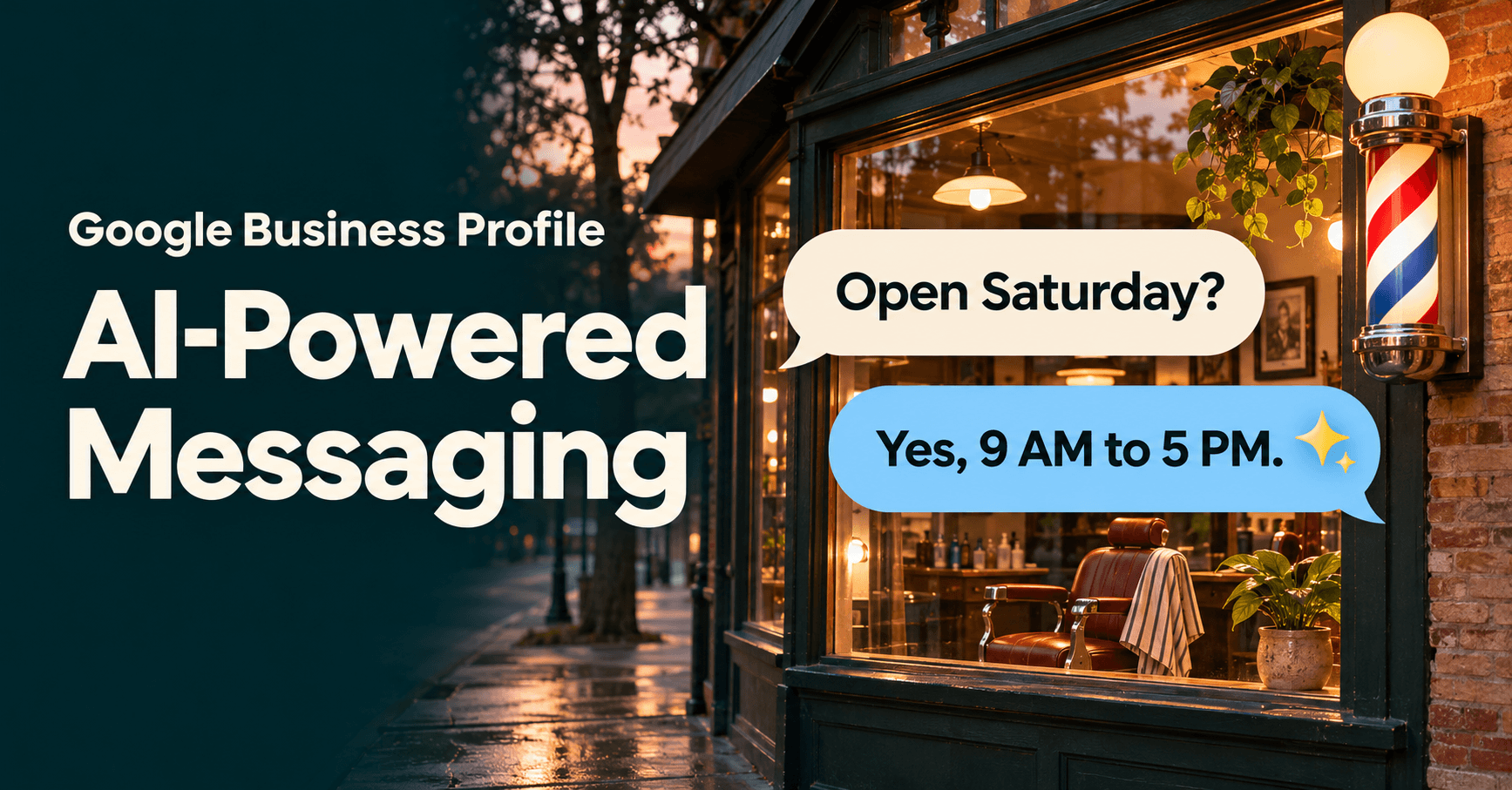
A customer taps Message on your listing in Google Search or Maps, and the chat opens in the texting app already on their phone. An AI agent replies first. According to Search Engine Roundtable, Google’s invitation describes an agent that handles common questions and sends the complex ones to you.
Google’s help page uses a question about your hours as its example of a routine question. A LinkedIn post that Search Engine Roundtable shared adds others, such as a customer asking about daily specials or whether they can book for Saturday.
Watch out: The agent only works for customers on phones and networks that support RCS, the newer texting standard behind richer business chats. Search Engine Roundtable’s report says everyone else’s texts go straight to your phone, and standard text rates may apply.
Is This the Old Google Business Profile Chat Coming Back?
No. Google ended the original chat and call history features on July 31, 2024. Since then, eligible accounts can add a text message or WhatsApp option, though Google says those options are available only in select regions.
The new feature works differently, because Google says it runs on RCS for Business and an AI agent answers first. Here is how the two compare.
| Question | Chat option (text or WhatsApp) | AI-enabled messaging |
|---|---|---|
| Who replies first? | You or your team | The AI agent |
| How do you set it up? | Edit profile, Contact, Chat | Google’s offer or Messages, plus a business review |
| Where is it available? | Select regions | US (select carriers), UK, France, Germany, in three categories |
Is Your Business Eligible for AI-Powered Messaging?
Not necessarily. Google’s help page says the feature is currently offered in France, Germany, the United Kingdom, and the United States (on select mobile carriers) to businesses in the Restaurant, Beauty Services, and Vehicle Services categories. Google adds that it may not be available for all businesses.
If your business sits outside those three categories, do not expect to see the option yet. Even inside them, an invitation is not guaranteed.
Quick tip: Not seeing the option most likely means Google has not opened the pilot to you. It does not mean something is wrong with your profile.
How Do You Check Whether You Have Access?
Check your email first, then your profile. Google’s invitation, as shared in Search Engine Roundtable’s report, offers early access to the pilot at no cost.
- Look for the invitation. Search the inbox and spam folder of the email tied to your Business Profile for a message from Google about AI-powered messaging.
- Open your profile. Sign in to the Google account that manages your Business Profile and search for your business name on Google.
- Find the red dot. A LinkedIn post shared by Search Engine Roundtable says to look for a red dot on the Messages button.
- Open Messages. If the feature is available to you, a welcome screen lets you turn it on.
What Do You Need Ready Before Google Confirms Your Business?
More than a click. Google requires an independent review on top of your regular Business Profile verification. For a US business, have these on hand:
- EIN: your Employer Identification Number.
- Authorized representative: the official name of the person who can act for the business.
- Business email: an active address that can receive mail.
- Phone number: an active number formatted correctly for your market.
- Website or social profile: a valid business website or an active official social media profile.
- Privacy Policy and Terms of Service links: live, public pages with no SSL certificate errors or timeouts.
Quick tip: Open your Privacy Policy and Terms of Service links in a browser before you start. If either page errors out, fix it first.
How Do You Turn On the AI Agent?
You start from the invitation or the Messages option, then complete the review. Plan on a few business days before it goes live.
- Start the setup. Open the invitation or the Messages option and read the overview Google shows you.
- Enter your business details. Use the items from the checklist above, and make sure they match your public records and website.
- Approve the authorization email. Google sends it to your contact email, and the review will not start until you click the confirmation link.
- Wait for the review. The same page says reviews typically take up to 4 business days in the US to account for mobile carrier approvals.
- Go live. Once approved, messaging is enabled on your profile in Search and Maps, and a Verified Sender badge appears next to your business name.
Watch out: Settle on your business name and branding before you confirm. Google says that once you are verified, you cannot freely edit your display name, logo, or banner, and changes require a support request that may trigger a new review. The review also expires after one year, and Google sends a reminder before then so you can reconfirm.
If you would like help getting your profile ready before you start the review, our Google Business Profile service is a good place to start, or you can talk to us directly.
How Do Handoffs Between You and the AI Agent Work?
The agent handles every incoming message first, then passes control to you when needed. Google’s help page says you read and reply to conversations in Messages on your profile in Search, or in the Inbox in Google Business Home. Conversations sort into two groups:
- AI agent: chats the agent is managing on its own.
- Needs your attention: chats handed off to you or taken over by you.
The agent tells the customer it is handing off and moves the chat to your queue in three cases. The request is complex, such as a large group reservation or custom quote. The agent cannot find an answer. Or the customer asks for a person.
You can select Take over and reply manually at any time. The agent stays paused until you select Resume AI agent, or until an unanswered handoff returns to it.
Watch out: If a handoff happens during your business hours and you do not reply within 1 hour, the chat goes back to the AI agent. If you resume the agent without replying first, it tells the customer a live representative could not be reached and suggests calling. Name someone to watch the queue during open hours.
Quick tip: Google’s note says businesses in the US and UK must already be onboarded to RCS for Business to see the Inbox tab in Google Business Home. If it is missing, use Messages on your profile in Search.
What Can You Customize and Track in Messaging Settings?
You can adjust the agent, switch handoff alerts on or off, and review performance. In the Settings tab, Google says you can deactivate or reactivate messaging or customize your AI agent for your business. Conversation starters are not currently supported for customers on iOS devices.
If you turn handoff off, the agent keeps helping but points customers to call your business when it cannot answer, when a topic is sensitive, or when someone asks for a person. The Insights tab shows conversation, topic, and audience data, including how many chats the agent completed without handing off to you.
Google also says this messaging is built for direct, one-to-one customer service, and it turns off automatically if your profile is marked permanently closed.
How Do You Prepare Your Profile for the AI Agent?
Make your hours, address, phone number, and services accurate, because that is where the agent looks. Google says those details are pulled directly from your verified Business Profile, and that the agent also references verified website URLs. Wrong details on either one become wrong answers to customers.
- Hours: include holiday and special hours.
- Services: list everything you actually offer, in plain words customers use.
- Website: make sure pricing, policies, and contact details agree with your profile.
- Description and address: Google says changes to these update in your messaging profile, but not right away, so contact support if you need an immediate update.
- Business name: a name change on your profile does not update your messaging profile automatically, and customers keep seeing the old name in their Messages app.
Quick tip: Once the agent is live, send it a few test questions and compare its answers with your real hours and prices. For more on keeping your listing accurate, browse our Google knowledge bank.
Should You Turn On AI Messaging or Wait?
Turn it on if you can answer yes to most of these, and wait if you cannot. Because Google lets you deactivate messaging in Settings, trying it carries less risk than it might seem.
- Someone can cover handoffs: a person can check the queue during business hours and reply within an hour.
- Your information is current: your profile and website agree on hours, services, and contact details.
- Your documents are ready: you have your EIN, a working business email, and live Privacy Policy and Terms of Service pages.
- Your branding is final: you are not planning a name or logo change soon.
- You are comfortable with AI replies: you accept an AI agent answering routine questions in your business’s name.
Not sure where your business lands on this list? Call us at 888-416-9800 and we can talk it through.
What Is Still Unknown About AI Messaging?
A few answers are not in the sources we reviewed. We will update our guidance as Google publishes more.
- What comes next: Google’s help page lists today’s countries and categories and says the feature may not be available for all businesses. It does not say which businesses are next.
- Pricing after the pilot: the invitation shared by Search Engine Roundtable offers early access to the pilot at no cost, and does not say what happens afterward.
- Ranking impact: the Google help pages we reviewed cover setup, handoffs, and settings. They do not say whether using messaging affects how your profile ranks.
AI-Powered Messaging FAQ
Is Google’s AI messaging free for my business?
Yes, for now. Search Engine Roundtable shared Google’s invitation, which offers early access to the pilot at no cost. The text it quotes does not say what happens after the pilot. Customers without RCS send regular texts, and standard text rates may apply to them.
Why can’t I see AI messaging on my Business Profile?
Most likely it has not been offered to your business yet. Google’s help page limits the pilot to the US (select carriers), UK, France, and Germany, and to Restaurant, Beauty Services, and Vehicle Services businesses. It also says the feature may not be available for all businesses.
Do I need an EIN to turn on AI messaging?
Yes, if you are a US business. Google’s confirmation page lists the Employer Identification Number as the US business identifier. You also need an authorized representative, a working business email, and live Privacy Policy and Terms of Service links.
How long does Google’s business review take?
Typically up to 4 business days in the US, according to Google’s confirmation page. For France, Germany, and the UK, it says up to 3 business days. The review does not begin until you click the link in the authorization email, so check your spam folder.
Can I take over a conversation from the AI agent?
Yes. Google’s help page says you can select Take over and reply manually at any time. The agent stays paused until you select Resume AI agent. If a handoff during business hours goes unanswered for an hour, the chat returns to the agent.
Does AI messaging work for every customer?
No. Search Engine Roundtable reports that the agent only works for customers on phones and networks that support RCS. Everyone else’s texts go straight to your phone, and standard text rates may apply.
Can I turn AI messaging off?
Yes. In the Settings tab, Google says you can deactivate or reactivate messaging. You can also turn handoff notifications on or off. If handoff is off, the agent directs customers to call when it cannot answer.
Will the AI agent use my website to answer customers?
Yes, in part. Google says the agent pulls your hours, address, phone number, and listed services from your verified Business Profile and also references verified website URLs. An outdated website can therefore lead to wrong answers.
What happens if I change my business name later?
Your messaging profile does not update automatically. Google says customers keep seeing your old name in their phone’s Messages app. Its confirmation page adds that updates after verification require a support request and may trigger a review.
Is AI messaging the same as the old Google Business Profile chat?
No. Google ended the original chat feature on July 31, 2024. The new feature runs on RCS for Business with an AI agent answering first. Separately, Google’s Chat option sends customers to your text number or WhatsApp in select regions.
Do I have to renew the business review?
Yes. Google says the review is valid for 1 year. You will receive a reminder before it expires so you can reconfirm your business details and keep messaging active.
Get Your Google Profile Ready for AI Messaging
Whether or not Google has offered you the option yet, we are happy to talk through what to do next.