You can check your Google Business Profile (GBP, formerly Google My Business or GMB) ranking in three ways: run a manual Google search from your customers’ location, read the Performance dashboard inside your own profile, and use a geo-grid rank checker tool for the most accurate picture. The catch most owners miss is that there is no single ranking number. Where you show up changes with the searcher’s location, so checking it the right way matters as much as checking it at all. This guide walks you through each method step by step, then shows you what a healthy ranking looks like and what to do when you are not showing up.
- Local rankings are personal: your position changes based on how close the searcher is to you, so one search from your desk is never the whole story.
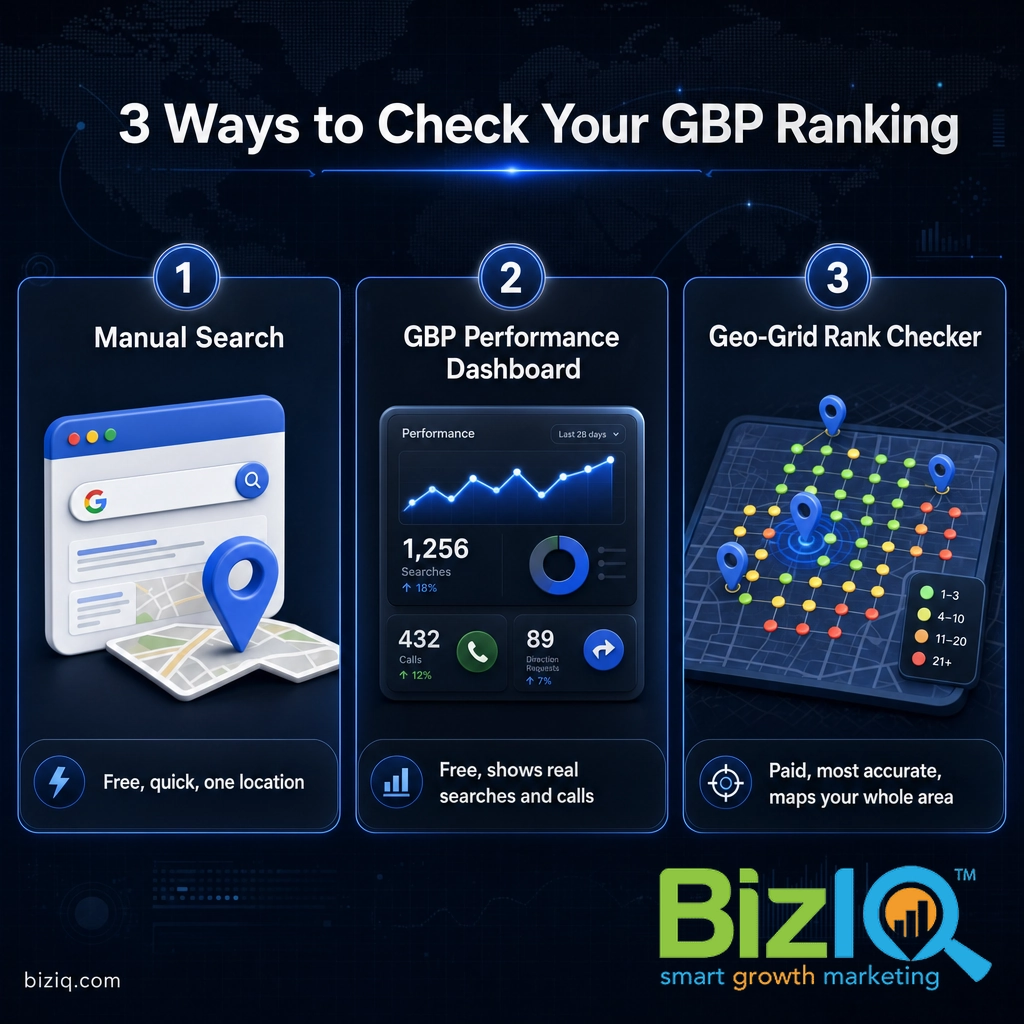
- The three methods, in order of accuracy: a manual incognito search (free, quick), your GBP Performance dashboard (free, shows real queries), and a geo-grid rank checker tool (paid, most accurate).
- Always search in an incognito window with your location set, or your own history will skew the result.
- Check once a month and track the same keywords from the same place so your comparisons stay fair.
- If you cannot find your business at all, confirm the profile is verified first, then look at categories, reviews, and local authority.
What’s in This Guide
- Why There Is No Single Ranking Number
- Before You Begin
- Method 1: Check Your Ranking With a Manual Search
- Method 2: Read Your GBP Performance Dashboard
- Method 3: Use a Geo-Grid Rank Checker Tool
- Which Method Should You Use?
- What a Good Ranking Looks Like
- When to Call a Professional
- Troubleshooting Common Problems
- Frequently Asked Questions
Before You Begin
You do not need any paid tools to start. Have these ready:
- Your main keyword. The phrase a customer would actually type, with a location, like “plumber in Mesa” or “dentist near me.”
- Your customers’ location. The neighborhood, city, or zip where your buyers are, not necessarily where you sit.
- A browser. Chrome, Safari, or Edge all work. You will use a private or incognito window.
- Your Google Business Profile login for the dashboard method.
Estimated time: about 10 minutes for the free methods. Skill level: beginner.
Why There Is No Single Ranking Number
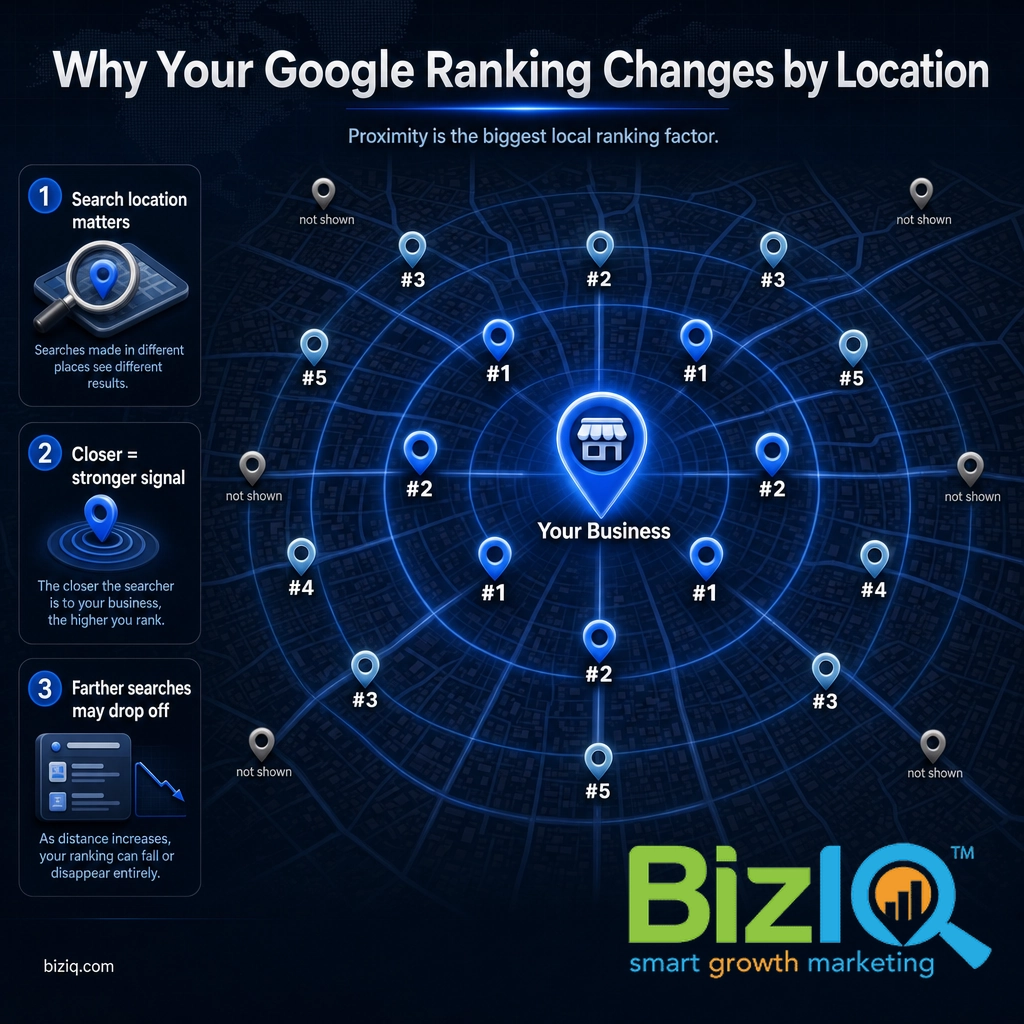
Before you check anything, understand this: Google does not assign your business one fixed rank. Local search results are built for each person in the moment, using their location, the exact words they search, and their past activity. The single biggest factor is proximity. A customer standing near your front door may see you first, while someone across town sees three competitors ahead of you for the same search.
This is why the local map results (the pack of three businesses with a map that Google shows for local searches) feel so unpredictable. It is also why checking your rank once from your own office is misleading. Your office is one point on the map, and your signed-in account already knows you run the business. For a real answer, you have to control for location and strip out your own history, which is exactly what the methods below do. If you want the deeper mechanics, our guide on how Google ranks a business profile breaks down every signal Google weighs.
Ranking well is worth the effort because a strong, complete profile does real work for you.
Source: Google Business Profile Help
Method 1: Check Your Ranking With a Manual Search
This is the fastest free method and the one every owner should know. It gives you a quick snapshot of where you stand for one keyword, from one location, right now. Do it in an incognito window so your own search history and login do not tilt the result.
Step 1: Open a private or incognito window
In Chrome, press Ctrl+Shift+N (Cmd+Shift+N on a Mac). In Safari, choose File then New Private Window. This signs you out of Google for that window so you see closer to what a stranger sees. Why it matters: when you are logged in, Google knows you own the business and inflates your position. Success looks like: a fresh browser window with no account photo in the top corner.
Step 2: Set your search location
Because proximity drives local results, you have to tell Google where to search. The simplest way is to add the location to your query (for example, “roofer in Tempe AZ”). For a more precise test, search “[your keyword]” then open Google Maps and drag the map to your customers’ neighborhood before searching there. Why it matters: searching from your own address only tells you how you rank for people at your address. Success looks like: a results page or map centered on the area your customers actually live and work in.
Step 3: Find your business in the local map results
Run the search and look at the map pack, the boxed group of local businesses near the top. Count down to find your listing. If you are not in the top three shown, click “More businesses” or “View all” to see the full ranked list and note your position. Why it matters: the top three get the vast majority of clicks and calls, so your exact spot tells you how much visibility you are leaving on the table. Success looks like: you have a number, such as “we rank 4th for plumber in Mesa from the downtown area.”
Do not trust a single search as your official ranking. It is one location at one moment, from one device. Run the same search from two or three different neighborhoods your customers come from, and you will usually see your position move. That spread, not one number, is your real ranking picture.
Method 2: Read Your GBP Performance Dashboard
Your Google Business Profile has a built-in Performance section that reports real data from real customers: the searches that showed your profile, how many people called, requested directions, or visited your website. It will not hand you a rank number, but it tells you which keywords already find you and whether your visibility is trending up or down. This is the most honest free signal you have.
Step 1: Open your Business Profile
Sign in to the Google account that manages your profile and search your business name, or go to your profile manager. Click into the profile you want to check. Why it matters: the Performance data lives inside your verified profile and is not visible to the public. Success looks like: your business dashboard with options like Edit profile, Promote, and Performance.
Step 2: Open Performance and set a date range
Click Performance, then choose a date range (the last three months is a good default). You will see totals for calls, messages, bookings, direction requests, and website clicks. Why it matters: these actions are what ranking is supposed to produce, so they are the outcomes that matter more than position alone. Success looks like: a chart of interactions over time you can compare month to month.
Step 3: Read the search terms that find you
Scroll to the section that lists the searches people used to find your profile (often labeled “Searches breakdown” or “How people found you”). This is gold: it shows the exact keywords your profile is already appearing for. Why it matters: if the terms you want to rank for are not in this list, you are not visible for them yet, which tells you where to focus. Success looks like: a ranked list of real search phrases with the number of times each one surfaced your profile.
Seeing how your profile performs is a lot easier to grasp in motion. This short walkthrough shows what a well-run Google Business Profile does for a local business.
Method 3: Use a Geo-Grid Rank Checker Tool
When you want an accurate, repeatable answer, a geo-grid rank checker is the gold standard, and it is what agencies use. Instead of one search from one spot, these tools check your keyword from dozens of points arranged in a grid around your business, then plot your map ranking at each point as a colored dot. Green dots mean you rank near the top there; red dots mean you are buried. In one glance you see exactly how far your visibility reaches and where competitors are winning.
Popular options include Local Falcon, BrightLocal, and similar GBP rank checkers. If you have searched for “how to track GBP on a rank tracker,” this is the category of tool you were looking for.
Step 1: Create an account and add your business
Sign up for a geo-grid tool (most offer a free trial or a limited free scan). Connect or search for your Google Business Profile so the tool knows which listing to track. Why it matters: the tool measures your specific profile against your real competitors. Success looks like: your business confirmed inside the tool, ready to scan.
Step 2: Enter your keyword and set the grid
Type the keyword you want to track and set the grid size and spacing (for example, a 5-by-5 grid covering a few miles). Run the scan. Why it matters: the grid size defines how wide a service area you are measuring, so match it to where your customers actually are. Success looks like: a map with a grid of points laid over your service area.
Step 3: Read the heat map and track it over time
Review the colored grid: strong where it is green, weak where it is red or empty. Save the scan and run the same keyword and grid again next month to see whether your reach is growing. Why it matters: the trend across repeated scans is the real measure of whether your local SEO (search engine optimization, the work of ranking higher in search) is working. Success looks like: a saved baseline you can compare future scans against.
Real results for real local businesses
How BizIQ clients turned their Google presence into customers.
Holloway Construction
Demolition & excavation — Jonesborough, TN
Down to their last $2,500 with no online presence, Holloway Construction had BizIQ launch a website in under 24 hours and optimize their Google Business Profile so customers could find them — and made $30,000 in 24 hours.
“BizIQ saved my business.” — Mark Holloway, Owner
Signmakers
Custom signage — Los Angeles, CA
This 25-person LA sign maker — serving brands like Ferrari, Louis Vuitton, and Piaget — got the phone ringing with higher-quality clients after partnering with BizIQ.
“We definitely got the phone ringing with higher quality clients.” — Paul Stoakes, Owner
Which Method Should You Use?
Use all three, because each answers a different question. Here is how they stack up so you can pick the right one for the moment.
| Method | Cost | Accuracy | Best for |
|---|---|---|---|
| Manual incognito search | Free | Low to medium | A quick gut check for one keyword, one area |
| GBP Performance dashboard | Free | Medium (real data, no rank number) | Seeing which keywords already find you and whether calls and clicks are trending up |
| Geo-grid rank checker tool | Paid (trials available) | High | An accurate, repeatable map of your true visibility across your whole service area |
Think of the three methods as a funnel. The manual search tells you something looks off, the Performance dashboard tells you which keywords are involved, and the geo-grid scan tells you exactly how far your problem spreads across the map. Owners who only ever do the first one make decisions on the least reliable data they have.
What a Good Ranking Looks Like
For local searches, the prize is the map pack, the three listings Google shows with a map before the regular links. Landing in that top three is the goal, because those three capture most of the clicks, calls, and direction requests. Ranking fourth or lower still has value, since customers can expand the list, but the drop-off after the top three is steep.
Judge yourself by two things, not one. First, your position for your core keywords from your customers’ locations. Second, your reach: how wide an area you rank well across, which the geo-grid map shows plainly. A business can rank first right at its address and vanish a mile away. Closing that gap is often where the fastest growth comes from. The factors that move both are covered in our breakdown of the most important local SEO ranking factors.
Track the same two or three keywords every month from the same locations. Consistency is what turns a pile of numbers into a trend you can actually act on. A keyword that slipped from second to fifth is a signal; a keyword you only ever checked once is just trivia.
When to Call a Professional
If you reach this point and your geo-grid map is mostly red, or your Performance dashboard shows the keywords you care about are not finding you at all, the problem is no longer about how you check your ranking. It is about local authority, reviews, categories, and on-profile optimization working together, which takes a plan and ongoing work.
That is where it pays to bring in help rather than guess. A Get a Free GBP Analysis from BizIQ shows you exactly where you rank, what is holding you back, and the fastest path to the map pack, with no obligation. If you would rather hand the whole profile off, our Explore Local SEO Services team does the ongoing work for you.
BizIQ has spent more than ten years helping small businesses get found locally, and we practice what we preach.
Source: BizIQ customer reviews
Troubleshooting Common Problems
If checking your ranking is not going smoothly, one of these is usually why.
| Problem | Likely cause | Fix |
|---|---|---|
| I rank first, but customers say they cannot find me | You are checking while logged in, from your own address | Search in an incognito window and set your customers’ location |
| My business does not appear at all | Unverified, suspended, or newly created profile | Confirm the profile is verified and published, then recheck in a few days |
| My rank is totally different on my phone | Different location and account history on each device | Compare only incognito searches with the same location, or use a geo-grid tool |
| The Performance dashboard shows no data | New profile or you are viewing the wrong listing | Confirm you are signed into the account that owns the profile and give it a few weeks of activity |
| My ranking keeps bouncing week to week | Normal local volatility plus personalization | Check monthly, not daily, and judge the trend rather than any single scan |
If your profile does not appear even after verifying it, our guide on what to do when you do not show up on Google walks through the next fixes, and editing your Business Profile for better visibility covers the on-profile changes that move the needle.
We are very happy
“BizIQ has helped our business so much! They promised and delivered! We are very happy with their service, our web presence and all the follow up support we get!”
— CharLee B.
Highly recommend BizIQ
“Our business recently hired BizIQ to create our website. They have created the best website we have ever had. We have been impressed by their customer service and how quickly they do…”
— Norman S.
Remarkable job
“Our Client Success Manager has done a remarkable job building our website. Her professionalism and knowledge is great. I never dreamed my business could look so good on a website. All…”
— Michael C.