
Geotagging a photo means attaching GPS coordinates (the exact latitude and longitude where it was taken) to the photo’s hidden metadata. It is a popular local-SEO tip, so here is the honest answer up front: you can geotag your photos, but Google removes that location data the moment you upload a picture to your Google Business Profile (GBP, formerly called Google My Business, or GMB). That means geotagging will not directly lift your ranking in the local map results. The good news is that photos still matter enormously for getting found, and there are simple, proven things you can do instead. This guide shows you how to geotag a photo correctly, explains what really happens when you upload it, and lays out what actually helps your profile earn more calls, clicks, and visits.
- Geotagging adds GPS coordinates to a photo’s EXIF metadata, but Google strips that data when you upload to your Business Profile, so it does not carry through to your listing.
- A controlled study covered by Search Engine Land in early 2025 found no city-level ranking benefit from geotagged photos, with at most a marginal effect on some near-me searches.
- Photos themselves are powerful: profiles with photos get 42% more direction requests and 35% more website clicks than profiles without.
- What really helps is uploading real, recent, correctly sized photos on a regular schedule, named descriptively, and shot on-site.
- Geotagging is still useful for photos on your own website and some other platforms that keep the data.

What’s in This Guide
- What It Means to Geotag a Photo
- Does Geotagging Help Your Google Business Profile Rank?
- What Actually Helps Your Business Profile Photos Work
- How to Geotag a Photo, Step by Step
- When to Call a Professional
- Troubleshooting Common Geotagging Problems
- Maintain and Monitor Your Photos
- Frequently Asked Questions
What It Means to Geotag a Photo
Every digital photo carries a small packet of hidden information called EXIF data (short for Exchangeable Image File format). It records details like the date, the camera or phone model, the exposure settings, and, when location is turned on, the GPS coordinates of where the shot was taken. A photo with those coordinates saved is a “geotagged” photo.
The idea behind geotagging for local search is simple: if your photos are stamped with the location of your business, Google will supposedly connect your pictures to that place and help you rank for nearby searches. It is an appealing theory, because it would mean a quick metadata trick could boost your visibility. It is also where most of the confusion starts, because what happens to that data after you upload is the part people skip.
A quick vocabulary check so the rest of this guide reads clearly. SEO (search engine optimization) is the work of helping your business show up higher in search results. Your Google Business Profile is the free listing that appears in Google Search and Google Maps with your name, hours, reviews, and photos. CTR (click-through rate) is the share of people who see your listing and actually click it. A complete, active profile influences all three, and that is where your energy pays off.
Keep that in mind as we go: the payoff is in a complete, well-maintained profile, not in a metadata shortcut. Source: Google Business Profile.
Does Geotagging Help Your Google Business Profile Rank?
Here is the part that matters most, so we will be direct about it. When you upload a photo to your Google Business Profile, Google removes the EXIF metadata, including the GPS geotag. The location you carefully stamped onto the file does not survive the upload, so it cannot tell Google anything about where your business is. The geotag is gone before the photo ever appears on your listing.
The myth: “Geotagging your photos is a secret weapon that quietly boosts your Google Business Profile ranking.” The reality: because Google strips the location data on upload, a geotag added beforehand has nothing to act on. It is not a hidden lever, and it is not a shortcut around doing the real work.
You do not have to take our word for it. A controlled study covered by Search Engine Land in early 2025 tracked geotagged photos over about ten weeks. The finding: no impact on broader city-based searches, with at most a marginal effect for some hyper-local “near me” queries in the exact area named in the coordinates. Separate hands-on tests by local SEO researchers reached the same place, reporting no measurable lift in local-pack rankings and no traffic gain to pages using geotagged images.
If a tactic depends on data that the platform deletes the instant you use it, it is not a ranking strategy, it is busywork. The time you would spend geotagging every image is far better spent uploading more genuine photos and keeping your profile accurate. That is the honest read on the evidence, and it is the advice we give every client who asks about this.
None of this means photos are unimportant. It means the metadata on the photo is the wrong thing to obsess over. The photo itself, and how often you add fresh ones, is what Google and your future customers actually respond to. Want the bigger picture on how your listing feeds local search? Our guide on whether Google My Business helps your SEO connects the dots. Source: Search Engine Land.
What Actually Helps Your Business Profile Photos Work
Photos are one of the most valuable parts of your profile. They are the first impression a searcher gets, they build trust before anyone calls you, and Google has confirmed that photo activity is tied to how profiles perform in local results. The numbers back that up.
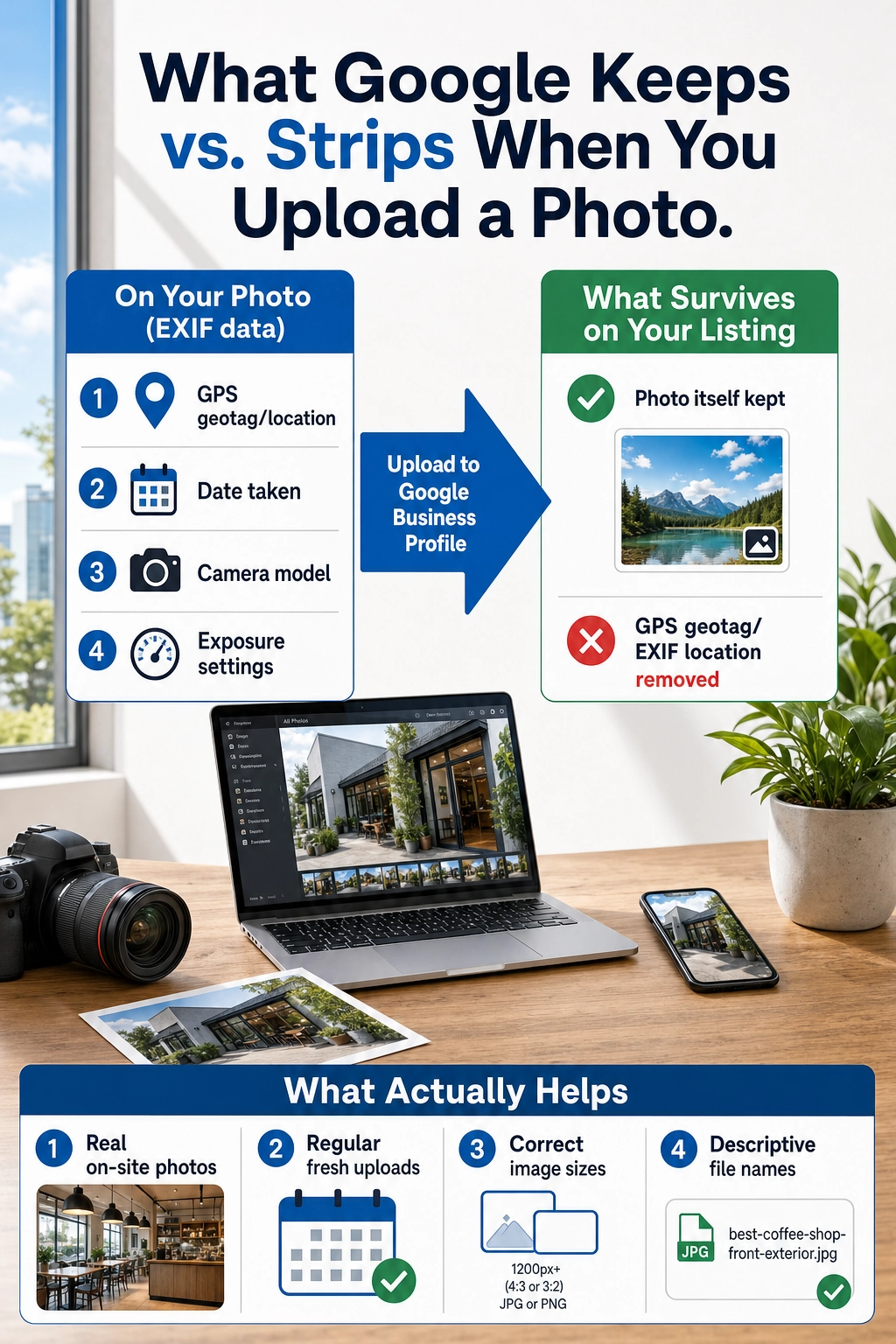
So forget the geotag and focus on the things that genuinely move your profile forward:
- Upload real photos of your actual business. Your storefront, your team, your finished work, your products, the inside of your space. Authentic photos outperform polished stock every time, because local searchers want to see the real you.
- Add new photos on a regular schedule. A profile that gets fresh images every week or two signals an active, open business. Set a simple cadence and stick to it.
- Shoot on-site. Take the photos at your location with your phone. This is the honest version of “location relevance”: the picture truly is of your place, which is exactly what customers and Google want.
- Name your files descriptively before uploading. “oak-cabinet-install-phoenix.jpg” is clearer than “IMG_4821.jpg.” It will not override a ranking, but a clean, descriptive file name is good hygiene and costs you nothing.
- Use the correct image sizes. Photos that are too small look blurry and photos that are oversized can get rejected. Our Google Business Profile photo size guide lays out the exact dimensions for each photo type.
- Keep your gallery clean. If a customer posts a low-quality or off-brand image, learn how to remove a customer photo from your profile so your best work stays front and center.
Do these consistently and your profile earns more of the trust, calls, and visits that actually grow a local business, which is the entire point.
Real results for real local businesses
How BizIQ clients turned their Google presence into customers.
Holloway Construction
Demolition & excavation — Jonesborough, TN
Down to their last $2,500 with no online presence, Holloway Construction had BizIQ launch a website in under 24 hours and optimize their Google Business Profile so customers could find them — and made $30,000 in 24 hours.
“BizIQ saved my business.” — Mark Holloway, Owner
Signmakers
Custom signage — Los Angeles, CA
This 25-person LA sign maker — serving brands like Ferrari, Louis Vuitton, and Piaget — got the phone ringing with higher-quality clients after partnering with BizIQ.
“We definitely got the phone ringing with higher quality clients.” — Paul Stoakes, Owner
How to Geotag a Photo, Step by Step
Maybe you still want to geotag your photos, and that is a reasonable choice. Geotags are genuinely useful for images on your own website, for platforms that keep the data, and for your own record-keeping. Here is how to do it correctly on the devices you already own.
Before You Begin
What you will need: a smartphone or computer with the photos you want to tag. Time: about 5 to 10 minutes to set up, then it happens automatically. Skill level: beginner. No special software is required for phones; a desktop tool is only needed if you want to add or change a location by hand.
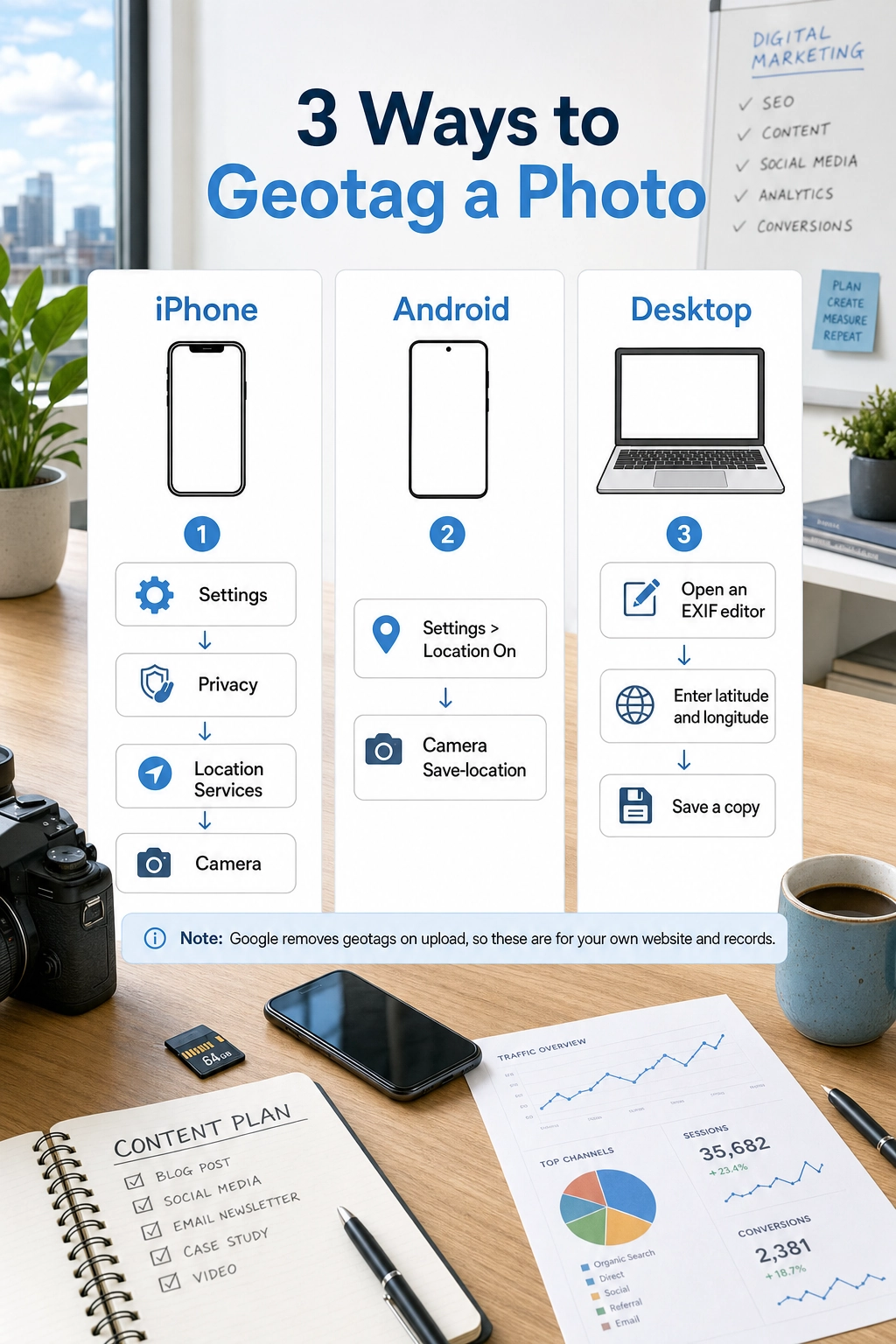
Step 1: Turn On Location So Your Camera Tags Photos Automatically
The easiest geotag is the one your phone adds for you. On an iPhone, open Settings, go to Privacy and Security, then Location Services, then Camera, and choose While Using the App with Precise Location turned on. On Android, open Settings, go to Location, make sure it is on, then open the Camera app’s own settings and enable the location or “save location” option.
Why this step matters: once location is on, every new photo records the exact GPS coordinates where you stood, with no extra effort. What success looks like: a photo you take afterward will show a small map or a place name in its details.
Step 2: Confirm the Geotag on an iPhone
Open the Photos app, tap the picture you want to check, then tap the info button (the small “i” in a circle, or swipe up on the photo). If location was on when you took it, you will see a map with the spot marked. To adjust it, tap Adjust and search for the correct address.
Why this step matters: it confirms the coordinates are actually saved before you use the photo anywhere. What success looks like: the info panel shows a map pin at your business location.
Step 3: Confirm the Geotag on Android
Open Google Photos, tap the image, then swipe up or tap the three-dot menu to see its details. A photo with location data shows a map and the place name. If you need to add or fix it, tap Edit on the location line and search for the right address.
Why this step matters: Android devices and apps vary, so verifying is the only way to be sure the tag stuck. What success looks like: the details panel displays the correct map location.
Step 4: Add or Edit a Geotag on a Desktop Computer
To geotag an existing photo on a computer, use a free EXIF or metadata editor, or a mapping tool that lets you drop a pin and export the image with coordinates. Open the photo in the tool, find the GPS or location fields, enter your latitude and longitude (or click your spot on the map), and save a copy. Keep an untouched original in case you want to start over.
Do not falsify locations. Tagging a photo with a location where your business does not operate is dishonest, it can confuse the few platforms that do read the data, and it never helps your Google Business Profile because Google removes the tag anyway. Geotag only the real place a photo was taken.
Why this step matters: desktop editing is how you tag older photos or correct a wrong location for images used on your website. What success looks like: the saved copy shows your true business coordinates in its metadata.
Prefer to watch a quick walkthrough of how BizIQ approaches Google Business Profile photos and local visibility? This short video covers it.
When to Call a Professional
If you have been uploading photos for months and still cannot crack the local map results, the issue is almost never your geotags. It is usually a profile that is incomplete, miscategorized, thin on reviews, or competing in a crowded market where ranking takes a coordinated local-SEO plan. That is the point to bring in help rather than chase metadata tricks.
BizIQ has helped small businesses get found on Google for more than ten years, and photo strategy is one small piece of the local-SEO work we do every day. If you would rather have experts handle the whole profile, that is exactly what our team is for.
Before you hand it off, it is worth getting a clear, no-cost read on where your profile stands today so you know what you are actually fixing.
Troubleshooting Common Geotagging Problems
If a geotag is not behaving the way you expect, one of these is almost always the reason.
| Problem | Why It Happens | What to Do |
|---|---|---|
| My photos have no location data | Location was turned off in your camera or phone settings when the photo was taken | Turn on Location Services for your Camera app (Step 1), then retake or re-shoot the photos |
| The geotag disappeared after uploading to Google | Google Business Profile strips EXIF data, including GPS, on upload | This is expected and cannot be changed; focus on uploading real, fresh photos instead |
| The location on a photo is wrong | GPS drift indoors, or the photo was copied and edited by an app that rewrote the data | Edit the location in Photos or Google Photos, or fix it with a desktop EXIF editor |
| My website is not showing any ranking gain from geotags | Geotags are a small signal at best and are not a substitute for real local-SEO work | Prioritize reviews, accurate categories, and consistent photo uploads |
| Some platforms keep my geotag and others do not | Each platform decides whether to keep or remove EXIF data on upload | Assume major platforms like Google remove it; only rely on tags where you control the file |
Maintain and Monitor Your Photos
Great photos are not a one-time task. Treat your gallery like a living part of your storefront. Add a handful of new, genuine images every couple of weeks, swap out anything that looks dated, and make sure your newest work is always represented. A profile that keeps getting fresh photos reads as an active, trustworthy business to both searchers and Google.
Then watch what it does. Track how your profile is performing over time so you can tell what is working and double down on it. Our guide on how to check your Google Business Profile ranking walks you through it. Pair steady photo uploads with ongoing optimization and the results compound month over month.
Build long-term visibility with ongoing SEO
10 stars
“I have been solicited by hundreds of people but nobody could ever compare to BizIQ's first class service and professionalism. Very fair pricing and unparalleled expertise. Couldn't be…”
— Don S.
Best SEO company
“Hands down the best SEO company in business!! Our Client Success Manager is the most honest and hard working person I have had the pleasure of working with! This company can change…”
— James H.
Uncomplicated & easy
“Since working with BizIQ we have already noticed a climb in our daily bottom line. Customers new to our small town have easily found us and have come in to buy eyeglasses that would…”
— Eve H.
Frequently Asked Questions
Does geotagging photos help my Google Business Profile rank?
Does Google remove photo metadata (EXIF) when I upload to my Business Profile?
How do I geotag a photo on my iPhone?
Is there a geotag button inside Google Business Profile?
Should I still geotag photos for my own website?
What actually helps my Google Business Profile photos get seen?
The Bottom Line
Geotagging photos is not the ranking hack it is often made out to be, because Google deletes the location data the moment you upload a picture to your Business Profile. Knowing that saves you hours of busywork. Pour that time into the things that genuinely work: real, fresh, correctly sized photos uploaded on a steady schedule, a complete and accurate profile, and a local-SEO plan built to get your business in front of nearby customers. BizIQ has 4.6 stars from 1,000+ Google reviews because we focus on what actually grows local businesses, and we would be glad to do it for yours.