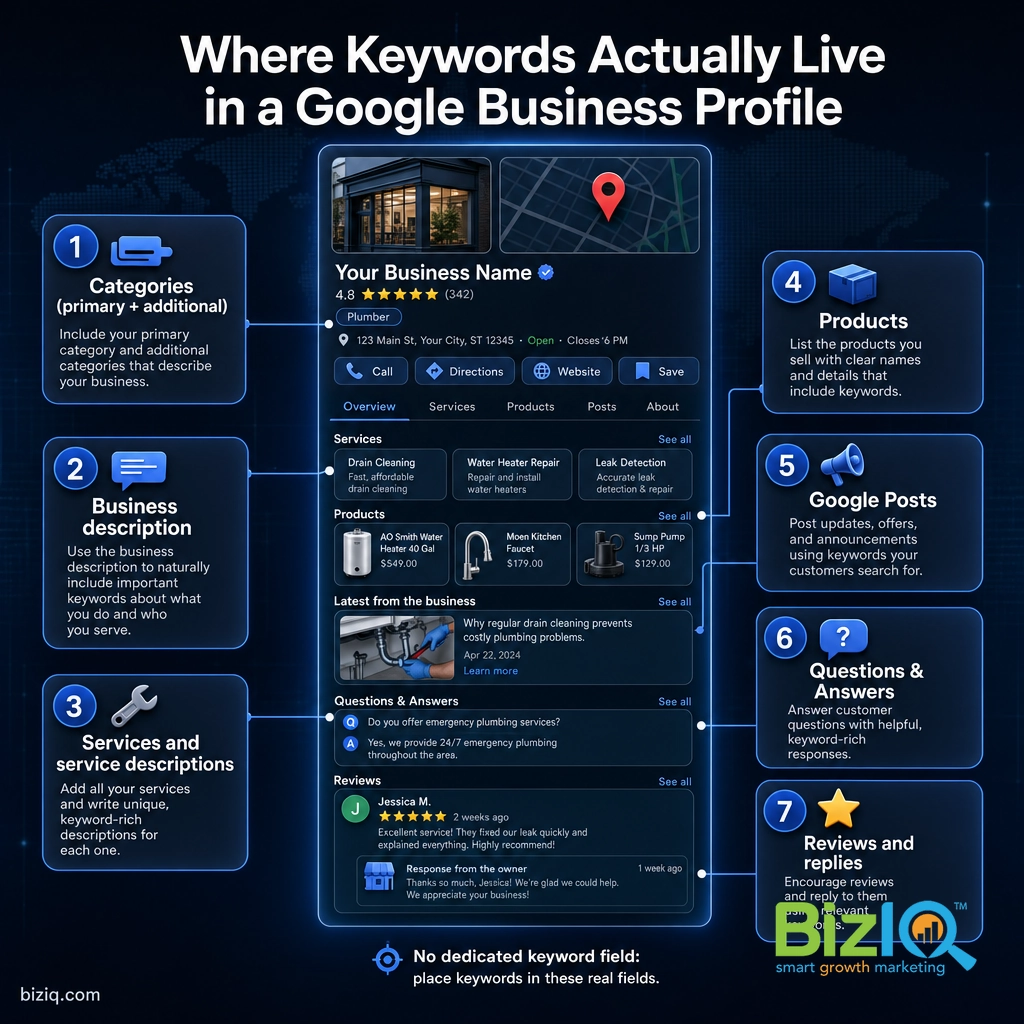
Here is the part most guides bury: Google Business Profile (GBP), the free listing that shows up in Google Maps and the local results, has no box where you type in keywords. You cannot paste a list of search terms and call it done. Instead, you add keywords by working them into the real fields Google already gives you, your categories, description, services, posts, and reviews, so your listing shows up when nearby customers search for what you sell. This guide walks through exactly where those keywords go, in the order that moves the needle, and the one mistake that can get your Profile suspended.
- GBP has no dedicated keyword field. You “add keywords” by placing them in your categories, business description, services, products, Google Posts, Q&A, and review replies.
- Your categories do the heaviest lifting. Pick the most accurate primary category first, then add relevant secondary ones.
- Write for a real person, not a robot. Natural, truthful phrasing beats keyword stuffing every time.
- Never stuff keywords into your business name. It breaks Google’s rules and risks a suspension.
- Keywords are only half the job. Reviews, photos, and an active, complete Profile are what turn rankings into calls and visits.
Before You Begin
You will need:
- A verified Google Business Profile you can edit. If you have not claimed yours yet, do that first, then come back.
- Owner or manager access to the Profile (you make these edits straight from Google Search or Maps when signed in to the right account).
- A short keyword list: the handful of terms customers actually use to find a business like yours. We cover how to build that list below.
- About 30 minutes for a first pass, plus a few minutes a week to keep posts and Q&A fresh.
Skill level: beginner. If you can edit a social media profile, you can do this.
First, the Truth: There Is No “Keywords” Box
Search engine optimization (SEO) for a website often involves a keywords field in a plugin. GBP does not work that way. Google figures out which searches your Profile is relevant for by reading the fields you fill in and matching them against what people type. So “adding keywords” really means telling Google what you do, clearly and accurately, in the places it looks.
That is good news. It means you do not need any special tools or tricks. You just need to fill in the right fields with the words your customers use, and keep them honest. A complete, accurate Profile is also what builds trust with the person doing the searching.
Source: Google Business Profile (Google)
Step 1: Find the Keywords Your Customers Actually Use
Before you add anything, you need the right short list. You are not guessing what sounds impressive. You are matching the exact phrases real people type when they need your service.
What to do:
- Open Google and start typing your core service plus your city. Note the autocomplete suggestions Google offers. Those are real searches.
- Scroll to the “People also ask” and “Related searches” at the bottom of the results page for more phrasing.
- Look at two or three competitors who already rank in the local map pack. Read the categories and services on their Profiles for ideas (never copy anything untrue about your own business).
- Jot down 5 to 10 phrases. A plumber might land on “emergency plumber,” “water heater repair,” “drain cleaning,” and the neighborhoods served.
Why this matters: every field below is only as good as the words you put in it. A tight, accurate list keeps you from stuffing and keeps your Profile readable.
What success looks like: a simple list of a few genuine, high-intent phrases you can slot into the sections that follow.
Step 2: Set Your Categories (the Heaviest Lever)
Categories are the single most important place keywords live on a GBP, because Google uses them to decide which searches you are even eligible for. You do not type free-text here; you choose from Google’s own list, so pick the ones that match your list most precisely.
What to do:
- Open your Profile, choose Edit profile, then the Business category section.
- Set your primary category to the one that best describes your main business. This carries the most weight, so be specific: “Emergency plumber” beats a generic “Plumber” if that is your focus.
- Add relevant additional categories for the other services you genuinely provide. Only add what is true.
Why this matters: the wrong primary category can keep you out of the searches you most want to win. For a deeper walkthrough on choosing well, see our guide to picking the right Google Business Profile categories.
What success looks like: one precise primary category and a short set of accurate secondary ones, no padding.
Step 3: Weave Keywords Into Your Business Description
The business description is your 750-character pitch. It does not carry as much ranking weight as categories, but it is prime space for the phrases customers use, and it is what many people read before deciding to call.
What to do:
- Front-load the most important information. Google shows roughly the first 250 characters before a “more” link, so lead with who you are, what you do, and where.
- Work your top two or three keyword phrases in naturally, as full sentences a customer would actually read.
- Keep it truthful and specific: services, areas served, and what sets you apart.
Why this matters: a clear, keyword-aware description helps the right searcher recognize you fast, which turns a listing into a lead.
What success looks like: a description that reads like a confident human wrote it and happens to contain your key phrases, not a comma-separated keyword dump.
“More keywords in the description means higher rankings.” Not true. Google reads the description for relevance, but packing it with repeated phrases makes it unreadable and can look manipulative. One natural mention of each core phrase does more for you than ten forced ones.
Step 4: Add Keyword-Rich Services and Descriptions
The services section is one of the most underused keyword opportunities on a Profile. You can add Google’s suggested services for your category and create your own custom ones, each with a short description.
What to do:
- In Edit profile, open Services. Add every relevant suggested service Google lists for your categories.
- Create custom services for anything specific you offer that is not on Google’s list, using the exact phrasing customers search.
- Fill in the optional service description for each one. This is extra, natural space for the terms on your keyword list.
Why this matters: services spell out exactly what you do in your customers’ language, which helps you match more specific searches. If you want the full method, read our step-by-step on adding services to your Google Business Profile.
What success looks like: a services list that mirrors your real offerings and the phrases people search, each with a short, honest description.
Step 5: Use the Products Section Where It Fits
If your business sells specific products or packaged offerings, the products section lets you add titles, descriptions, and photos. Each product title and description is another natural home for a keyword, and products show up as visual cards on your Profile.
What to do: add your key products or packages with clear, keyword-aware titles and a sentence or two of description. A med spa might list “Hydrafacial treatment” or “laser hair removal,” a retailer its top categories.
Why this matters: products add relevant text and eye-catching visuals that keep people on your Profile longer.
What success looks like: a few real products or packages, each named the way a customer would search for it.
Step 6: Keep Keywords Fresh With Posts and Q&A
Google Posts (the updates that appear on your Profile) and the Q&A section both add fresh, relevant text to your listing, and both are easy places to use your phrases naturally.
What to do:
- Google Posts: publish a short update every week or two, an offer, a tip, a seasonal note, and include a relevant keyword where it reads naturally. Posts keep your Profile active, which Google rewards.
- Q&A: post your own frequently asked questions and answer them. Seed a keyword or two into the answers. You can also answer real customer questions the same way.
Why this matters: an active Profile signals a live, trustworthy business, and every post and answer is more relevant text working for you.
What success looks like: a steady drip of posts and a short set of helpful, keyword-aware Q&A entries. (A related tool worth knowing: labels in Google My Business help you organize listings internally, though they are not public keywords.)
Step 7: Let Reviews and Replies Add Keywords for You
You cannot control what customers write, but reviews are full of the natural language people use, and your replies are text you do control. Both become part of your Profile’s relevance.
What to do:
- Ask happy customers for reviews, and nudge them to mention the specific service and city (“great emergency plumbing in Mesa”) where it is honest.
- Reply to every review. In your reply, restate the service and location naturally: “Thanks for trusting us with your water heater repair in Mesa.”
Why this matters: review volume and quality are among the strongest local ranking and trust signals, and keyword-aware replies add relevant, genuine text. See how to edit your Profile for better visibility for more on the full picture.
What success looks like: a growing stream of recent reviews and a reply on every one.
Source: Google Business Profile (Google)
Keywords get you found, but photos, reviews, and a complete Profile are what turn that visibility into real calls and visits. Treat the two as one job.
Real results for real local businesses
How BizIQ clients turned their Google presence into customers.
Holloway Construction
Demolition & excavation — Jonesborough, TN
Down to their last $2,500 with no online presence, Holloway Construction had BizIQ launch a website in under 24 hours and optimize their Google Business Profile so customers could find them — and made $30,000 in 24 hours.
“BizIQ saved my business.” — Mark Holloway, Owner
New Image by Hilary
Cosmetic enhancement services
A previous agency had her competing against herself, so customers couldn’t find her. BizIQ won a $3,000 refund, then built an optimized site with local keyword research — now customers find her again straight from a Google search.
The One Thing Not to Do: Stuff Your Business Name
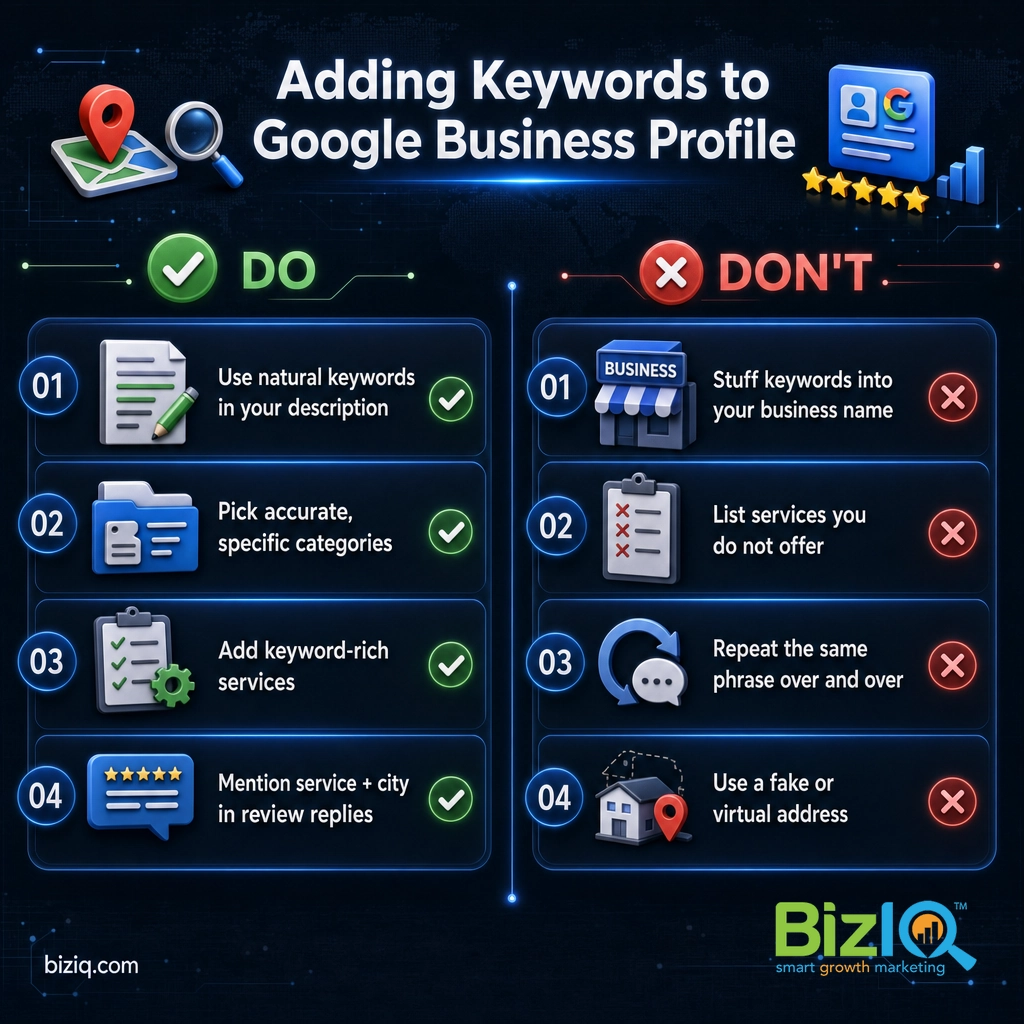
It is tempting to rename your business “Joe’s Plumbing – Best Emergency Plumber Phoenix” to cram in keywords. Do not. Google’s guidelines require your name field to match your real-world business name, and keyword stuffing it is one of the fastest ways to get your Profile suspended. A keyword only belongs in the name when it is genuinely part of your legal name, such as “Smith Emergency Plumbing.” Everything else goes in the fields above, where it is safe and effective.
When to Call a Professional
If you have filled in every field and you are still not showing up for the searches that matter, the problem is usually bigger than keywords: category strategy, review velocity, local competition, or technical issues on your website. That is the point where a hands-on local SEO partner pays for itself.
BizIQ sets up and optimizes Google Business Profiles for small businesses every day, and our own 4.6-star rating across 1,000+ Google reviews reflects it. Here are two easy ways to get help:
Source: BizIQ reviews

Troubleshooting Common Problems
| Problem | Likely cause | What to do |
|---|---|---|
| My edits are “pending review” for days | Google manually reviews some changes, especially names and categories | Wait a few days. Make sure every edit is truthful so it is approved, not rejected. |
| I added keywords but my ranking did not move | Rankings take weeks, and categories or reviews may be the real gap | Give it time, strengthen your primary category, and build recent reviews. |
| The service I want is not in Google’s list | Google only suggests services tied to your categories | Create a custom service with the exact phrasing you need. |
| My Profile got suspended after editing | A guideline violation, often a stuffed name or inaccurate info | Fix the field to match your real business and request reinstatement. |
| I rank in one town but not the next one over | Local results favor proximity to the searcher | Serve and mention nearby areas in services and posts, and earn reviews that mention them. |
Maintain and Monitor Your Results
Adding keywords is not a one-time task. The Profiles that win are the ones that stay active and get checked regularly.
- Review your categories and services each quarter as your offerings change.
- Keep posting and answering questions so your Profile stays fresh.
- Track where you stand. Watch which searches you appear for and how you rank over time. Our guide on how to check your Google Business Profile ranking shows you how, and if you want the strategy behind it, see whether Google My Business helps your SEO.
For the complete picture of every field and setting, our complete guide to Google Business Profile and the Google Business Profile FAQ hub are good next reads. You can also learn more about our full Google Business Profile management approach.
The businesses that win local search are not the ones with the most keywords; they are the ones whose Profile is the most accurate, complete, and active. Add your keywords where they belong, keep every field honest, and let reviews and fresh posts do the rest. Relevance plus consistency beats volume every time.
Uncomplicated & easy
“Since working with BizIQ we have already noticed a climb in our daily bottom line. Customers new to our small town have easily found us and have come in to buy eyeglasses that would…”
— Eve H.
So pleased
“I am so pleased with BizIQ. For the first time I did the right thing in hiring them to assist me with increasing my business. I have moved onto page one of the internet in my area and…”
— Jan W.
Fantastic
“Great company to work with. The people are fantastic and do a great job eliminating the hassle of what could otherwise be a very daunting and time consuming task. The increase in…”
— Tim M.
Frequently Asked Questions
Can you add keywords directly to a Google Business Profile?
Does putting keywords in your business name help you rank?
Where is the best place to add keywords in a Google Business Profile?
How many keywords should I add to my Google Business Profile?
Will adding keywords get my Google Business Profile suspended?
How long does it take for keywords to improve my local ranking?
Do keywords in Google Posts and review replies actually help?
Sources: Google Business Profile (Google) for completeness and photo performance figures; Google Business Profile Help for current field labels and content guidelines. Interface labels in Google Business Profile change over time, so confirm the exact menu names when you edit. Keyword-placement guidance reflects established local SEO best practice; no ranking outcome is guaranteed.