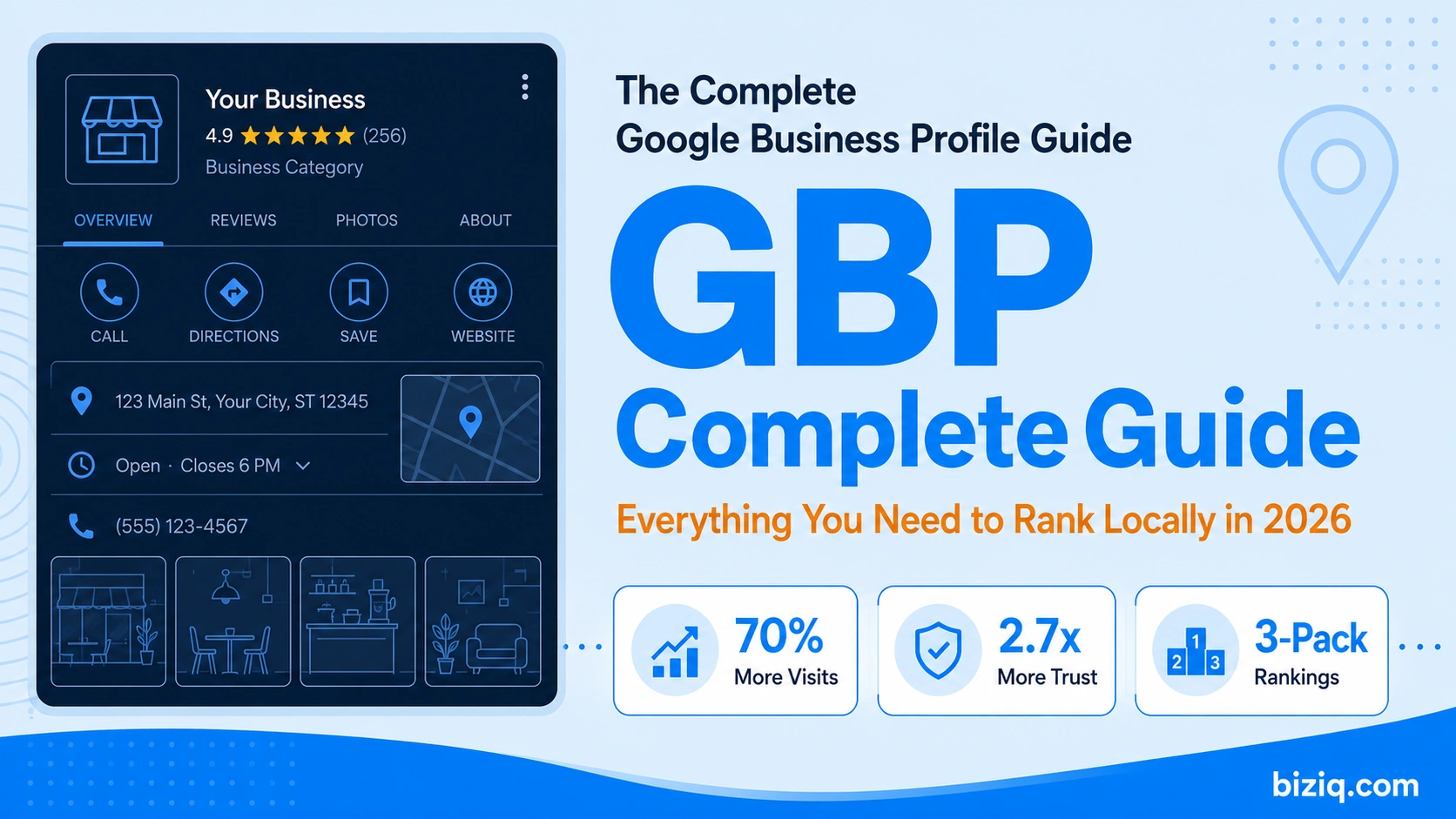
The complete guide to Google Business Profile optimization for small businesses in 2026 — from setup to Local 3-Pack rankings.
Your Google Business Profile is not a directory listing. It is your digital storefront on the world’s largest search engine — and for most small businesses, it determines whether a nearby customer finds you or your competitor. Complete, optimized GBP profiles receive 70% more location visits than incomplete ones. This guide covers every element of Google Business Profile in 2026: how to set it up correctly, how to optimize every section for maximum ranking and conversion, and how to maintain it so it compounds in value over time.
What Is a Google Business Profile? |
Setup and Verification |
Categories and Attributes |
Photos and Videos |
Reviews and Responses |
GBP Posts |
Q&A Section |
Ranking Factors |
Service Area Businesses |
GBP Insights |
Troubleshooting |
Action Roadmap
- A fully complete Google Business Profile receives 70% more location visits and 2.7x more consumer trust signals than an incomplete one — completeness is a measurable ranking and conversion factor.
- GBP signals are the single largest local pack ranking factor at 32% weight — more than reviews, on-page optimization, or backlinks.
- Review signals account for 15–17% of local pack rankings — acquiring and responding to reviews is the second most impactful GBP optimization activity.
- Photos drive 42% more direction requests and 35% more website clicks — photo quality and volume are not aesthetic preferences, they are conversion drivers.
- Weekly posting signals active business status and contributes to ranking freshness signals — dormant profiles lose visibility over time.
- The Local 3-Pack appears in 93% of local intent searches and captures dramatically more clicks than organic results — ranking there is the primary goal of GBP optimization.
- Service-area businesses can use GBP with a hidden address — a physical storefront is not required to appear in local search.
What Is a Google Business Profile?
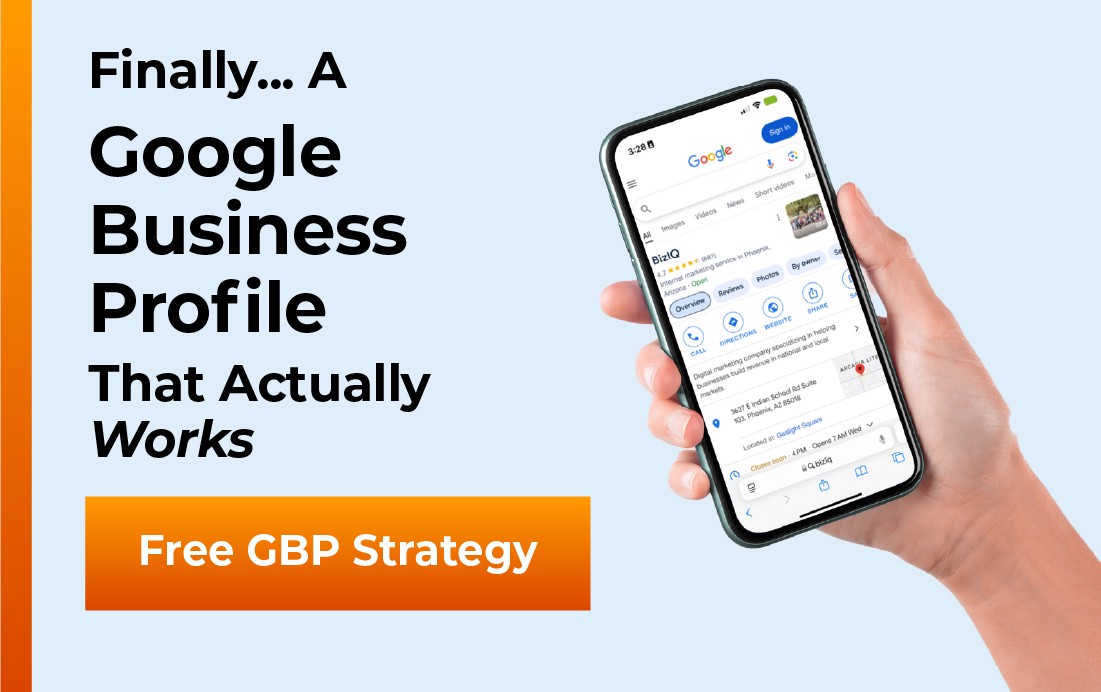
A Google Business Profile (GBP) — formerly called Google My Business — is a free listing that controls how your business appears across Google Search and Google Maps. When someone searches for your business by name, or searches for a service category near their location, your GBP is what populates the business panel on the right side of the results page, the Local 3-Pack map results, and your business pin in Google Maps.
The GBP displays your business name, address, phone number, hours of operation, website link, photos, customer reviews, and any posts or updates you publish. It functions as a second homepage — one that many customers see before they ever visit your actual website.
GBP vs. Your Website: What’s the Difference?
Your website is a property you own and fully control. Your GBP is a property you manage within Google’s ecosystem. You cannot control its design or layout, but you control all of its content — and Google rewards businesses that populate that content completely and maintain it actively.
The relationship is complementary. Your GBP drives discovery and first contact (call, direction request, website click). Your website converts that interest into a lead or sale. Weaknesses in either channel cost you at different stages of the customer journey.
Source: Google Business | BrightLocal Local Search Research 2025
Setting Up Your Google Business Profile: Step by Step
Getting your GBP live correctly from the beginning prevents verification delays, suspension risks, and ranking problems that can take months to correct. Follow this process in order.
Step 1: Check If a Profile Already Exists
Before creating a new profile, search Google for your exact business name and city. Many businesses — especially those that have been operating for a few years — already have a GBP created by Google from publicly available data. If one exists and is unclaimed, claim it rather than creating a duplicate. Duplicate listings confuse Google and dilute your authority across two profiles.
Step 2: Go to business.google.com
Sign in with the Google account you want associated with this business. If you have a Google Workspace account for your business, use that. Personal Gmail accounts work but create complications if an employee later needs access.
Step 3: Enter Your Business Name and Category
Type your exact legal business name. Do not add keywords, city names, or slogans to your business name — this is against Google’s guidelines and can trigger suspension. Your business name in GBP must match the name on your signage, website, and other directories.
Your primary category is one of the most important ranking decisions you make. Choose the most specific, accurate category available. “Plumber” outperforms “Home Services” for plumbing queries. “Emergency Plumber” is even more specific if it applies. You can add secondary categories later.
Step 4: Enter Location or Service Area
If customers come to your physical location (restaurant, retail store, dental office), enter your full street address. If you travel to customers (plumber, landscaper, mobile service), choose “I deliver goods and services to my customers” and define your service area by city, county, or zip code. You can do both if you have a physical location and also serve customers offsite.
Step 5: Add Contact Information
Enter your primary business phone number — the same number used on your website and all other directories. Consistency in this number (NAP — name, address, phone) across all online platforms is a citation signal that Google uses to validate your business identity. Enter your website URL exactly as it appears on your site, including the https:// prefix.
Step 6: Verify Your Profile
Verification proves to Google that you are the legitimate owner of the business at the stated address. Google typically mails a postcard with a 5-digit verification code to your business address within 5–7 business days. Enter this code in your GBP dashboard to complete verification.
This means a previous employee, agency, or the previous business owner has access to your GBP. Google provides a standard ownership request process. Submit the request and Google will notify the current manager. If they do not respond within 7 days, Google transfers ownership to you. If your business is suspected of violating guidelines, verification may be withheld — contact Google Business Support directly if this occurs.
Source: Google Business Profile Help Center
BizIQ GBP Setup and Management Services — Get Started
Choosing the Right Categories and Attributes
Category selection is one of the highest-leverage decisions in GBP optimization because it directly controls which search queries your profile is eligible to appear for. Google uses your primary category as a core eligibility signal — businesses in the wrong category are invisible for the queries their ideal customers are searching.
Primary Category
Choose the single most accurate and specific category that describes your core service. Browse the full list at business.google.com and select the most precise match available. If you are a family dentist, “Dentist” is correct. “Medical Clinic” is too broad. “Cosmetic Dentist” is accurate only if cosmetic work is your primary offering.
Secondary Categories
Add secondary categories for additional services you offer. A dental practice might add “Teeth Whitening Service” and “Emergency Dental Service” as secondary categories. These expand the query set you can appear for without diluting your primary category signal. Most businesses benefit from 3–5 secondary categories.
Attributes
Attributes are additional descriptors that appear on your profile and serve as filters in Google Maps search. Common attributes include: women-owned business, veteran-owned, wheelchair accessible entrance, outdoor seating, accepts credit cards, free Wi-Fi, and industry-specific options. Fill out every applicable attribute. They appear as trust signals on your profile and function as additional filter keywords in Maps search.
Source: BrightLocal Local Search Research | Google Business Profile Categories Help
Photos and Videos: The Conversion Multiplier
Photos are not a cosmetic feature. They are a measurable conversion signal. Google’s own research documents that profiles with photos receive 42% more direction requests and 35% more website clicks than profiles without. Photos signal to consumers that a business is active, professional, and worth visiting — before a single word is read.
Required Photo Types
Every GBP should have the following photo categories populated with high-quality images:
Cover photo: The primary image that represents your business. Use a professional exterior or team photo. Minimum 720×540 pixels; 1080×608 recommended for the landscape format Google displays most often.
Logo: Your business logo in a square or circular crop-friendly format. Used as your profile icon across Google Search and Maps. Minimum 250×250 pixels.
Interior photos: Show customers what your space looks like before they visit. Reduces anxiety and increases walk-in conversion. If you don’t have a physical space, show your workspace or team environment.
Exterior photos: Multiple angles of your building entrance and signage. These help customers identify your location when driving and signal to Google that you have an established physical presence.
Product or service photos: Showcase what you actually sell or do. Before-and-after images perform exceptionally well for service businesses (cleaning, landscaping, auto body, dental, etc.).
Team photos: Photos of your staff build personal connection and trust. Google research shows businesses with team photos score higher on consumer trust ratings than those without.
Video
GBP supports videos up to 30 seconds, 100MB, and 720p minimum resolution. A brief business overview video — showing your team, location, services in action, and a short testimonial — is one of the most underutilized differentiators in local search. Very few small businesses have GBP video. Adding one creates immediate visual distinction in the Local Pack.
Source: Google Business — Photo Guidelines
BizIQ Reputation Management — Reviews, Photos, and More
Reviews: Your Most Valuable Ranking and Trust Signal
Reviews function simultaneously as a ranking signal, a conversion signal, and a trust signal — making them the single activity where optimization effort compounds most quickly across multiple outcomes. A business with 50 five-star reviews and 100% response rate outperforms a business with 200 mixed reviews and zero responses in both local rankings and consumer trust metrics.
How Reviews Affect Rankings
Google evaluates review signals across four dimensions:
Quantity: More reviews generally support higher rankings, particularly relative to local competitors. A business with 12 reviews competing against businesses with 80+ is at a quantitative disadvantage.
Rating: Average star rating is a direct ranking input. Businesses below 4.0 stars face both ranking suppression and conversion barriers — 53% of consumers will not use a business under 4 stars.
Recency: Google weights recent reviews more heavily than older ones. A steady cadence of new reviews (even 2–3 per month) outperforms a large spike followed by months of inactivity. 73% of consumers only trust reviews written in the last month.
Response rate: Responding to reviews is a ranking signal. Google’s own guidance states that responding to reviews demonstrates business activity and improves local visibility. Businesses that respond to 100% of reviews consistently outrank those that respond to none in equal competitive conditions.
How to Get More Reviews
The most effective review acquisition method is also the simplest: ask at the moment of peak satisfaction. For service businesses, that moment is immediately after a job is completed. For retail, it is at checkout. For professional services, it is at the end of a successful engagement.
Google provides a short review link for every GBP — available in your dashboard under “Ask for reviews.” This link goes directly to the review compose window. Text it, email it, print it as a QR code, or add it to your invoice footer. Remove all friction between the satisfied customer and the submit button.
How to Respond to Reviews
Every review — positive, neutral, and negative — deserves a response. Here is the framework:
Positive reviews: Thank the reviewer by name if possible. Mention a specific detail from their review. Keep it brief (2–3 sentences). Do not be generic — “Thank you for the great review!” is less effective than “Thank you, Maria — we’re glad the same-day service worked out for you. Looking forward to helping your family again.”
Negative reviews: Acknowledge the issue without admitting fault. Apologize for the experience (not necessarily for wrongdoing). Move the conversation offline: “We’d like to make this right — please call us at (888) 416-9800 or email us directly.” Never argue, never attack the reviewer, and never post private customer information in a response.
Source: BrightLocal Local Consumer Review Survey 2025 | Moz Local Search Ranking Factors
Let BizIQ Manage Your Review Strategy
Google Business Profile Posts: The Freshness Signal Most Businesses Ignore
GBP Posts are short content updates published directly to your profile — visible to anyone who finds your business on Google Search or Maps. They appear in your profile panel and in some local search results as rich content. Most small businesses either never use them or post once and forget. This is one of the clearest competitive differentiation opportunities available at zero additional cost.
Post Types
What’s New posts: General business updates, announcements, tips, or content. These expire after 7 days and are the most commonly used post type. Publish at least one per week to maintain freshness signals.
Event posts: Promote upcoming events with a title, date range, and description. Event posts persist until the event end date. Use for sales events, workshops, open houses, or seasonal promotions.
Offer posts: Highlight a specific promotion with an optional coupon code, terms, and expiration date. Offer posts display a distinct orange “offer” badge on your profile, making them visually prominent in search results.
Product posts: Showcase individual products with photos, prices, and descriptions. These feed into the Products section of your GBP and can appear in local Shopping results.
What to Post
Post content that serves the searcher, not just your marketing calendar. The highest-performing GBP posts answer questions customers are already searching: seasonal service reminders, answers to common questions, behind-the-scenes team content, and genuine offers with clear value. Posts that feel like broadcast advertising are skipped; posts that feel like helpful information from a trusted local business are clicked.
• Include a photo in every post — posts with images receive significantly more engagement than text-only posts
• Include a clear call to action — “Call now,” “Learn more,” “Get offer,” or “Book”
• Keep text under 300 words — posts are displayed in truncated form; lead with your most important point
• Post at minimum once per week — Google treats posting frequency as an activity signal
• Use keywords naturally — posts that include your primary service and city can contribute to keyword relevance signals
Source: Google Business Profile — Posts Help
The Q&A Section: Pre-Answer the Questions That Drive Decisions
The Questions and Answers section of your GBP allows anyone — including you — to post questions and answers on your profile. Most businesses leave this section empty or allow random community members to answer questions incorrectly. Both are missed opportunities and potential hazards.
Proactively seed your Q&A section with the questions your customers most commonly ask: “Do you offer emergency services?” “Do you accept insurance?” “Is parking available?” “Are you open on Sundays?” “Do you offer free estimates?” Answer each one yourself with a complete, keyword-rich response.
Monitor your Q&A regularly. Community members can post and answer questions without your involvement. Incorrect answers from well-meaning but uninformed contributors mislead potential customers and reflect on your business. If an incorrect answer is posted, post the correct answer immediately and flag the inaccurate one for removal.
How Google Ranks Your Google Business Profile: The Full Ranking Framework
Google evaluates GBP listings for local search visibility using three primary dimensions. Understanding these dimensions lets you prioritize optimization activities correctly rather than guessing which changes move the needle.
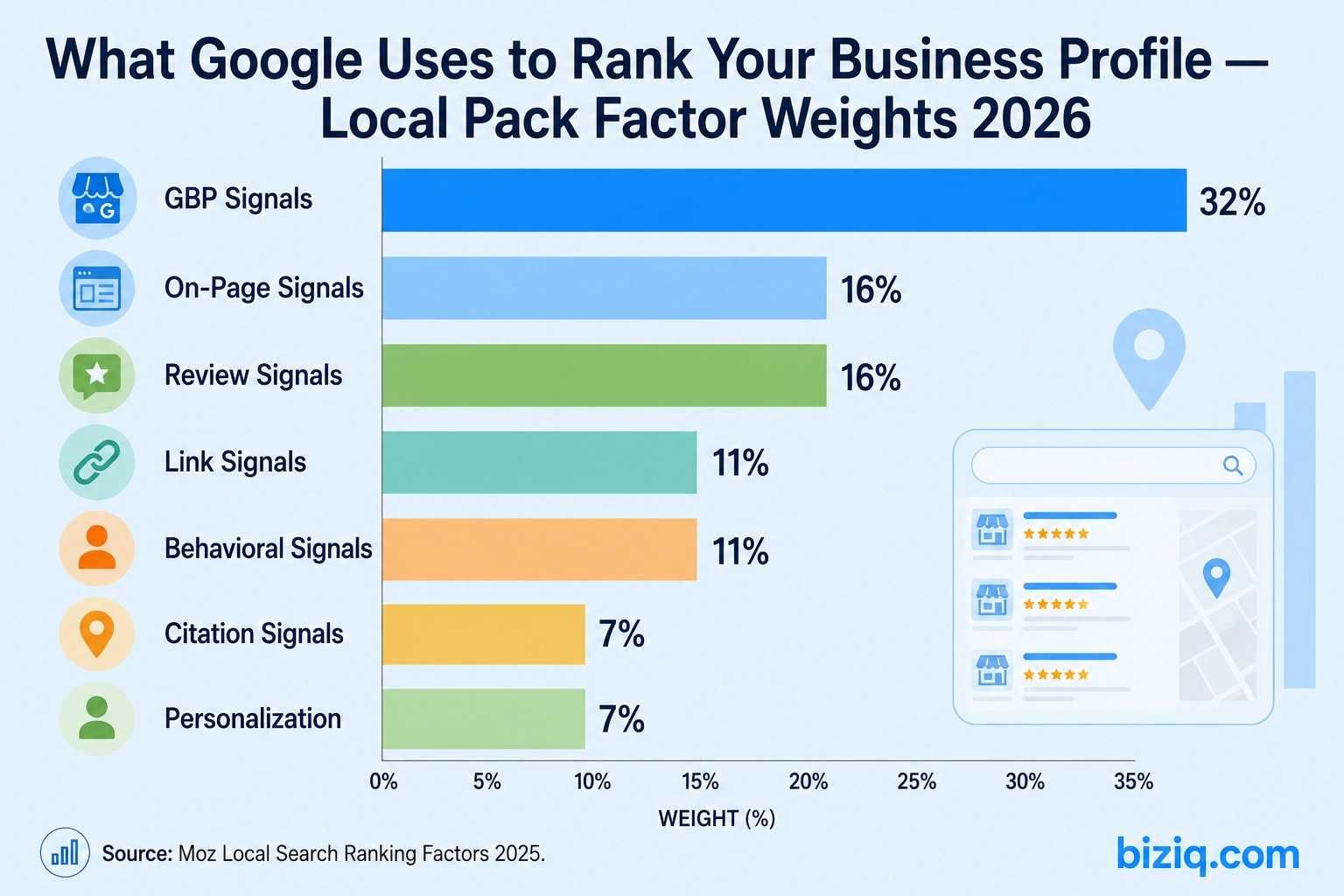
GBP signals account for 32% of Local Pack ranking weight — the single largest factor in 2026, according to Moz.
Relevance
Relevance measures how well your GBP matches what the searcher is looking for. Google determines relevance through your primary category, secondary categories, keywords used in your business description and posts, the services you list, and the keywords in your reviews. The more completely and specifically you describe what your business does, the more search queries Google considers you relevant for.
Distance
Distance measures how far your business is from the searcher’s location at the time of the query. For queries without an explicit location (“plumber near me”), Google uses the searcher’s device location. For queries with an explicit location (“plumber in Phoenix”), Google uses the named location. You cannot change your distance from any given searcher — but you can expand your relevance so that when you are close enough, you are also considered relevant enough to appear.
Prominence
Prominence measures how well-known and authoritative your business is, both online and offline. Google determines prominence through review volume and quality, the number and quality of websites linking to you, your citation consistency across the web, your website’s domain authority, mentions of your business in local press or directories, and behavioral signals (how often users click your profile, call from it, or request directions).
Source: Moz Local Search Ranking Factors 2025
See How BizIQ Builds Local 3-Pack Rankings
Service Area Businesses: A Complete GBP Strategy
Service-area businesses (SABs) — those that travel to customers rather than receiving them at a fixed location — have a unique relationship with GBP. Understanding the specific rules and optimization strategies for SABs prevents the most common setup errors that suppress local rankings for mobile businesses.
Setting Up a Service Area
During GBP setup, indicate that you deliver goods or services to customers. You can then define your service area using cities, counties, or zip codes. Be specific about the areas you genuinely serve — Google uses service area definition to determine which searches you are eligible to appear for. Defining a service area that is unrealistically large reduces relevance signals for the areas where you actually work.
Address Visibility for SABs
When you set your GBP as a service-area business, your physical address is hidden from public view. Google still requires and verifies this address — but customers see only your service area, not your home address or storage facility. This protects personal privacy for sole proprietors and home-based businesses while maintaining the verified business identity that Google requires.
Ranking Challenges for SABs
SABs generally rank less prominently than businesses with physical storefronts for proximity-based queries because they lack a fixed location from which Google can calculate distance. The offset strategy is to dominate the other ranking factors: complete GBP profiles, high review volume, strong website authority, and consistent citation presence. SABs that outperform on relevance and prominence can overcome proximity disadvantages for most local queries.
Understanding Your GBP Insights
GBP provides performance data under the “Insights” section of your dashboard. This data is underused by most small businesses. Understanding what it tells you makes the difference between optimizing with evidence and guessing.
Searches: How customers found your profile — via direct search (searched your name), discovery search (found you through a category/product/service query), or branded search (searched a brand related to your business). High discovery search numbers indicate strong category relevance. High direct search numbers indicate strong brand recognition.
Views: How many times your profile was seen in Search vs. Maps — broken down by listing type. Use this to understand whether Google is showing you more in Maps (local pack appearances) or in organic search results.
Actions: What users did after seeing your profile — website visits, direction requests, phone calls. Track these monthly to measure the impact of optimization changes. An increase in profile views without a proportional increase in actions suggests a conversion problem on the profile itself (weak photos, low reviews, incomplete information).
Calls: Volume and time of day for calls initiated directly from your GBP. Use this to staff appropriately for peak inquiry times and to identify days or hours where missed calls are costing you leads.
GBP Troubleshooting: Common Problems and Solutions
Suspensions occur when Google detects a potential violation of its guidelines. Common triggers include: keyword stuffing in the business name, operating as a virtual office or shared workspace without a genuine staffed presence, creating duplicate listings, or a sudden change in address, category, or phone number. To resolve: identify the likely violation, correct it, then submit a reinstatement request through the Google Business Profile Help form. Do not create a new profile while one is suspended — this creates a duplicate and compounds the problem.
This is a common black-hat tactic — adding keywords like “best plumber in Phoenix” to a business name field (which should contain only the actual business name). Report it via the “Suggest an edit” function on the competitor’s profile or through Google’s Business Redressal Complaint Form. Google actively investigates and removes violating content, though response times vary.
Google allows users to suggest edits to business information, and Google may automatically apply those suggestions without notifying you. Check your GBP dashboard weekly for unauthorized changes to your name, address, hours, or category. Enable GBP notifications in your Google account settings so you receive email alerts when changes are made. If incorrect edits keep being applied, contact Google Business Support directly to flag the issue.
Your GBP Action Roadmap: What to Do First
| Action | Priority | Time Required | Impact |
|---|---|---|---|
| Claim and verify your GBP (if not already done) | Critical | 1 hour + 5–7 days for postcard | Foundational — nothing works without this |
| Complete every section of your profile | Critical | 1–2 hours | 70% more visits vs. incomplete profiles |
| Select primary and secondary categories | Critical | 30 minutes | Determines query eligibility |
| Add 20+ high-quality photos | High | 2–3 hours | 42% more direction requests, 35% more website clicks |
| Set up your review request link and begin asking | High | 30 minutes setup; ongoing | Drives both ranking and conversion signals |
| Respond to all existing reviews | High | 1–2 hours | 89% of consumers read responses |
| Seed Q&A with 10 common customer questions | Medium | 1 hour | Prevents incorrect answers; adds keyword content |
| Publish first GBP post | Medium | 30 minutes | Freshness signal; begins weekly posting cadence |
| Add products/services with descriptions and photos | Medium | 2 hours | Expands keyword relevance |
| Fill out all attributes | Medium | 30 minutes | Maps filter eligibility |
| Establish weekly posting schedule | Ongoing | 30 minutes/week | Sustained freshness and engagement signals |
| Acquire 2+ new reviews per month | Ongoing | Continuous process | Recency and velocity signals |
| Monitor and respond to all new reviews within 48 hours | Ongoing | 10 minutes/review | Response rate ranking signal |
| Check GBP insights monthly | Ongoing | 30 minutes/month | Identifies what’s working; guides next optimizations |
Frequently Asked Questions About Google Business Profile
Methodology and Sources
This guide draws on primary data from Google’s official Business Profile documentation, BrightLocal’s annual local search research, and Moz’s Local Search Ranking Factors study. All statistics are verified against original Tier 1 sources at the time of publication. BizIQ updates this guide annually to reflect changes in Google’s GBP platform, ranking algorithm updates, and new consumer behavior research.
- Google Business Profile Help Center — Platform documentation and policy guidance
- Google Think with Google — Consumer behavior and mobile local search research
- BrightLocal Local Search Research 2025 — GBP performance data, consumer review behavior
- Moz Local Search Ranking Factors 2025 — Local pack ranking factor weights and click distribution
- Google PageSpeed Insights Research — Mobile performance and abandonment data
Last updated: May 2026.