
Yes, you can change the name on your Google Business Profile (GBP), the free listing that shows your business in Google Search and Google Maps. The catch is that Google only allows your real-world business name, it reviews the change before it goes live, and a careless edit can get the whole listing suspended. Done the right way, a name change keeps your reviews, your ranking, and your flow of calls intact. This guide walks you through every step so you can rename your profile safely.
- You can change a verified Google Business Profile name in minutes: open the profile, select Edit profile, update the Name field, and save.
- Google only permits your real-world name. No keywords, cities, taglines, phone numbers, or web addresses in the name, or you risk suspension.
- Google reviews every edit before it publishes, and a name change after verification can require you to verify the business again.
- A minor edit on the existing profile keeps your reviews; closing the old profile to start a new one is what loses them.
- After you rename on Google, update your website, citations, and other listings so the name matches everywhere.

What’s in This Guide
- Can You Actually Change the Name? Yes, With Conditions
- Google’s Business Name Rules (Read This Before You Edit)
- Before You Begin
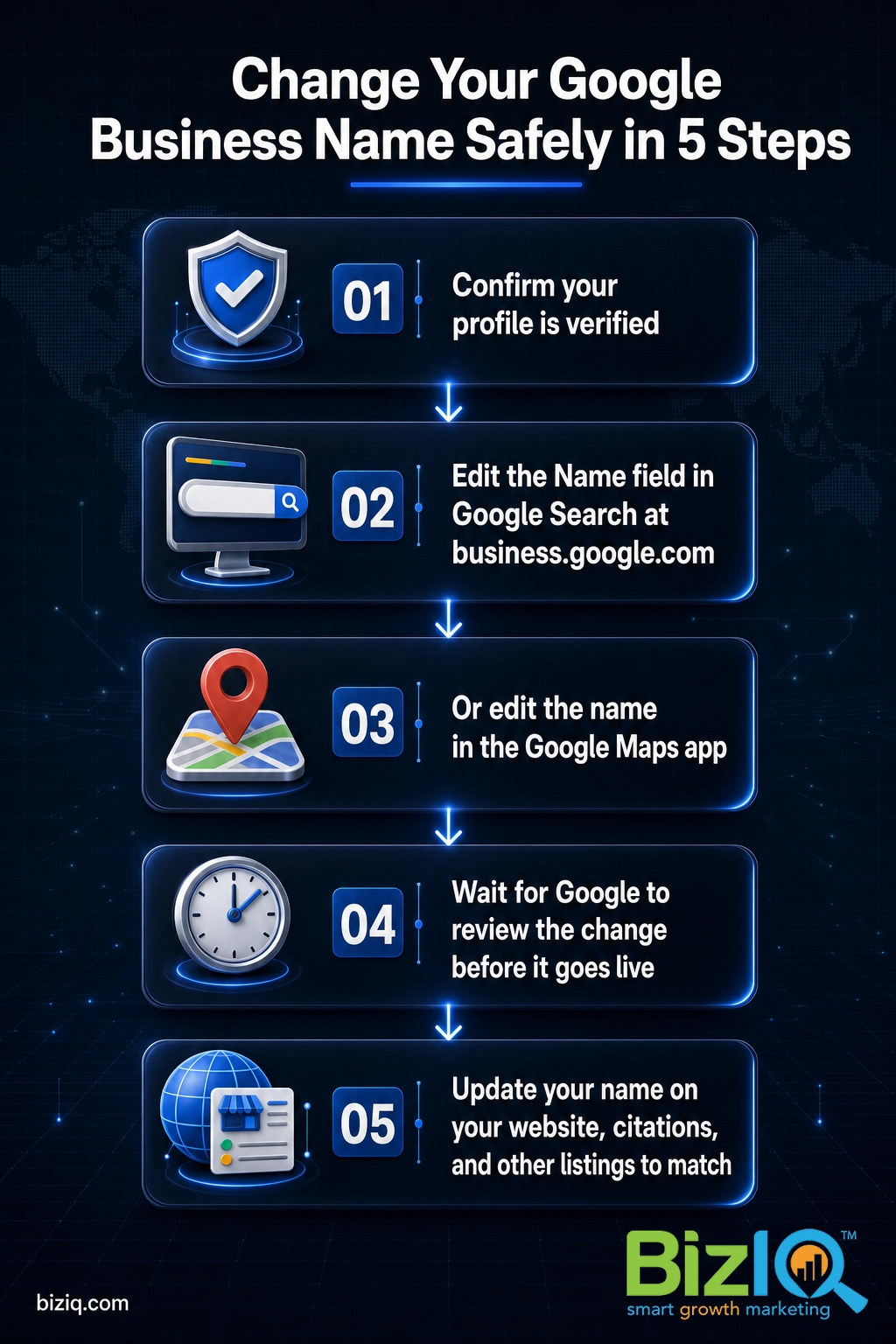
- Step 1: Confirm Your Profile Is Verified
- Step 2: Change the Name in Google Search
- Step 3: Change the Name in the Google Maps App
- Step 4: Wait for Google to Review the Change
- Step 5: Update Your Name Everywhere Else
- When to Call a Professional
- Minor Edit vs. Full Rebrand: Protect Your Reviews
- Troubleshooting Common Problems
- Maintain and Monitor After the Change
- Frequently Asked Questions
Can You Actually Change the Name? Yes, With Conditions
A Google Business Profile is not locked once you set it up. If you legally rebranded, fixed a typo, dropped an outdated tagline, or took over a business under a new name, you can update the name field yourself in a couple of minutes. You do not need to delete the listing or call Google to do it.
The conditions are what trip people up. Google wants your profile to show the same name customers see on your storefront, your invoices, and your website. It also screens edits, so a name that looks like an attempt to game local rankings gets rejected, and in some cases the listing gets suspended until you fix it. That matters because the profile is often the first impression a local customer gets.
In other words, the name on your profile is doing real work. A correct, consistent name builds trust and sends more calls and visits your way, while a messy or rejected name change can quietly cost you customers. So the goal is not just to change the name, it is to change it in a way Google accepts the first time.
One quick note on terminology: Google My Business (GMB) was renamed Google Business Profile (GBP) back in 2021. If your dashboard or an older guide still says Google My Business, you are in the right place. The steps below are the current ones.
Source: Google Business Profile Help, Edit your Business Profile
Google’s Business Name Rules (Read This Before You Edit)
This is the single most important section, because almost every rejected or suspended name comes from breaking one of these rules. Google’s guidelines are clear: your name must represent your business “as it is represented in the real world, as used consistently on your storefront, website, stationery,” and other branding. Customers should see the same name on Google that they see on your sign.
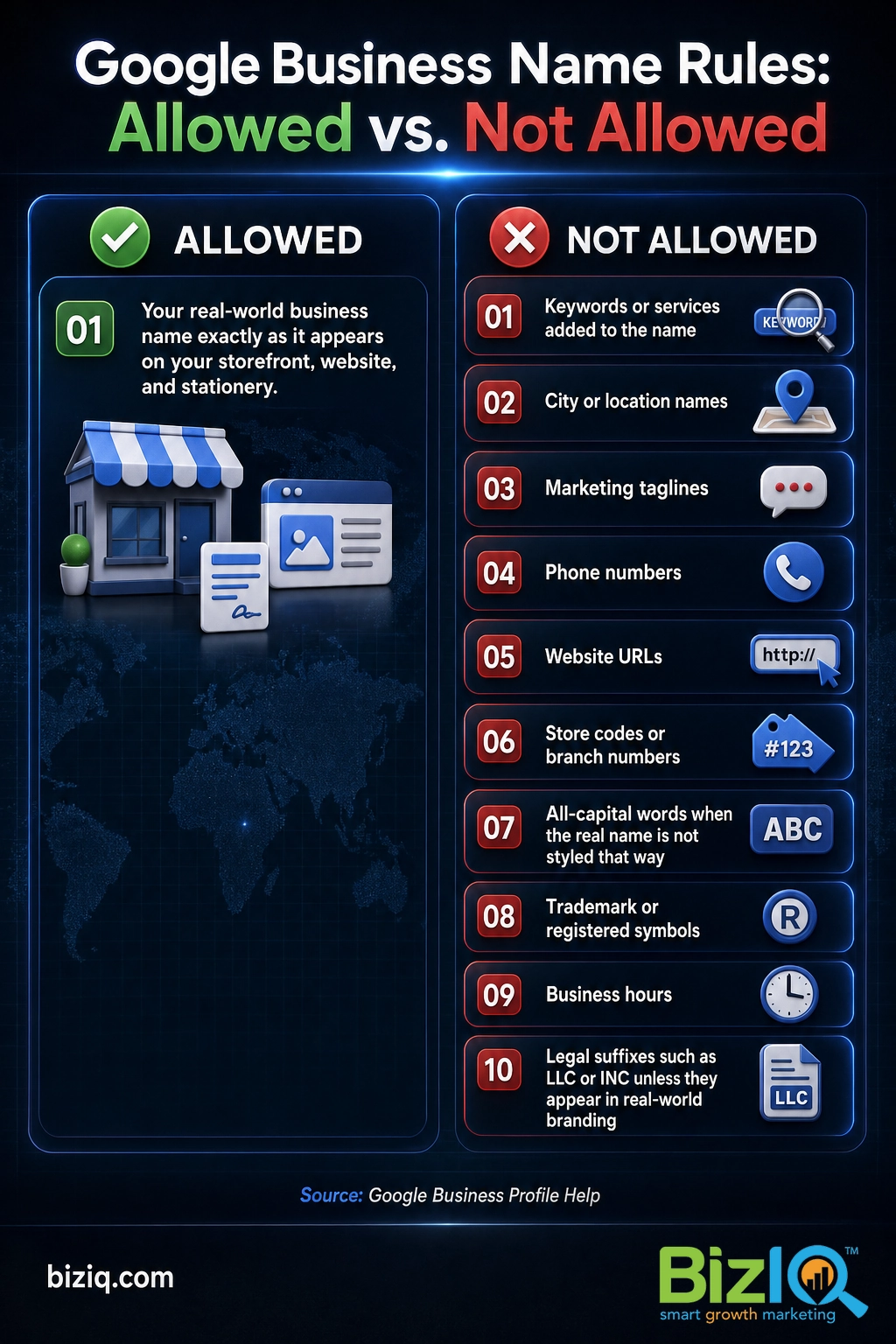
Here is what Google does not allow in the business name itself:
- Keywords or services such as “Auto Service Experts” tacked onto a real name.
- Location information such as a city, neighborhood, or “near SOHO.”
- Marketing taglines or slogans.
- Phone numbers or website URLs (for example, “Google.com” is not allowed; “Google” is).
- Store codes or branch numbers such as a trailing “- 2872.”
- All-capital words when the real name is not styled that way (so “Subway,” not “SUBWAY”).
- Trademark or registered symbols such as the registered mark.
- Business hours or status such as “Open 24 Hours.”
- Special characters and legal suffixes (such as LLC, LTD, or INC) unless they genuinely appear in your real-world branding and you can prove it with signage, cards, or invoices.
- Containment information such as “(inside Best Buy).”
A common belief is that adding your city and main service to the name, like “Joe’s Plumbing Phoenix Drain Cleaning,” will boost your local ranking. It does the opposite. Keyword-stuffed names violate Google’s guidelines, invite competitor reports, and are one of the fastest ways to get a profile suspended. You climb the local map by completing your categories, services, description, photos, and reviews, not by loading up the name field.
If your intended new name passes all of the rules above, you are clear to edit. If it does not, trim it down to your true name first. The address, hours, service area, and categories all have their own fields on the profile, so nothing is lost by keeping them out of the name.
Source: Google Business Profile Help, Guidelines for representing your business on Google
Before You Begin
What you need before you change the name:
- Access to the right Google account. You must be signed in to the Google Account that owns or manages the profile.
- A verified profile. Verification unlocks full editing and keeps the change from stalling.
- Your final, rules-compliant name decided in advance, matching your real signage and website.
- Real-world proof on hand (signage, business cards, or invoices) if your name includes anything Google normally restricts, such as a legal suffix.
- A plan to update your other listings so the name matches across the web after you change it.
Estimated time: about 5 minutes to make the edit, plus up to a few days for Google’s review. Skill level: beginner.
Step 1: Confirm Your Profile Is Verified
What to do: Make sure your Business Profile is verified and that you can sign in to the Google account that manages it. Unverified listings have limited editing, and an edit on an unverified profile is more likely to stall.
Why this step matters: Google ties full editing to verification, and it warns that changing the name after verification “might” require you to verify again. Knowing your profile’s status up front means you will not be surprised by a re-verification request mid-change.
What success looks like: You can open your profile from Google Search or Maps while signed in, and you see an “Edit profile” option rather than a prompt to claim or verify the listing.
If your profile is not verified yet, handle that first with our step-by-step Google Business Profile verification walkthrough, then come back here. Not sure whether a name change will reset your status? Our guide on how long Google Business verification takes explains what to expect.
Source: Google Business Profile Help, Verify your business on Google
Step 2: Change the Name in Google Search
What to do: The fastest way to rename your profile is right inside Google Search, on a desktop or laptop.
- Go to your Business Profile at business.google.com (or search your business name in Google while signed in to the managing account).
- Select Edit profile.
- In the Name field, type your new, rules-compliant business name.
- Select Save.
Why this step matters: Editing the existing profile (rather than deleting and recreating it) is exactly what keeps your reviews, photos, and ranking history attached to the listing.
What success looks like: The new name appears in the edit panel with a note that your change is being reviewed or is pending. You have not lost any reviews, and the listing is still live.
Before you hit Save, paste your new name into a quick mental checklist against the rules in the section above: no city, no services, no phone, no URL, no tagline, no all-caps. A 10-second check here prevents a multi-day rejection later.
Step 3: Change the Name in the Google Maps App
What to do: If you manage your listing from your phone, you can make the same edit in the Google Maps app.
- Open the Google Maps app and make sure you are signed in to the managing account.
- Tap Business at the bottom right.
- Tap Edit profile.
- Change the Name, then tap Save.
Why this step matters: The mobile and desktop edits feed the same profile, so you only need to do it in one place. Pick whichever you have in front of you.
What success looks like: The updated name shows in the app with a pending or in-review status, and you are not prompted to create a new listing.
For a broader look at everything you can adjust while you are in here, see our complete guide to editing your Google Business Profile. Changing your address at the same time? Follow our dedicated walkthrough on how to change your Google Business Profile address so you do not trigger two reviews at once.
Step 4: Wait for Google to Review the Change
What to do: After you save, leave the profile alone. Google states, “We review your changes before we update them live on your profile,” so the new name does not always appear instantly.
Why this step matters: Editing the name repeatedly while a change is pending, or trying to force it through, can slow the review or raise a flag. Patience here is part of doing it safely.
What success looks like: Within a few minutes to a few days, the new name goes live on your profile in Search and Maps. If Google asks you to verify again, that is normal for a name change on a verified profile, so complete the verification method it offers.
Important: if your name change gets rejected or your profile suddenly shows as suspended after the edit, do not keep resubmitting the same name. Repeated attempts can make reinstatement harder. Stop, confirm your name matches your real-world branding exactly, update your other listings to match, and then appeal. Our guide on the top reasons a Google listing gets suspended covers how to recover.
Source: Google Business Profile Help, Edit your Business Profile
Step 5: Update Your Name Everywhere Else
What to do: Once the new name is live on Google, change it everywhere a customer or a search engine might see it: your website, your social profiles, your directory listings and citations (Yelp, Facebook, Bing, industry directories), and your invoices and email signature.
Why this step matters: Google cross-checks your name against the rest of the web. If your Google name says one thing and your website and citations say another, future edits are more likely to be rejected and your local ranking can slip. Consistency, often called NAP consistency (Name, Address, Phone), is a core local SEO (search engine optimization) signal.
What success looks like: A quick search for your business returns the same name on Google, your site, and your major listings, with no leftover references to the old name.
Keeping citations in sync by hand across dozens of sites is tedious, which is why many owners hand it off. If you want it done for you, our local SEO services keep your name and details consistent everywhere Google looks.
When to Call a Professional
If you reach this point and your name change keeps getting rejected, your profile was suspended, or you are rebranding across multiple locations at once, that is the signal to bring in help rather than keep guessing. A rejected name or a suspended listing can pull your business off the map while customers are actively searching, and every day down is lost calls and leads.
At BizIQ, we manage Google Business Profiles for small and local businesses every day, including name changes, reinstatements, and multi-location rebrands. We make the edit correctly the first time, keep your reviews and ranking intact, and handle the appeal if Google pushes back.
Real results for real local businesses
How BizIQ clients turned their Google presence into customers.
Holloway Construction
Demolition & excavation — Jonesborough, TN
Down to their last $2,500 with no online presence, Holloway Construction had BizIQ launch a website in under 24 hours and optimize their Google Business Profile so customers could find them — and made $30,000 in 24 hours.
“BizIQ saved my business.” — Mark Holloway, Owner
A.R.S. Video Inc
Film & audio conversion — Tallmadge, OH
After rebuilding a tangled site structure, A.R.S. Video reclaimed their rankings — over 2,000 more web visits and an 88% increase in sessions.
Minor Edit vs. Full Rebrand: Protect Your Reviews
Not every name change is the same, and the difference decides whether your reviews survive.
A minor edit (fixing a typo, dropping “LLC,” shortening “Joe’s Family Plumbing Company” to “Joe’s Plumbing,” or updating to a legal rebrand of the same business) should be made on the existing profile. The listing stays put, so your reviews, photos, and ranking history stay attached. This is the safe path and the one you want in almost every case.
A full rebrand into a genuinely different business (a new company, a change of ownership and concept, or a merger) is the one exception. When the business is truly no longer the same one customers reviewed, Google may expect you to mark the old profile as closed and create a new one. That does mean starting fresh on reviews, which is exactly why you edit the existing profile whenever the business is fundamentally the same.
When in doubt, edit, do not recreate. The reviews attached to your current profile are earned trust you cannot copy over to a new listing. We have seen owners delete a perfectly good profile and lose years of five-star reviews over what was really just a name tweak. If the business is the same business, change the name on the profile you already have.
Still deciding whether a name change is even necessary, or whether you can run a profile without a storefront? Our guide on common Google Business Profile questions covers the edge cases.
Troubleshooting Common Problems
| Problem | Likely cause | What to do |
|---|---|---|
| The name change was rejected | The new name includes a keyword, city, tagline, phone number, or URL, or does not match your real-world branding | Trim the name to your true business name, update your website and citations to match, then resubmit or appeal |
| Profile got suspended after the edit | Google flagged the name as a guideline violation or as suspicious activity | Stop editing, confirm the name matches your real signage, gather proof, and file an appeal through Google |
| Change is stuck “pending” for days | Google is reviewing the edit, or a re-verification is required | Wait out the review and complete any verification step Google requests before editing again |
| Google asks me to verify again | Name changes on a verified profile can trigger re-verification | Complete the verification method offered (postcard, phone, email, or video) promptly so the listing stays visible |
| I cannot find the Edit profile option | You are signed in to the wrong Google account, or you do not have manager access | Sign in to the account that owns the profile, or request owner or manager access from whoever controls it |
Source: Google Business Profile Help, Understand what happens to your Business Profile edits
Maintain and Monitor After the Change
A name change is not a set-it-and-forget-it edit. For the first couple of weeks after it goes live, watch your profile for three things: that the new name is showing correctly in both Search and Maps, that your reviews are all still attached, and that your local ranking has not dropped. A name or address change can briefly shake your position in the local map pack, so a short dip is not unusual, but a lasting slide means something needs attention.
Check that the new name flows through to your website, your citations, and your other listings over the following days. Then keep the profile healthy the way you always should: post updates, add fresh photos, answer questions, and respond to reviews. That ongoing care is what turns a corrected name into more calls, more visits, and a stronger local presence.
If keeping tabs on all of that sounds like one more thing you do not have time for, it is exactly the kind of ongoing work we take off your plate.
BizIQ delivers!
“I am very impressed with the service BizIQ delivers! Not only are my calls with them informative but they have patience and suggestions for me. BizIQ is taking the time to show me they…”
— Cindy M.
Response has been terrific
“I'm not sure why I tried BizIQ instead of the other 500 Google solicitation calls I get but I'm so glad I did! They are very professional and have taken over our neglected Google…”
— Mark E.
The right job
“BizIQ is providing the data my business needs to grow. I can tell from customer leads that they are doing the right job. My Client Success Manager is providing the skill and patience I…”
— Mark B.
Frequently Asked Questions
Can you change your Google Business name?
Will changing my Google Business name delete my reviews?
Why was my Google Business name change rejected?
Can I add keywords to my Google Business name to rank higher?
How long does a Google Business name change take to show up?
Do I need to verify my business again after changing the name?
What is the difference between Google My Business and Google Business Profile?
Changing your name is one small part of keeping your Google Business Profile working as a lead engine. If you would rather have experts handle the edit, the reviews, and your whole local presence, BizIQ can take it from here.