
If you have been hunting for the setting to add Popular Times to your Google Business Profile (GBP), the free listing that shows your business in Google Search and Google Maps, here is the honest answer: there is no such setting. You cannot manually add, switch on, or edit the busy-times graph. Google creates it automatically from anonymized visit data, and it appears only once your business gets enough real visits. The good news is that you are not powerless. This guide explains how Popular Times actually works, the practical steps that get the chart to show up on your profile, and how to read it (yours and your competitors’) to win more customers.
- You cannot add or edit Popular Times. Google builds it automatically from aggregated, anonymized Location History data and shows it only when it has enough visits.
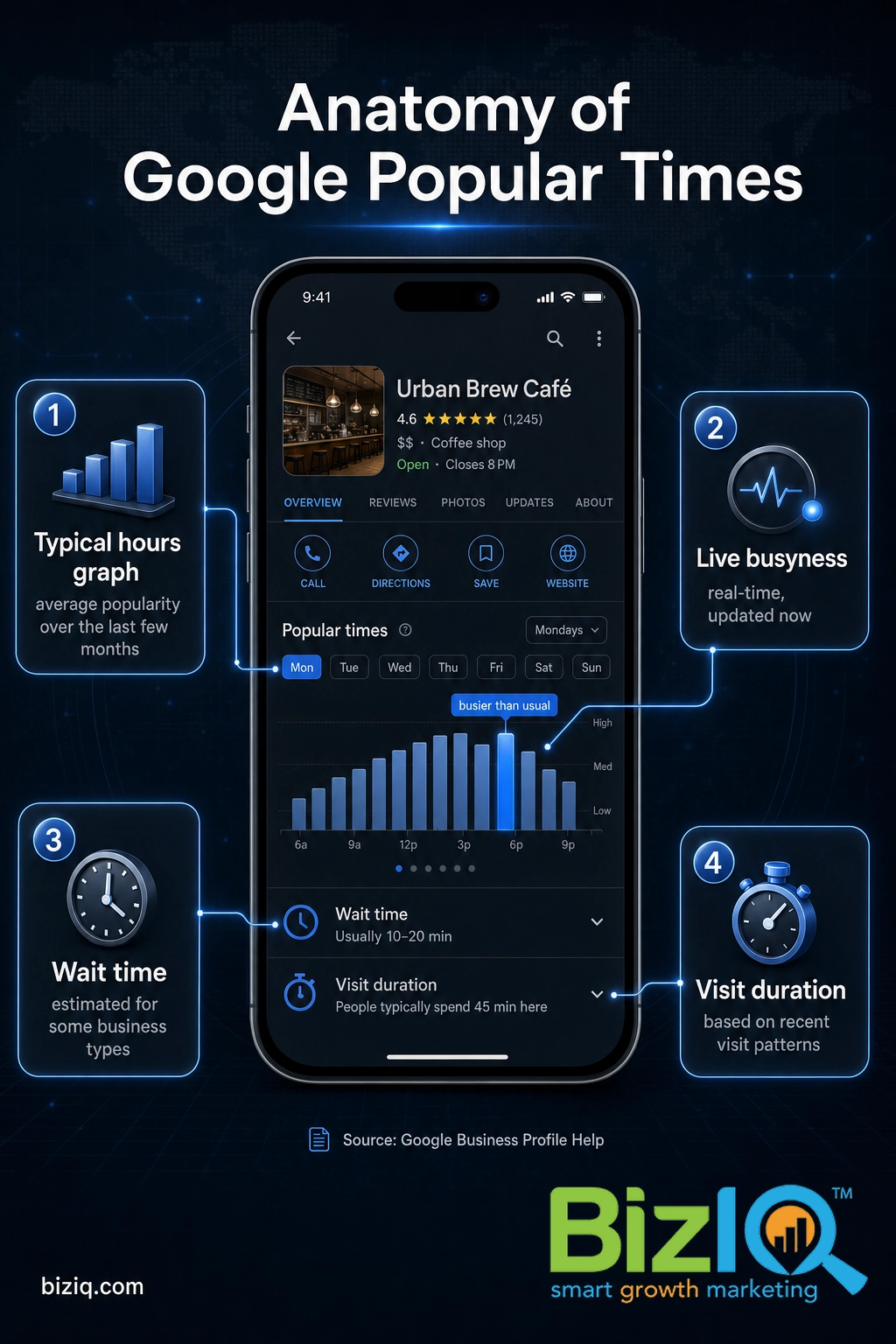
- The typical-hours graph reflects average popularity over the last few months; a separate live overlay shows how busy you are right now versus usual.
- The fastest path to getting a chart is a verified profile, accurate hours and location, and steady real foot traffic, so Google has data to measure.
- Ignore any tool or service that claims it can manually turn Popular Times on or edit the numbers. No such control exists, and the claim is a red flag.
- Once the chart appears, use it to schedule staff, time your offers and posts, and spot your slow hours, for yours and your competitors’ listings.

What’s in This Guide
- Can You Actually “Add” Popular Times? No, and Here’s Why
- What Popular Times Actually Shows
- Before You Begin
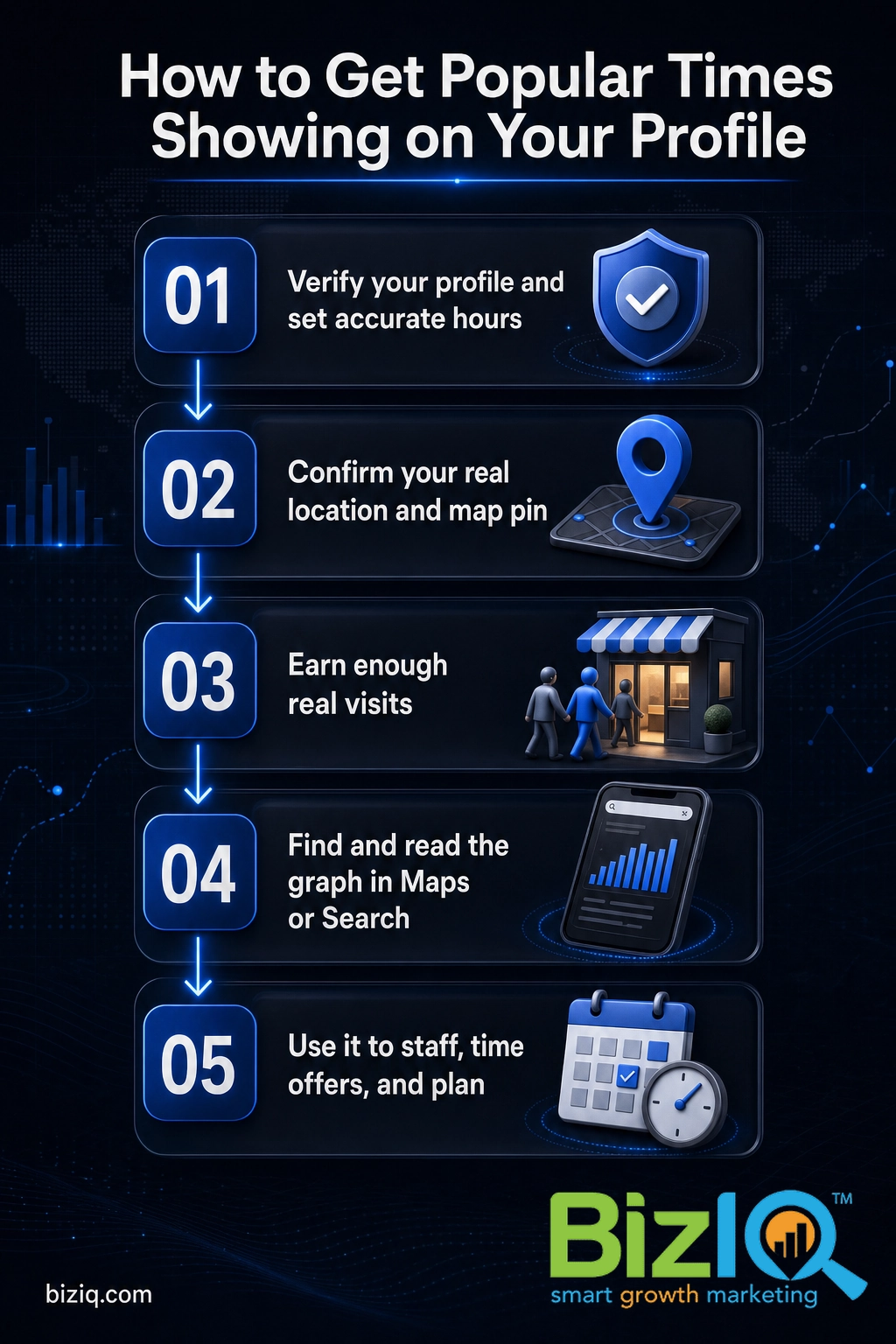
- Step 1: Verify Your Profile and Lock In Accurate Hours
- Step 2: Confirm Google Has Your Real Location
- Step 3: Earn Enough Real Visits for Google to Build the Graph
- Step 4: Find and Read Your Popular Times
- Step 5: Use Popular Times to Win More Customers
- When to Call a Professional
- Troubleshooting Common Problems
- Maintain and Monitor Over Time
- Frequently Asked Questions
Can You Actually “Add” Popular Times? No, and Here’s Why
Let’s clear up the biggest misconception first. Popular Times is not a feature you enable, fill in, or upload. It is a graph Google produces on its own. In its official help documentation, Google is blunt about it: “You can’t manually add this information to your location.” The data “appears only if Google has sufficient visit data for your business.”
Where does that data come from? Google builds the graph from aggregated and anonymized data from users who have opted in to Google Location History. In plain terms, when enough people who use Google with location sharing on visit your business, Google notices the pattern and turns it into the familiar bar chart of how busy you are hour by hour. You are not in that loop as an owner, which is exactly why there is no field to edit.
So if you cannot add it, why does this topic matter so much to local owners? Because Popular Times is powerful proof. A full busy-times graph tells a shopper your place is real, active, and worth visiting, and it helps them pick the quietest time to come in. Getting that chart to appear, and reading it well, is a genuine competitive edge. The work is not in a hidden setting; it is in giving Google real activity to measure and then using what it reports.
One quick note on terms: Google My Business (GMB) was renamed Google Business Profile (GBP) in 2021. If an older article or dashboard still says Google My Business, you are in the right place; the product and the busy-times data work the same way.
Source: Google Business Profile Help, About popular times, wait times & visit duration data
A belief floating around local-business forums is that you can “switch on” Popular Times in your dashboard, or that a paid tool can add it for you. Neither is true. There is no toggle anywhere in your profile, and no third party can inject visit data into Google’s graph. The only lever that moves Popular Times is your actual foot traffic, because that is the one thing Google is counting.
What Popular Times Actually Shows
Before you chase the chart, it helps to know what you are looking at. Google bundles three related readings into the same part of your profile, and they are not the same thing.
- Popular times (the typical graph): A bar chart for each day of the week showing how busy you usually are by the hour. Google states it is “based on average popularity over the last few months,” so it reflects your normal pattern, not any single day.
- Live busyness: A real-time overlay that compares current activity with your usual level for that time, labeled with phrases like “busier than usual.” Google updates this live data and lays it over the typical graph. A business can show the typical graph without a live reading if there is not enough current activity.
- Wait times and visit duration: For some business types (a sit-down restaurant, for example), Google also estimates how long customers wait or how long a typical visit lasts, drawn from visit patterns over the last several weeks.
All three are generated the same way, from opted-in visit data, and none of them are editable. Knowing the difference matters for troubleshooting later: it is common to have the typical graph but no live overlay, and that is normal, not a bug.
Source: Google Business Profile Help, About popular times, wait times & visit duration data
Before You Begin
What you need before you work on getting Popular Times to show:
- A claimed, verified Business Profile. Verification unlocks full management and signals to Google that the listing is legitimate.
- Access to the managing Google account so you can check and edit your hours, address, and service area.
- Accurate, current business hours decided and ready to enter, including any special or holiday hours.
- A correct address or service area so visits get attributed to the right location.
- Realistic expectations. You are setting the conditions, not flipping a switch. The chart appears on Google’s timeline, once it has enough data.
Estimated time: about 15 minutes of profile setup, then weeks of real activity for the data to build. Skill level: beginner.
Step 1: Verify Your Profile and Lock In Accurate Hours
What to do: Make sure your profile is claimed and verified, then set your business hours precisely. Open your profile in Google Search or the Google Maps app, select Edit profile, and confirm your regular hours are correct. Add special hours for holidays and any extra schedules, such as senior hours or delivery and takeaway hours, if they apply.
Why this step matters: Hours do not create Popular Times, but they frame it. Google uses your open hours to display the busy graph against the right window, and an unverified or half-finished profile is far less likely to collect and display rich data. Accurate hours also keep you from showing as “closed” when you are open, which quietly kills visits.
What success looks like: Your profile shows as verified, your hours are correct in both Search and Maps, and you see an “Edit profile” option rather than a prompt to claim the listing.
If your listing is not verified yet, handle that first with our step-by-step Google Business Profile verification walkthrough. Updating your schedule at the same time? Follow our guide on how to change your Google Business hours for regular and holiday times so your busy graph lines up with when you are actually open.
Source: Google Business Profile Help, Edit your Business Profile
Step 2: Confirm Google Has Your Real Location
What to do: Check that your address (for a storefront) or your service area (for a business that travels to customers) is set correctly, and that your map pin sits exactly on your front door. In Edit profile, open your business information and confirm the address and pin, then save any correction.
Why this step matters: Popular Times is tied to visits at a physical place. If your pin is a block off, or your address is wrong, Google struggles to attribute nearby visits to your business, and the busy graph may never build. For service-area businesses without a storefront, Popular Times often will not appear at all, because there is no single location for Google to measure, and that is expected.
What success looks like: Your address and map pin match your real location exactly, and a quick search shows your listing pinned in the right spot on Maps.
Step 3: Earn Enough Real Visits for Google to Build the Graph
What to do: This is the real work, and the only thing that actually moves the needle. Give Google more real visits to count by making your listing the obvious choice for local searchers. Fill out every part of your profile, add fresh photos, keep your categories and services current, collect reviews, and post updates and offers that bring people through the door.
Why this step matters: Remember the threshold rule. Google shows Popular Times only “if it gets enough visits from these users.” A profile that ranks well in the local map pack gets found more, visited more, and measured more, which is precisely what fills in the busy graph. You are not faking data; you are generating genuine foot traffic that Google then reflects.
What success looks like: Your profile is fully complete, you are appearing in more local searches, and your real visit count is climbing week over week. Over time, that rising activity is what prompts Google to display, then refine, your Popular Times.
Want more customers walking in so the data builds faster? Our guides on increasing your Google Business Profile traffic and optimizing your profile for local SEO (search engine optimization) walk through the exact moves that drive real visits. Posting regularly helps too, as our guide on how often to post on Google Business Profile explains.
Important: steer clear of any tool, agency, or “hack” that promises to add, unlock, or edit your Popular Times directly. There is no legitimate way to do that, so the pitch is either a misunderstanding or a scam. Worse, schemes that fake visits or location signals violate Google’s guidelines and can get your profile suspended, which takes you off the map entirely. Build real traffic instead.
Step 4: Find and Read Your Popular Times
What to do: Once the chart exists, here is where to find it and how to make sense of it.
- Open Google Maps (app or maps.google.com) or search your business name in Google.
- Open your business listing and scroll to the Popular times section.
- Use the day selector to switch between days of the week; each shows its own hourly bar graph.
- Look for a live note such as “busier than usual” or “less busy than usual” when live data is available.
Why this step matters: Reading the graph is what turns it from a vanity chart into a planning tool. Tall bars are your rush hours; short bars are your lulls. You can check any public business this way, including competitors, so you can see when the shop down the street is slammed and position yourself for the overflow.
What success looks like: You can pull up your own busy graph, compare it day to day, and spot your peak and quiet hours at a glance.
Step 5: Use Popular Times to Win More Customers
Getting the chart is only half the payoff. Here is how smart local owners turn Popular Times into more revenue:
- Staff to the graph. Schedule more hands during your tall-bar rush hours and trim labor during the lulls, so service stays fast when it counts.
- Fill your slow hours. Run a happy-hour, midday, or off-peak offer aimed squarely at your quiet windows to smooth out demand.
- Time your posts and promotions. Publish a Google post or promotion just before a known busy stretch, when the most eyes are on your listing.
- Set customer expectations. If wait times show, use them in your messaging (“quietest before 11 a.m.”) to pull traffic into gaps.
- Watch competitors. Their busy graphs reveal the exact hours local demand peaks, so you can be open, staffed, and visible when it does.
None of this requires editing the chart. It requires reading it and acting on it, which is where the real return lives.
When to Call a Professional
If you reach this point and your Popular Times still will not appear after months of steady traffic, or your profile is not ranking well enough to generate the visits in the first place, that is the signal to bring in help rather than keep guessing. For most small businesses, a missing busy graph is a symptom of a deeper issue: the listing is under-optimized, buried in the local results, or not pulling its share of nearby searches.
At BizIQ, we manage and optimize Google Business Profiles for small and local businesses every day. We build out your profile the right way, lift your local ranking so more customers find and visit you, and keep the whole listing healthy, which is exactly what gives Google the activity it needs to display your Popular Times.
Real results for real local businesses
How BizIQ clients turned their Google presence into customers.
Holloway Construction
Demolition & excavation — Jonesborough, TN
Down to their last $2,500 with no online presence, Holloway Construction had BizIQ launch a website in under 24 hours and optimize their Google Business Profile so customers could find them — and made $30,000 in 24 hours.
“BizIQ saved my business.” — Mark Holloway, Owner
New Image by Hilary
Cosmetic enhancement services
A previous agency had her competing against herself, so customers couldn’t find her. BizIQ won a $3,000 refund, then built an optimized site with local keyword research — now customers find her again straight from a Google search.
Troubleshooting Common Problems
| Problem | Likely cause | What to do |
|---|---|---|
| No Popular Times graph at all | Google does not have enough visit data from opted-in users yet | Complete your profile, lift your local ranking, and build real foot traffic; the chart appears once there is enough data |
| Typical graph shows, but no live busyness | Not enough current activity for a real-time reading | Nothing is broken; the live overlay only appears when there is enough recent, real-time traffic |
| The numbers look wrong or swing suddenly | Google weights recent visits heavily, so an unusual stretch skews the graph | Wait for normal patterns to return; the graph re-levels as recent, typical visits accumulate |
| Popular Times vanished from the Maps app | An app display issue rather than lost data | Check Google Maps on the web, where the graph often still shows, and give the app a day or two to update |
| Service-area business shows no graph | No single storefront location for Google to measure visits against | This is expected for businesses without a physical address customers visit; focus on rankings and leads instead |
Source: Google Business Profile Help, About popular times, wait times & visit duration data
Maintain and Monitor Over Time
Popular Times is a living reflection of your real activity, so it is never truly “done.” Keep your profile complete and your hours current, keep collecting reviews and posting updates, and keep bringing customers through the door. As long as the genuine traffic keeps coming, Google keeps the graph populated and current.
Check your busy graph every few weeks, especially after a seasonal shift, a new location, or a marketing push, and compare it against your competitors’. Treat it as a free, built-in analytics tool: it tells you when your customers actually show up, which is some of the most useful planning data a local business can get, and it costs you nothing but the effort of reading it.
If keeping your profile optimized, ranking, and busy sounds like one more job you do not have time for, that is precisely the ongoing work we take off your plate. For the bigger picture of your whole local presence, our complete Google Business Profile guide and our common GBP questions roundup are good next reads.
Exceeded my expectations
“I have owned my business for 36 years and have advertised in different markets through the years. My decision to work with BizIQ has met and exceeded my expectations. In this day of…”
— Neal H.
Highly professional
“I have been working with this organization for a while now. They are highly professional and have helped me immensely. I have worked with other similar groups in the past only to find…”
— John G.
We are very happy
“BizIQ has helped our business so much! They promised and delivered! We are very happy with their service, our web presence and all the follow up support we get!”
— CharLee B.
Want to know exactly why your busy graph is or is not showing, and what is holding your local visibility back? A quick expert look at your listing will tell you.
Frequently Asked Questions
Can you manually add or turn on Popular Times on a Google Business Profile?
Why is my Google Business Profile not showing Popular Times?
Where does Google get Popular Times data?
How long does it take for Popular Times to appear?
Can I edit or correct my Popular Times if they look wrong?
What is the difference between Popular Times and live busyness?
Is Popular Times the same as my business hours?
Popular Times is one small signal in a profile that, done right, works as a steady lead engine. If you would rather have experts handle your rankings, reviews, and your whole local presence so the visits (and the data) keep coming, BizIQ can take it from here.