If you need to reach Google My Business support, the honest answer is that there is no single phone number to call. Google My Business (GMB) is now called Google Business Profile (GBP), and the main way to get help is Google’s own Business Profile Help form, where you describe your issue and Google routes you to the right option, which can be email, chat, or a scheduled callback. This guide walks you through every real way to contact Google for help with your listing, in the order you should try them, so a suspended profile, a stuck verification, or a lost listing gets fixed instead of ignored.
- There is no public Google My Business support phone line. Start at Google’s Business Profile Help form, and phone or callback help is offered from there for eligible issues.
- Google My Business (GMB) is now Google Business Profile (GBP), managed directly inside Google Search and Google Maps since the 2022 rebrand.
- You have five real contact routes: the Help form, support inside your profile, the contact options Google shows you, Google’s social accounts, and the Community forum.
- A single clear request with screenshots gets fixed faster than several thin ones, especially for suspensions and verification problems.
- Most profile issues are self-fixable, and keeping a complete, healthy profile is what actually brings in more calls and visits.
What’s in This Guide
- First: Google My Business Is Now Google Business Profile
- Before You Begin: What to Have Ready
- Step 1: Start at Google’s Business Profile Help Form
- Step 2: Request Support From Inside Your Profile
- Step 3: Pick Your Contact Channel (Including Phone)
- Step 4: Try Google’s Social Media Accounts
- Step 5: Post in the Business Profile Community
- When to Call a Professional
- Troubleshooting Common Problems
- Maintain and Monitor Your Profile
- Frequently Asked Questions
First: Google My Business Is Now Google Business Profile
Before you go hunting for a help line, one thing clears up most of the confusion: Google My Business (GMB) was renamed Google Business Profile (GBP) in 2022, and Google shut down the old standalone GMB app. There is no separate dashboard to log into anymore. You manage your listing directly from Google Search and Google Maps while signed in to the Google account that owns it.
That rebrand changed how support works too. The old app had its own help menu, so people got used to looking for a GMB support button in one place. Now the help options live inside Search and Maps, and the official starting point for a real support case is a single web form. If you have been searching for a Google My Business phone number and coming up empty, this is why. The system moved, and the contact routes moved with it.
Old search terms still work. If you type “Google My Business” into Google, it will take you to the same profile tools that now carry the Business Profile name. You do not need to relearn anything, you just need to know where the help options moved.
Before You Begin: What to Have Ready
Give yourself about 15 minutes and have these ready before you reach out. It saves a round of back-and-forth:
- The right Google account. Sign in to the exact account that manages (owns) the profile. Support tied to the wrong account is the single most common reason a request stalls.
- Your business details. The exact business name, address, and phone number as they appear on the listing, plus the profile URL if you have it.
- A clear description of the issue. One or two plain sentences: what you expected, what is happening instead, and when it started.
- Screenshots. Capture any error message, the suspension notice, or the incorrect information on your profile. Evidence speeds everything up.
- Proof your business is real, in case you need it: photos of signage, a utility bill at the address, or a business license. This matters most for suspensions and verification.
That is why getting your profile fixed matters so much. Those same Google figures show a complete profile also makes customers 50% more likely to consider buying from you. A listing that is suspended, unverified, or showing the wrong hours is not just an annoyance, it is lost calls and lost foot traffic every day it stays broken. The steps below get it back.
Step 1: Start at Google’s Business Profile Help Form
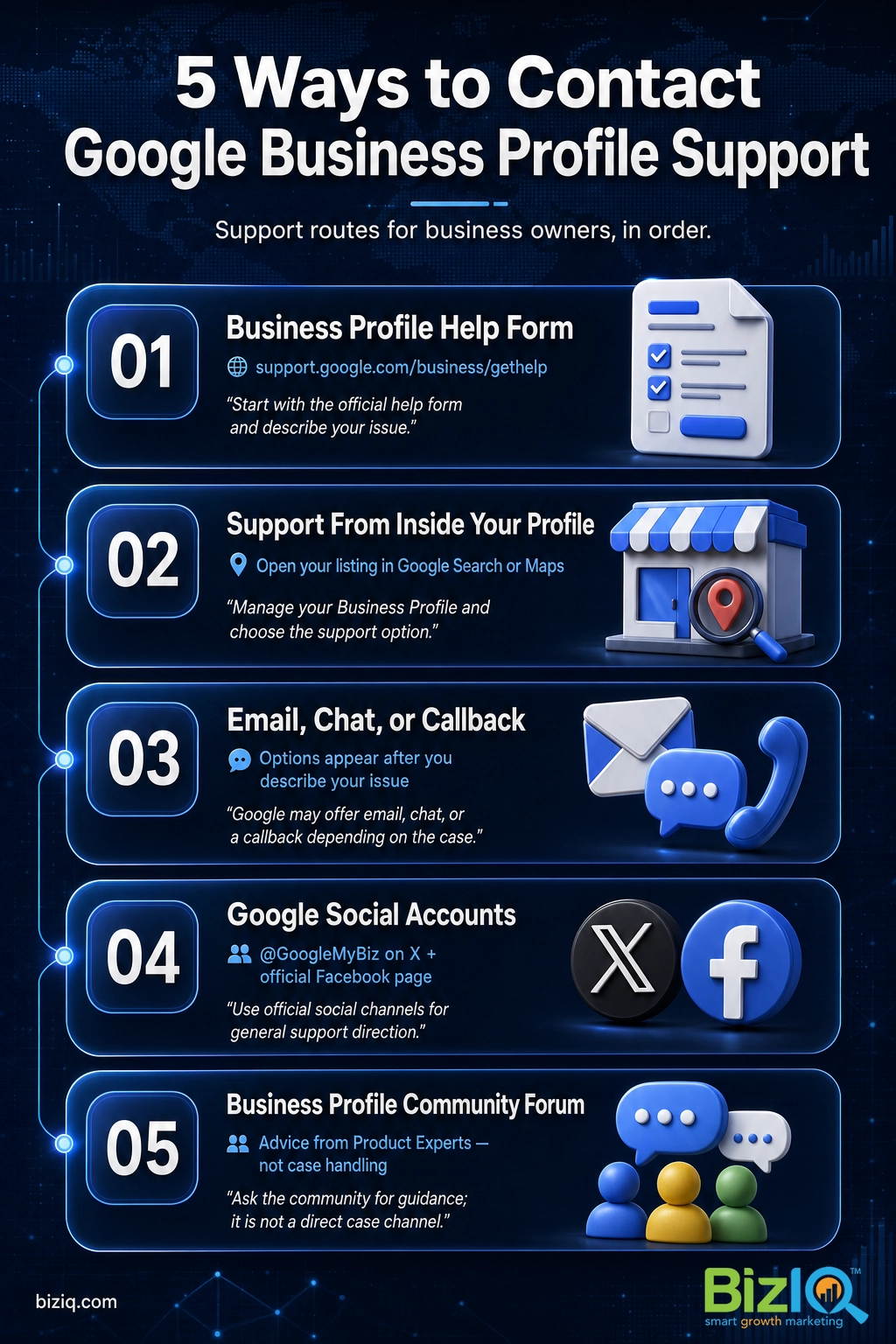
The Help form is the front door to real support. Go to Google’s Business Profile Help form while signed in to the account that manages your listing. You will pick the topic that matches your problem (for example, editing your profile, verification, a suspended profile, or regaining access), and Google will either point you to a fix or open a path to contact a support agent.
Why this step matters: every other official route eventually sends you here. Starting at the form means Google can tie your request to your actual profile and the specific issue, which is what unlocks the email, chat, or callback options in Step 3.
What success looks like: you reach a screen that either shows a guided fix for your exact issue or a “Contact us” option. If you only see help articles and no contact option, you have likely not selected a topic that qualifies for agent support, or you are not signed in to the owning account.
Many business owners believe Google has a 24/7 support hotline for every listing. It does not. The old published support numbers were retired with the GMB app, and third-party sites that list a “Google My Business phone number” are usually not Google. Always start from a google.com help page so you know you are dealing with Google itself.
Step 2: Request Support From Inside Your Profile
If you would rather not use the form directly, you can reach the same help tools from inside your live profile. Sign in to Google, search your business name on Google, and open the Business Profile management panel that appears. From there, look for the menu (often shown as three dots or a settings icon) and choose the help or support option. In the Google Maps app, you can open your Business Profile, go to settings, and find the support link in the same way.
Why this step matters: opening help from inside the profile automatically carries your business and account context with it, so you skip some of the identity questions you would otherwise answer on the form.
What success looks like: you land on the same contact options as Step 1, already attached to the correct profile. If you cannot see a management panel at all when you search your business, that usually means you have not claimed or verified the listing yet, which is its own fix.
Step 3: Pick Your Contact Channel (Including Phone)
Once Google understands your issue, it shows the contact channels available for it. Depending on your account, your region, and the topic you selected, that can include email, live chat, or a scheduled callback. This is the honest answer to the common question about phone support: Google does not hand out a dial-in number, but for many issues it will call you back if you request it through this step.
Why this step matters: the channel you pick sets your response speed. A callback or chat is usually faster for a time-sensitive problem like a suspension, while email is fine for a slower, documentation-heavy case.
What success looks like: you submit a request and get a confirmation (a case or reference number, or an email). Keep that reference. If no live option appears, choose email and attach your screenshots, because a complete written case still moves things forward.
Do not submit the same request five times. Duplicate tickets do not move you up the line, they split your case across agents and slow it down. Submit one clear request with evidence, note the reference number, and wait for a reply before following up.
Step 4: Try Google’s Social Media Accounts
For general questions or when a case feels stuck, Google’s official social accounts are a legitimate secondary route. You can message Google’s @GoogleMyBiz account on X or reach out through the official Google Business Profile Facebook page. These channels are staffed to answer questions and point you to the right resource.
Why this step matters: social teams can clarify a confusing situation or confirm whether you are using the correct process, which sometimes unsticks a case faster than waiting on a ticket.
What success looks like: you get a reply that answers your question or directs you back to the Help form with a clearer path. Treat social as a nudge and a sanity check, not as the place to share private account details, which you should only ever do inside Google’s official support channels.
Real results for real local businesses
How BizIQ clients turned their Google presence into customers.
Holloway Construction
Demolition & excavation — Jonesborough, TN
Down to their last $2,500 with no online presence, Holloway Construction had BizIQ launch a website in under 24 hours and optimize their Google Business Profile so customers could find them — and made $30,000 in 24 hours.
“BizIQ saved my business.” — Mark Holloway, Owner
New Image by Hilary
Cosmetic enhancement services
A previous agency had her competing against herself, so customers couldn’t find her. BizIQ won a $3,000 refund, then built an optimized site with local keyword research — now customers find her again straight from a Google search.
Step 5: Post in the Business Profile Community
The Google Business Profile Community forum is a public space where Product Experts, who are experienced volunteers recognized by Google, and other business owners answer questions. For tricky, unusual, or recurring problems, it can be the most useful resource of all, because these experts have seen almost everything and can often tell you exactly what Google will ask for.
Why this step matters: the Community is where you learn the real cause of a problem and how to frame your request so support acts on it. Many owners solve their issue here without ever needing an agent.
What success looks like: you get a clear explanation and a recommended next move. Just remember the key limit: the people in the forum cannot open your account or make changes for you. Anything that needs Google to actually do something still goes through the Help form in Step 1.
The owners who get help fastest treat these routes as a sequence, not a menu. They learn the real cause in the Community, gather screenshots and proof, then submit one clean request through the Help form. That order turns a frustrating week of silence into a single well-aimed ask Google can actually act on.
When to Call a Professional
If you reach this point and your profile is suspended, your verification keeps failing, or someone else controls a listing you own, you are in the territory where experience saves real money. These cases hinge on submitting the right evidence in the right format the first time, and a wrong submission can add weeks. This is also true if your profile is live but not showing up at all for the searches that matter to your business, which is a local search engine optimization (SEO) problem, not a support ticket.
BizIQ sets up and fixes Google Business Profiles for small businesses every day, so we know what Google asks for and how to present it. If you would rather hand the headache off, start with a free analysis of your current profile and we will tell you exactly what is wrong and what it takes to fix it.
Want to see how we approach a profile before you reach out? This short overview walks through how BizIQ gets a small business set up correctly on Google and climbing in local search.
That track record is the reason owners trust us with the profile that feeds their phone line, and it shows up in our own reputation.
Whether you fix the issue yourself or hand it off, the goal is the same: a profile that is live, accurate, and easy for customers to find. If you would like a second set of eyes on yours first, a free analysis takes the guesswork out of what to fix.
Troubleshooting Common Problems
Most people contacting Google are dealing with one of a handful of issues. Here is what each one usually needs, so you can pick the right route before you ever open the form.
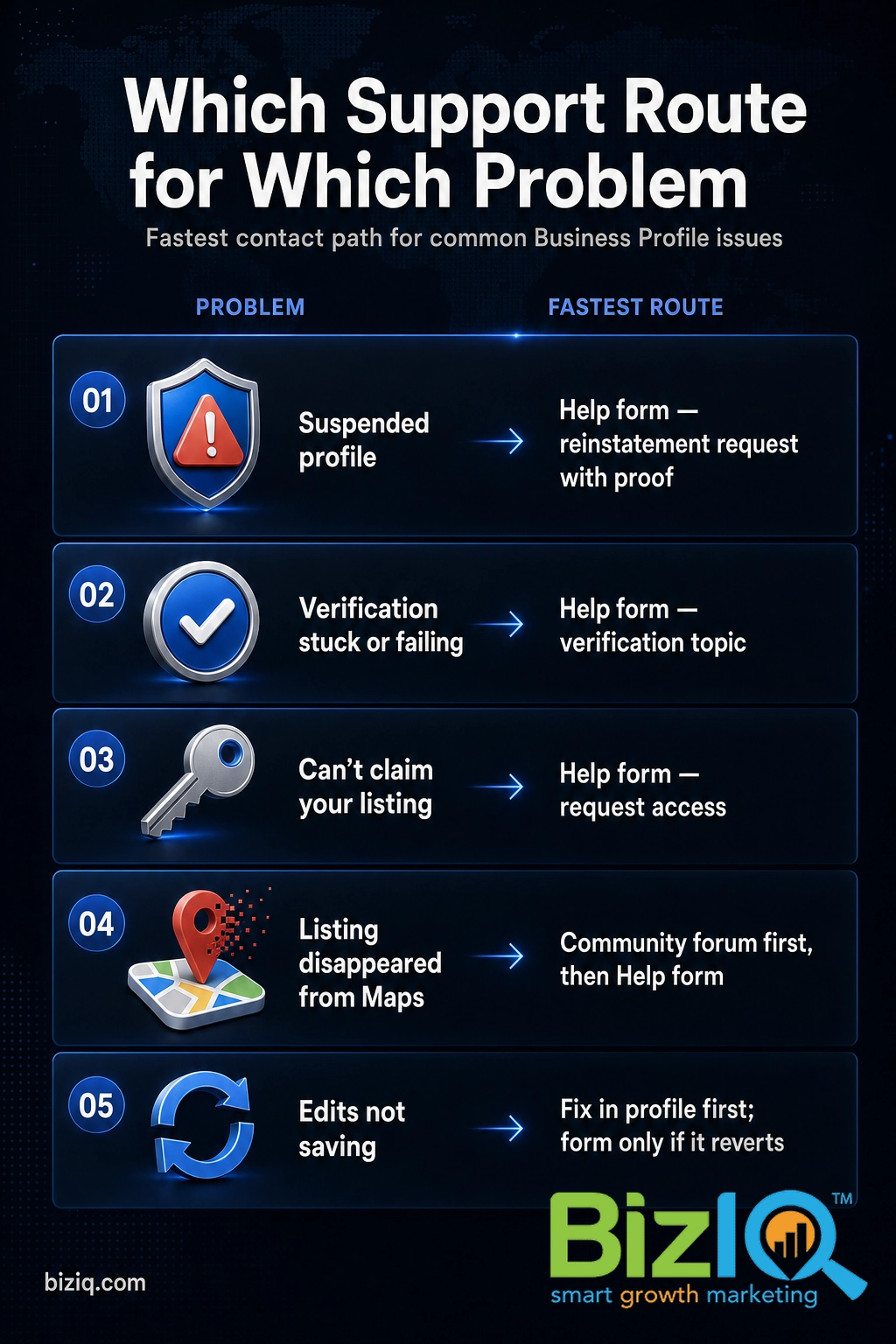
| Problem | What it usually means | Fastest route |
|---|---|---|
| Profile suspended | Google flagged a guideline issue, often an address, category, or name problem | Help form reinstatement request with photos and proof of the business |
| Verification stuck or failing | Google cannot confirm your business at the address, or the code never arrived | Help form, verification topic, with a different verification method if offered |
| Can’t claim your listing | Someone else, sometimes a past vendor, already verified it | Help form, request access, then Google notifies the current owner |
| Listing disappeared from Maps | Suspension, a merge, or a quality filter removed it from view | Help form, plus check the Community for the specific cause first |
| Edits not saving or wrong info showing | A pending review, a user-suggested edit, or a duplicate listing | Fix in the profile first; use the form only if changes keep reverting |
Three of these come up constantly, and we have full walkthroughs for them. If your listing is down, read why a Google My Business account gets suspended and the exact steps to get your listing relisted. If it vanished without a notice, start with why a listing disappears from Google. For a running list of the most common questions, Google’s own Google knowledge bank covers the rest.
Verification problems deserve their own patience. If your mailed code or video review is taking a while, our guide on how long Google Business verification takes explains what is normal before you assume something is broken and open a ticket.
Maintain and Monitor Your Profile
Getting through to support is a one-time win. Keeping your profile healthy is what actually protects your rankings and your phone line. Once your issue is resolved, do three things on a regular basis so you spend less time contacting Google in the future.
Keep every detail accurate. Hours, address, phone, and categories should match your business exactly and everywhere else online. Mismatches are a leading trigger for the suspensions and filters that send people to support in the first place.
Stay active. Add fresh photos, answer questions, and respond to reviews. An active profile is both harder to flag and far more convincing to the customer deciding whether to call you.
Watch for changes you did not make. Google and the public can suggest edits to your listing. Check it every couple of weeks so a bad edit or a fake review does not sit live while you are unaware.
If monitoring your profile every week is not realistic, that is exactly the kind of ongoing work BizIQ handles so you can run your business. Our team keeps your profile accurate, active, and climbing in local search.
See BizIQ’s Google Business Profile Setup Service ($97)
10 stars
“I have been solicited by hundreds of people but nobody could ever compare to BizIQ's first class service and professionalism. Very fair pricing and unparalleled expertise. Couldn't be…”
— Don S.
Best SEO company
“Hands down the best SEO company in business!! Our Client Success Manager is the most honest and hard working person I have had the pleasure of working with! This company can change…”
— James H.
Uncomplicated & easy
“Since working with BizIQ we have already noticed a climb in our daily bottom line. Customers new to our small town have easily found us and have come in to buy eyeglasses that would…”
— Eve H.