Labels in Google My Business (GMB), the tool now called Google Business Profile (GBP), are private tags you add to a business location to keep your listings organized in your own dashboard. They are not an SEO (search engine optimization) feature, and your customers never see them. If you have ever logged in to manage your profile and wondered what that little “Labels” field is for, this guide explains exactly what labels do, how to add them, and the smart ways local businesses actually use them.
- Labels are private tags that help you group and find your locations inside your dashboard.
- Customers never see your labels, and labels do not affect your local ranking.
- Google lets you add up to 10 labels per location, each up to 50 characters.
- They matter most when you manage multiple locations or run location-based Google Ads.
- Do not confuse labels with categories (public, affect ranking) or with keywords.
What’s in This Guide
- What Labels in Google Business Profile Actually Are
- Labels vs. Categories, Keywords, and the Profile Strength Meter
- Why Labels Matter for Your Business
- How to Add Labels to Your Google Business Profile
- Smart Ways to Use Labels
- Best Practices and Common Mistakes
- Frequently Asked Questions
- Related Terms
What Labels in Google Business Profile Actually Are
A label is a short, custom tag you assign to one of your business locations. Think of it like a sticky note you put on a file folder: it helps you find and sort things, but it is for your eyes only. When you open your Business Profile and look at your locations, labels let you filter and search that list so you can jump straight to the group you care about.
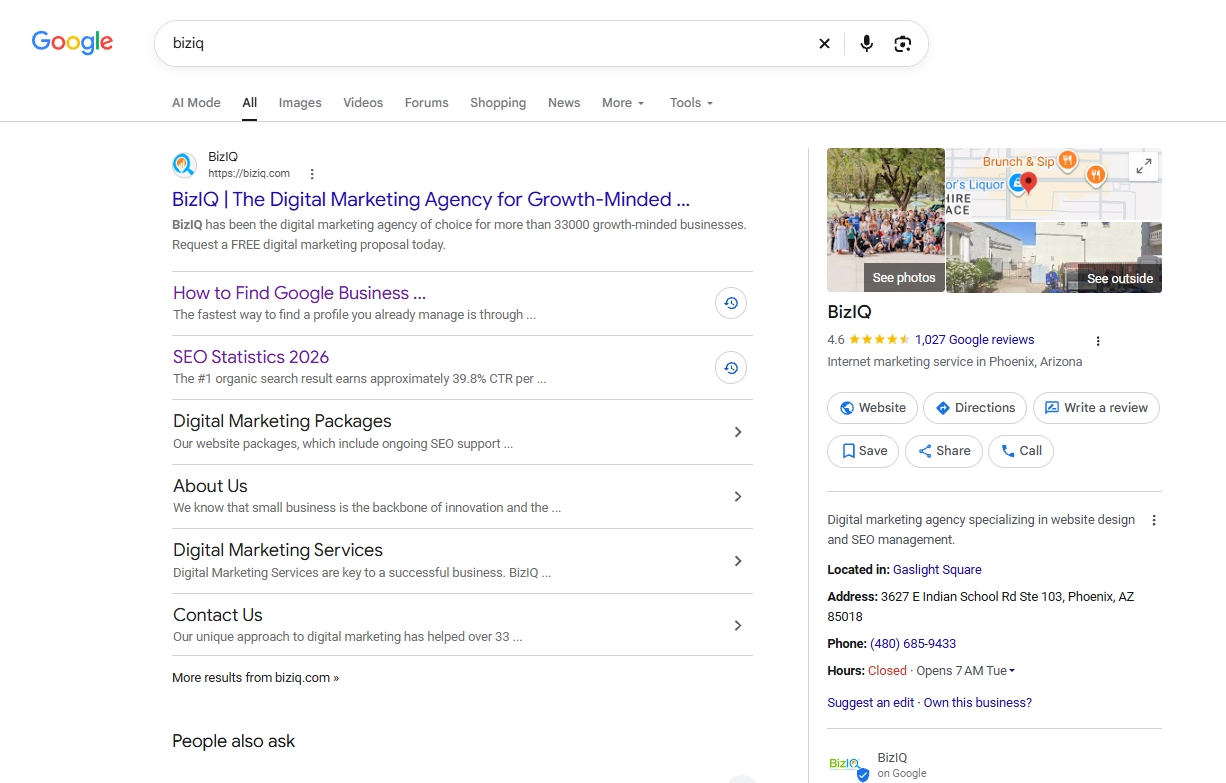
The most important thing to understand is that labels are private. According to Google’s own Business Profile Help, “Labels aren’t publicly visible.” They do not show up on your listing, on Google Maps, or in Google Search. A customer looking you up will never know a label exists. That is by design, because labels exist to help you manage your profiles, not to market to anyone.
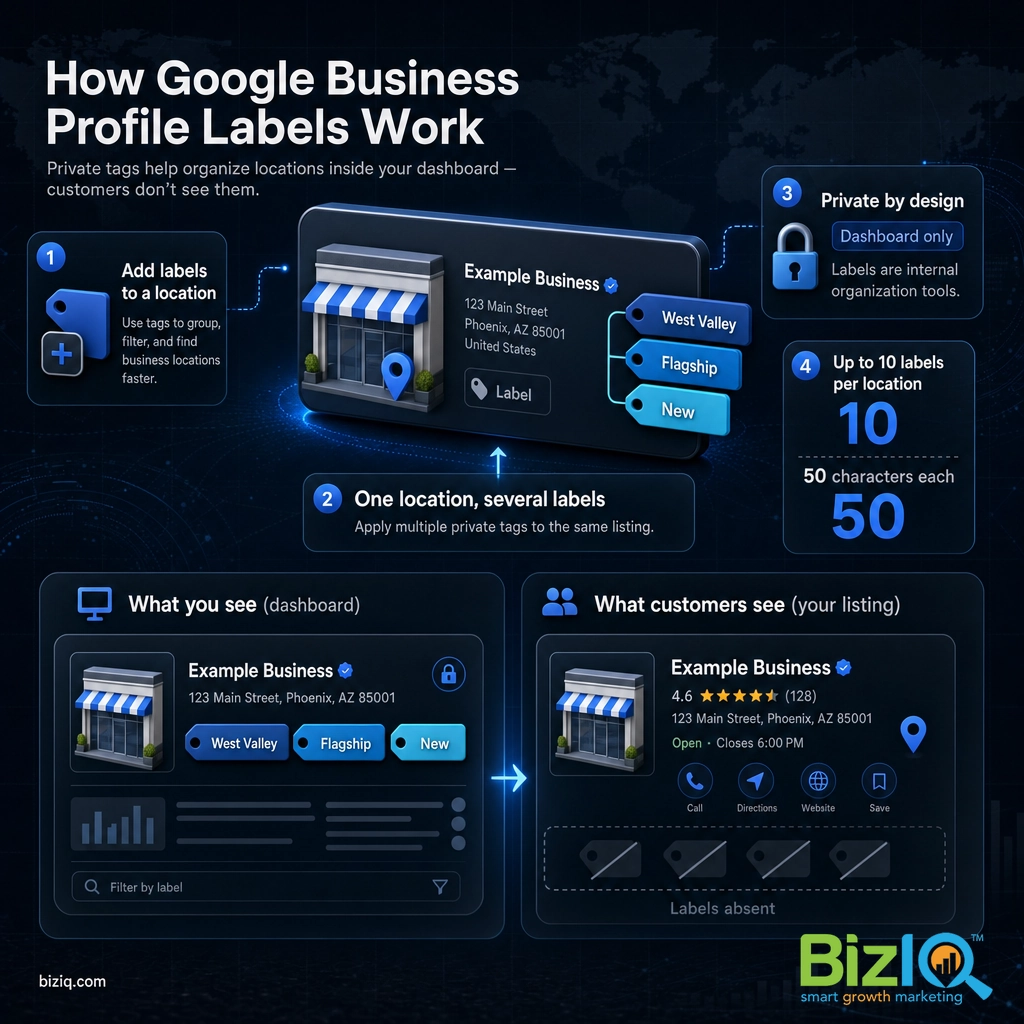
You will find the Labels field inside your profile’s business information or advanced settings, right alongside details like your hours and attributes. If you manage many locations through the Business Profile Manager, you can also assign labels in bulk using Google’s upload spreadsheet.
Those limits come straight from Google. Its bulk-upload documentation states, “Add up to 10 different labels for each location,” and “Limit each label to 50 characters.” Google also notes you should avoid invalid characters like angle brackets, and if you want a comma inside a label you have to enter it a special way in the spreadsheet. For most owners, 10 labels is far more than you will ever need.
Source: Google Business Profile Help: bulk upload spreadsheet | Google Business Profile Help: advanced settings
Labels vs. Categories, Keywords, and the Profile Strength Meter
This is where most confusion starts. Labels get mixed up with three other parts of your profile that look or sound similar but do completely different jobs. Getting this straight saves you from wasting labels on the wrong goal.
| Feature | Who sees it | Affects ranking? | What it is for |
|---|---|---|---|
| Labels | Only you and your managers | No | Grouping and finding your own locations in the dashboard |
| Categories | Public (shown on your listing) | Yes | Telling Google and customers what your business actually does |
| Keywords | Earned, not a field you fill in | Indirectly | The search terms you want to show up for, worked into your description and content |
| Profile Strength | Only you (a status meter) | No (it is a prompt) | Showing how complete your profile is so you know what to finish |
Categories are the big one to keep separate. Your primary and additional categories are public, and they are one of the strongest signals Google uses to decide which searches you show up for. Labels are the opposite: private, and with no ranking value. If you want to sharpen the signals that actually move you up the local map, that work happens in your categories, not your labels.
If you want to get your categories right, our guide to choosing your Business Profile categories walks through the public side of this, and our overview of adding keywords to your Business Profile covers where keywords genuinely belong.
Why Labels Matter for Your Business
If labels are private and do not affect ranking, why bother? Because they save you time and prevent mistakes, and for a growing local business, an organized profile is a well-kept profile. When your locations are sorted into clear groups, it is faster to spot the one with missing hours, the one that needs fresh photos, or the three in a region you want to run a promotion for. Disorganized profiles are the ones that quietly fall out of date, and out-of-date profiles are the ones that lose calls and visits.
That matters because a complete, accurate profile is a genuine lead driver. Google’s research with Ipsos found that a complete Business Profile makes shoppers far more likely to choose you.
In the same research, Google found a complete profile makes customers 70% more likely to visit and 50% more likely to consider buying. Labels do not create that completeness on their own, but they are the organizing layer that makes it realistic to keep every location complete as you grow. The business that stays organized is the business that stays visible.
Source: Google Business Profile (Google / Ipsos research)
Real results for real local businesses
How BizIQ clients turned their Google presence into customers.
Holloway Construction
Demolition & excavation — Jonesborough, TN
Down to their last $2,500 with no online presence, Holloway Construction had BizIQ launch a website in under 24 hours and optimize their Google Business Profile so customers could find them — and made $30,000 in 24 hours.
“BizIQ saved my business.” — Mark Holloway, Owner
A.R.S. Video Inc
Film & audio conversion — Tallmadge, OH
After rebuilding a tangled site structure, A.R.S. Video reclaimed their rankings — over 2,000 more web visits and an 88% increase in sessions.
Get a free Google Business Profile analysis
How to Add Labels to Your Google Business Profile
Adding a label takes under a minute. Here is the process for a standard profile. If you run many locations, skip to the bulk method at the end.
- Open your Business Profile. Search your business name on Google while signed in to the account that manages it, or go to the Business Profile Manager if you handle several locations.
- Open your business information. Click to edit your profile, then find the advanced information or advanced settings area where details like store code and labels live.
- Find the Labels field. Look for the box marked “Labels.” Type your first label and press enter, then add others as needed, up to 10 per location.
- Save your changes. Click Save. Your labels apply immediately and stay private to your dashboard.
- For many locations, use the spreadsheet. In the Business Profile Manager, export your locations to the bulk-upload spreadsheet, fill in the Labels column for each location, and re-upload. This lets you tag dozens of locations at once instead of one at a time.
If you are still finding your way around the dashboard, our complete guide to editing your Google Business Profile shows every field in context.
Smart Ways to Use Labels
Labels are only as useful as the system behind them. The businesses that get real value pick one or two consistent ways to tag and stick to them. Here are the patterns that work.
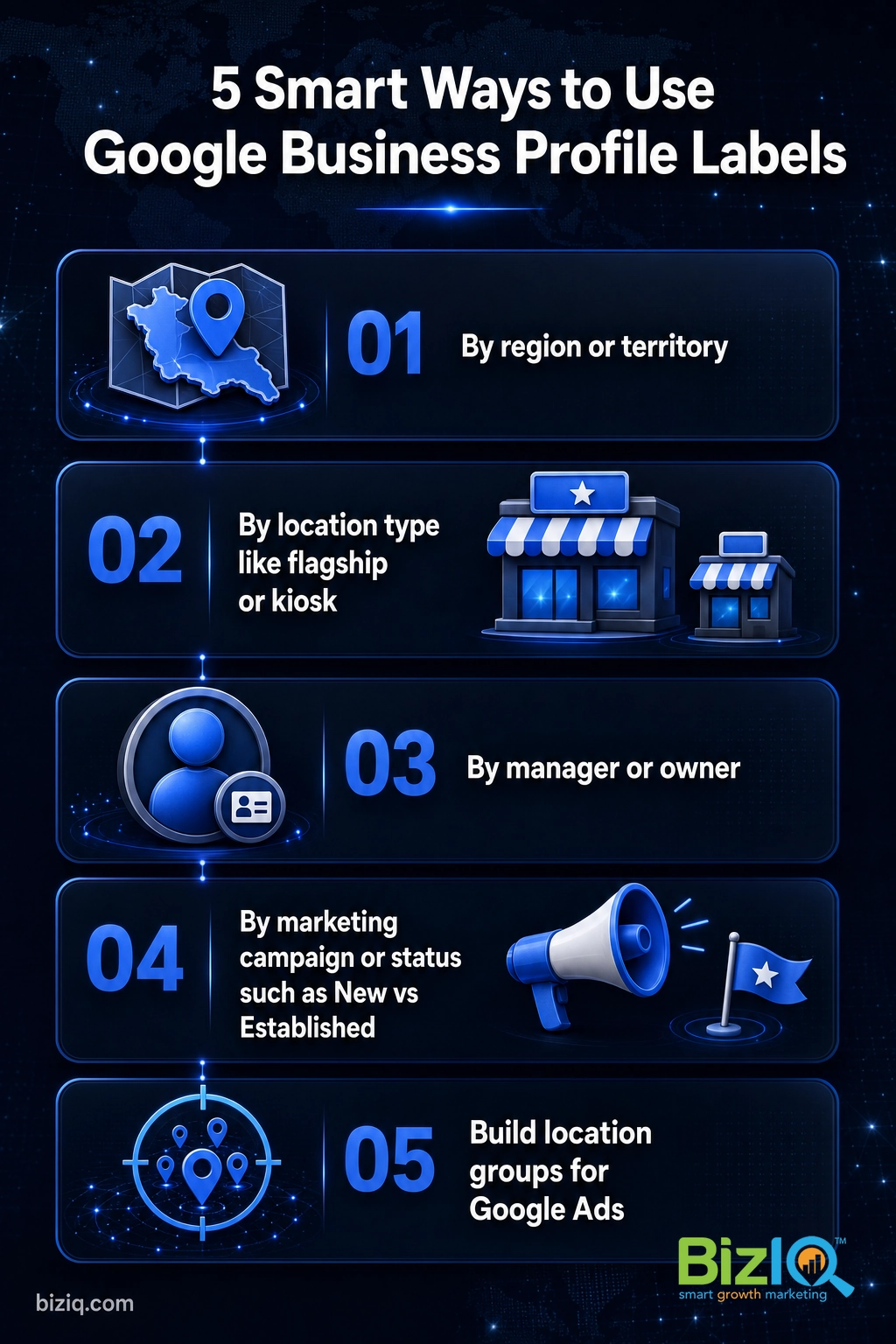
1. Group locations by region or territory
Tag each location with its region (for example, “West Valley,” “East Coast,” or “Southeast”). Now you can filter your dashboard to one territory in a click, which is a lifesaver when a regional manager needs a quick status check or you are planning a local promotion.
2. Group by location type
If your locations are not all the same, label them by type: “Flagship,” “Express,” “Kiosk,” or “Warehouse.” This keeps your reporting honest, because a flagship store and a kiosk should not be measured the same way.
3. Group by manager or owner
Label each location with the person responsible for it. When something needs fixing, you know instantly who owns it, and you can filter to just that person’s locations.
4. Group by marketing campaign or status
Running a seasonal push at some locations but not others? Tag the ones in the campaign. You can also tag locations by lifecycle, like “New” versus “Established,” so your newest spots get the extra attention they need to get found.
5. Build location groups for Google Ads
This is the one use that reaches outside your dashboard. Google lets you use your Business Profile labels to filter location assets in Google Ads, so you can target ads to a specific group of locations instead of all of them. If you advertise locally, a clean set of labels makes location-based ad targeting far simpler.
Labels are a natural fit for multi-location brands. If that is you, our guides to managing multiple business locations on Google and Google Business Profile for franchises go deeper on keeping a whole network organized.
Source: Google Business Profile Help: labels and Google Ads location assets
Best Practices and Common Mistakes
A few simple habits keep your labels useful instead of becoming clutter you ignore in six months.
For single-location owners, the honest answer is that you can skip labels entirely. There is nothing to group, so they add no value for you. Spend that time on the parts of your profile customers actually see.
The right job
“BizIQ is providing the data my business needs to grow. I can tell from customer leads that they are doing the right job. My Client Success Manager is providing the skill and patience I…”
— Mark B.
Best business decision
“Going with BizIQ was the best business decision I've ever made! Our Client Success Manager does a fantastic job keeping our web presence up-to-date and keeping us informed about our…”
— Harry J.
Worth every penny!
“BizIQ is awesome! Our Client Success Manager goes above and beyond to meet our needs! We've had increased business since implementing our website. Plus our Google presence has gotten…”
— Amy A.
Source: BizIQ reviews
Frequently Asked Questions
Are Google My Business labels visible to customers?
Do labels affect my Google ranking or local SEO?
How many labels can I add in Google My Business?
What’s the difference between labels and categories?
Where do I find labels in my Google Business Profile?
Can I use labels with Google Ads?
Do single-location businesses need labels?
Related Terms
- Google Business Profile: the free Google tool (formerly Google My Business) that manages how your business appears on Search and Maps. See our Google Business Profile FAQ.
- Categories: the public tags that tell Google what your business does and affect ranking. Learn how to choose your categories.
- Location group: a set of locations you manage together, often built from labels. Start with managing multiple Google Business accounts.
- Store code: a unique internal ID for each location in bulk management, found near the Labels field in advanced settings.
- Second location: an added location under one account, common for growing businesses. See how to add a second location.
- Profile strength: a private completeness meter that nudges you to finish your profile; it is a prompt, not a label and not a ranking factor.
Want the full picture of managing your presence on Google? Browse the BizIQ Google knowledge bank for more plain-English guides.
Get professional help setting up your Google Business Profile