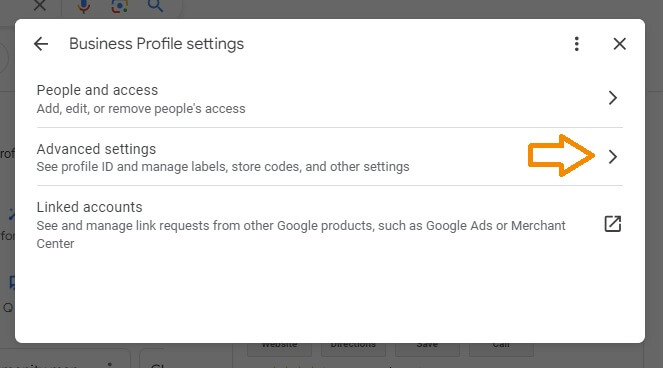
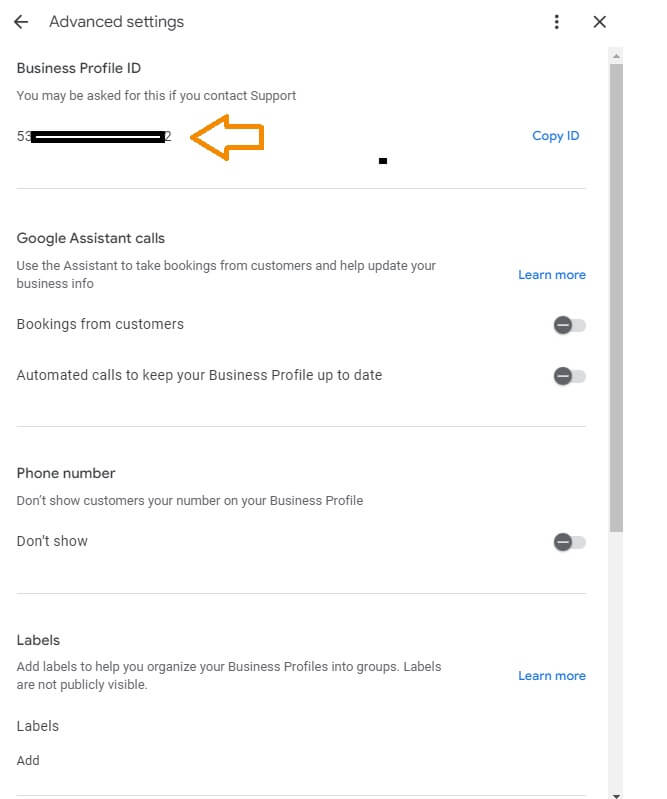
Open your profile from Google Search or business.google.com, go to the menu, and choose Business Profile settings, then Advanced settings. Your Business Profile ID is listed there. Google support and some third-party tools ask for this number. It’s different from a Google Maps Place ID, which developers look up with Google’s Place ID Finder.
When managing your online presence, particularly for businesses, your Google Business Profile (GBP) is pivotal in how customers find and interact with your services. Whether it’s for integrating with third-party tools, managing reviews, or enhancing your local SEO, knowing how to find your Google Business Profile ID is essential. Here’s a step-by-step guide to help you locate this crucial piece of information.

Understanding Google Business Profile ID
Your Google Business Profile ID is a unique identifier for your business listing, and you’ll find it in your profile’s Advanced settings. Google support and some third-party tools may ask for it to identify your profile.
It is not the same thing as a Google Maps Place ID. A Place ID is a separate identifier used by Google Maps and its developer tools, such as the Places API. If you need a Place ID instead, see the “Need the Place ID Instead?” section below.
The Importance of Your Google Business Profile ID
Knowing your Google Business Profile ID is essential for various reasons. It simplifies the process of managing your profile, integrating with other Google services, and troubleshooting any issues that may arise. Additionally, it plays a significant role in enhancing your local SEO by ensuring your business information is consistent across the web.
How To Find Your Google Business Profile ID
- Step 1: Access the Google Business Profile Manager
First, ensure you’re logged into the Google account associated with your business. Then, navigate to the Google Business Profile Manager at https://www.google.com/business/. This is where all your business listings under your account will be displayed. - Step 2: Select Your Business
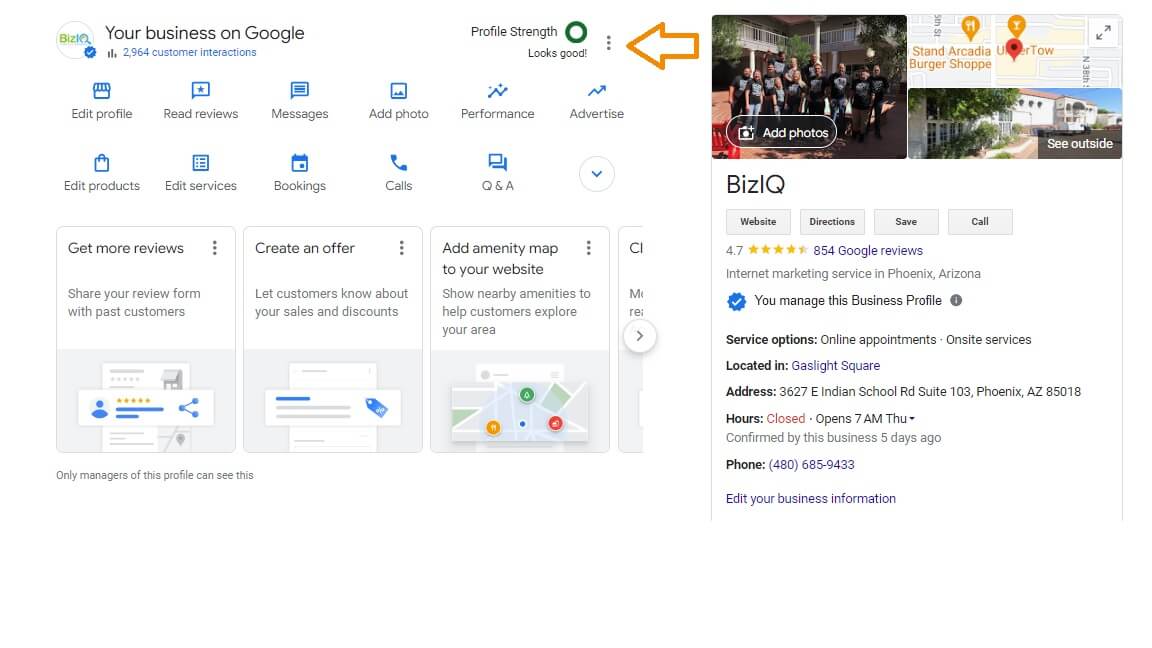
From the list of businesses you manage, select the one for which you want to find the ID. If you manage multiple listings, make sure you choose the correct one to avoid any confusion later on. - Step 3: Open Advanced Settings Next, click on the three dots next to where it says “Your business on Google”. From those three dots, click on “Business Profile Settings”, then “Advanced Settings,” and there you’ll see the “Business Profile ID”.
Need the Place ID Instead?
Developers and some integrations ask for a Google Maps Place ID, which is a different identifier from your Business Profile ID. Google’s Place ID Finder looks it up for you.
- Step 1: Open the Place ID Finder (Google Maps API)
Google provides a handy tool called the Place ID Finder, which is part of the Google Maps API. You can access it by visiting https://developers.google.com/maps/documentation/places/web-service/place-id. Once there, you can search for your business by name or address. As you type, suggestions will appear below the search box. Select your business from these suggestions. - Step 2: Copy Your Place ID
After selecting your business, the tool will display your Place ID, which is a long string of letters and numbers. Make sure to copy it carefully, as it needs to be exact if you’re using it for any integrations or API calls.
Get a Free Google Business Profile Analysis! →
Tips for Managing Your Google Business Profile ID
Keep it Secure: Your Google Business Profile ID is a unique identifier for your business. While it’s not sensitive information like a password, it’s still a good idea to be mindful of where and how you share it.
Integration Uses: Your Place ID can be used to link to your Google Maps listing directly or to work with Google APIs for more advanced features. Your Business Profile ID is mainly what Google support and some third-party tools ask for when they need to identify your profile.
Bookmark the Place ID Finder: If you frequently need a Place ID or manage multiple listings, bookmarking the Place ID Finder tool can save you time.
Conclusion
Finding your Google Business Profile ID is a straightforward process, but it’s essential in leveraging the full suite of features Google offers to businesses. Whether you want to enhance your online presence, manage reviews, or integrate with other services, your GBP ID is the key to unlocking these capabilities. By following the steps outlined above, you can easily locate your ID and make the most of your Google Business Profile.
Working with BizIQ
BizIQ provides digital marketing solutions to businesses so they can dominate their local industries affordably and effectively. Our experienced professionals can assist you in navigating the intricacies of your Google Business Listing, ensuring that your online presence reflects the most accurate and up-to-date information.
Get a Free Google Business Profile Analysis! →
Frequently Asked Questions
What is a Google Business Profile ID?
Why do I need my Google Business Profile ID?
How can I find my Google Business Profile ID?
Can I use Google Maps API to find my Profile ID?
What is the difference between a Business Profile ID and a Place ID?
Is my Google Business Profile ID sensitive information?
Related Articles
- Upcoming Changes Google Business Profile Websites To Be Turned Off What You Need To Know And Do
- How To Optimize Your Google Business Profile Listing For Local Seo
- How To Add Or Claim Your Business Profile On Google
- Should My Business Address Be My Home Or Office