To add services to your Google Business Profile, sign in, open your profile on Google Search or Maps, select Edit services, choose the services you offer (or create a custom one), and save. The whole process is free and takes about ten minutes. It is worth doing carefully: Google found that a complete Business Profile makes shoppers 2.7 times more likely to consider a business reputable and 70% more likely to visit it, and your service list is one of the biggest pieces of “complete.” Google Business Profile (GBP) is the free listing that shows your business in Google Search and on Google Maps, and this guide walks you through adding services the right way so more local customers understand exactly what you do.
- You add services inside your profile using Edit services on Google Search or Google Maps. It is free and takes minutes.
- Pick a category first, then add services from Google’s suggested list. If yours is not there, use Add custom service.
- Give each service a short, plain-language description (and a price where it helps) so customers know exactly what they are getting.
- List every service you truly offer. A complete profile earns more trust, more directions requests, and more calls.
What’s in This Guide
- Before You Begin: What You Need
- Step 1: Sign In and Find Your Profile
- Step 2: Open the Services Editor
- Step 3: Add Services From Google’s List
- Step 4: Create a Custom Service
- Step 5: Add a Description and Price
- Step 6: Save and Check It on Maps
- Which Services Should You Add?
- Why a Complete Service List Wins
- When to Call a Professional
- Troubleshooting Common Problems
- Keep Your Services Working for You
- Frequently Asked Questions
Before You Begin: What You Need
Adding services is one of the easier GBP tasks, but a few things need to be in place first so the option actually appears and your changes stick.
- A verified profile you own or manage. You need to be signed in with the Google account that owns or manages the listing. If you have not claimed it yet, do that first.
- The right primary category. Google only offers services that match your category, so your category needs to describe your business accurately before the service options make sense.
- Your real service list. Jot down every service you offer in plain customer language so you are not inventing it on the spot.
- About 10 to 15 minutes. Skill level: beginner. No technical experience needed.
If your category is not set correctly, fix that first. Our walkthrough on choosing the right Google Business Profile categories explains how categories and services work together, since one controls the other.
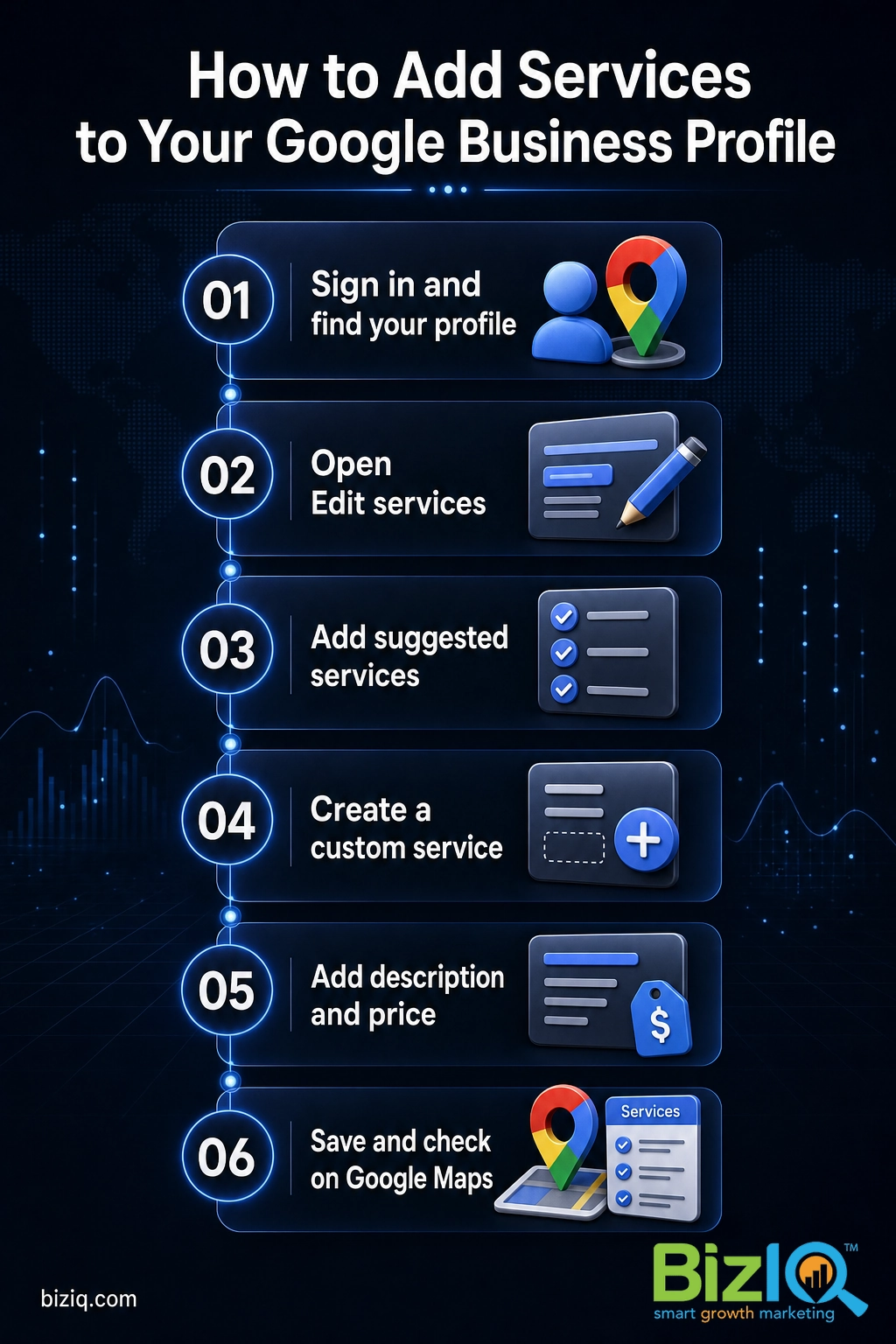
Step 1: Sign In and Find Your Profile
What to do: On a computer or phone, sign in to the Google account that manages your business. Then open your profile either by searching your business name on Google Search while signed in, by opening the Google Maps app and tapping your business, or by going to your Business Profile at business.google.com.
Why this step matters: The service tools only appear when Google recognizes you as the owner or a manager. If you are signed into a personal account that does not manage the listing, you will see the public view with no edit options.
What success looks like: You see your own business dashboard or an “owner” menu with options like Edit profile, Promote, and Edit services.
Step 2: Open the Services Editor
What to do: From your profile, select Edit services. On Google Search this appears in the row of business tools; in the Google Maps app it lives under your profile’s edit options. This opens the screen where all of your services are managed.
Why this step matters: Everything in this guide happens inside the Edit services screen. Finding it once makes every future update fast.
What success looks like: You see your current services (if any) grouped under your business category, plus a button to add more.
Step 3: Add Services From Google’s List
What to do: Select Add more services. Google shows a list of common services tied to your category. Tick every one that applies to your business, then move on. You can select as many as fit what you actually do.
Why this step matters: These suggested services are the terms Google already associates with your category, so they are the fastest, cleanest way to describe your business in words customers and Google both understand.
What success looks like: The services you offer are checked and queued to be added. Nothing you do not offer is selected.
Step 4: Create a Custom Service
What to do: If a service you offer is not in Google’s list, select Add custom service and type its name. You can also select Add a new business category if you offer services that fall under a second category you belong to.
Why this step matters: Most businesses offer at least a few things Google’s generic list misses. Custom services let you describe your real menu instead of settling for the closest match.
What success looks like: Your specialty services appear in the list exactly as customers would search for them.
Step 5: Add a Description and Price
What to do: Select any service to edit it, then add a short description and, if it helps, a price. The description is where “prices and phone numbers not allowed” does not apply, so use it to explain what the service includes in a sentence or two.
Why this step matters: A bare service name tells a customer very little. A clear description answers the questions they would otherwise call or leave to ask, which means more qualified leads and fewer time-wasting calls.
What success looks like: Your most important services each have a plain-language description, and set-fee or starting-at services show a price.
Step 6: Save and Check It on Maps
What to do: Select Save. Then open your business on Google Maps as a customer would and look under the Services section to confirm everything shows correctly.
Why this step matters: Saving is easy to skip when you get pulled away mid-edit, and unsaved services never appear. Viewing the live profile is the only way to confirm customers actually see what you added.
What success looks like: Your services appear under the Services tab on your public profile. If an update does not show right away, give it a little time and refresh before assuming something went wrong.
Which Services Should You Add?
The short answer: every service you genuinely offer, written the way a customer would say it. But a few priorities make the list work harder for you.
- Lead with your money-makers. List the services that bring in the most revenue and the ones you most want more of. If you want more water heater jobs, “Water Heater Installation” and “Water Heater Repair” both belong on the list.
- Match how people search. Use the words customers type, not industry jargon. “Teeth Whitening” beats “Cosmetic Dental Bleaching Procedure.”
- Cover the full journey. Add diagnosis, repair, installation, maintenance, and emergency versions where they apply. Each one is a different search a customer might make.
- Do not pad it. Only list services you actually perform. Fake or aspirational services lead to bad reviews and wasted calls.
Services and your chosen keywords reinforce each other. If you are also fine-tuning the terms your profile targets, see our guide on adding keywords to your Google Business Profile, then come back and make sure your services use that same language.
Why a Complete Service List Wins
Adding services is not busywork. It is one of the clearest signals that your profile is complete and trustworthy, and completeness is exactly what Google and customers reward.
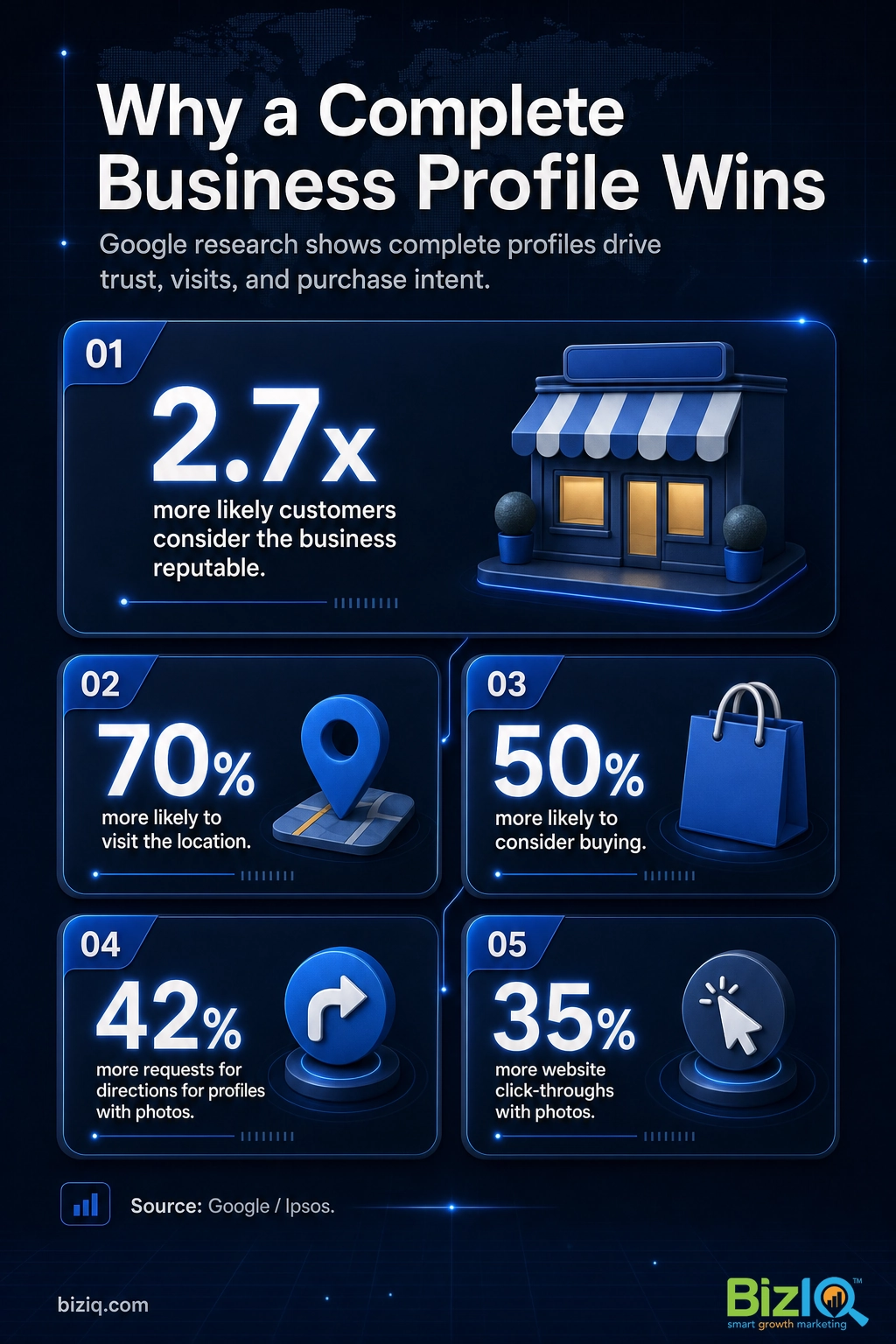
Google’s own research puts numbers on it. A complete, up-to-date Business Profile changes how shoppers act before they ever call you.
Source: Google Business Profile
The same Google research found a complete profile makes people 70% more likely to visit a location and 50% more likely to consider buying. Photos pull their weight too: Google reports that profiles with photos get meaningfully more engagement than those without.
Source: Google Business Profile
Real results for real local businesses
How BizIQ clients turned their Google presence into customers.
Holloway Construction
Demolition & excavation — Jonesborough, TN
Down to their last $2,500 with no online presence, Holloway Construction had BizIQ launch a website in under 24 hours and optimize their Google Business Profile so customers could find them — and made $30,000 in 24 hours.
“BizIQ saved my business.” — Mark Holloway, Owner
Signmakers
Custom signage — Los Angeles, CA
This 25-person LA sign maker — serving brands like Ferrari, Louis Vuitton, and Piaget — got the phone ringing with higher-quality clients after partnering with BizIQ.
“We definitely got the phone ringing with higher quality clients.” — Paul Stoakes, Owner
When to Call a Professional
Most owners can add services in one sitting. But if you reach this step and any of the following is true, it may be worth getting help so your profile actually drives calls and not just clicks:
- You manage several locations and need consistent services across all of them.
- Your category is wrong or too broad and the right services are not even showing as options.
- You have added services but your profile still is not showing up for the searches that matter. Our breakdown of Google Business Profile optimization covers the bigger picture.
- You do not have the time, and you would rather have an expert build the profile out correctly the first time.
A free profile review tells you exactly what is missing before you spend money on anything.
Get a Free Google Business Profile Analysis
Troubleshooting Common Problems
If something is not working as expected, this covers the issues owners hit most often when adding services.
| Problem | Likely cause and fix |
|---|---|
| I don’t see an “Edit services” option | You may not be signed in as an owner or manager, or your primary category does not support services. Confirm your account access, then set an accurate category first. |
| My service isn’t in Google’s list | Use Add custom service and type it exactly as customers would search for it. |
| My custom service was rejected | The name likely broke policy. Remove any price, phone number, personal info, or promotional wording and keep it to the service name only. |
| Services aren’t showing on Maps | Confirm you selected Save, then allow time for the update to appear. If it still does not, check that your profile is verified and not suspended. |
| I have too many services to add one by one | Group them by category. Add a new business category, then add all the services that belong under it before saving. |
If any of these keep tripping you up, setting the profile up correctly once saves hours of back-and-forth later. A done-for-you setup gets your category, services, descriptions, and photos right from the start.

Keep Your Services Working for You
Your service list is not a set-it-and-forget-it task. The profiles that keep winning local customers stay current.
- Review quarterly. Add new services as your business grows and remove anything you have stopped offering.
- Add seasonal services. A landscaper adds snow removal in winter; a roofer adds storm-damage repair in spring. Timely services match what people search for right now.
- Keep descriptions fresh. Update wording and pricing so a searcher never sees stale information.
- Watch your Performance tab. Track calls, direction requests, and website clicks over time to see which services draw the most interest.
Adding services pairs naturally with the rest of your profile. If you are still building the basics, our complete Google Business Profile guide and the Google Business Profile FAQ hub answer the questions that come up next. When you want help managing it all, explore our Google Business Profile services.
Prefer a hands-on partner for your whole local presence? Our local SEO services build and maintain your profile so you can stay focused on running the business.
Exceeded my expectations
“I have owned my business for 36 years and have advertised in different markets through the years. My decision to work with BizIQ has met and exceeded my expectations. In this day of…”
— Neal H.
Highly professional
“I have been working with this organization for a while now. They are highly professional and have helped me immensely. I have worked with other similar groups in the past only to find…”
— John G.
We are very happy
“BizIQ has helped our business so much! They promised and delivered! We are very happy with their service, our web presence and all the follow up support we get!”
— CharLee B.