Yes, you can put a “Book Now” button on your Google Business Profile (GBP, the free listing that shows up on Google Search and Maps, formerly called Google My Business or GMB), and you do not need to be a developer to do it. There are two ways: connect a scheduling tool that works with Reserve with Google, or add your own booking link. Either one turns the button on for local searchers, so someone who finds you can book an appointment in a couple of taps instead of calling, hunting for your hours, or bouncing to a competitor. This guide walks through both routes step by step, shows how to check that you qualify, and covers what to do when the button refuses to show up.
Before You Begin
- What you need: a claimed and verified Google Business Profile, a primary category that takes appointments (salons, clinics, repair shops, trades, and similar services), and either a scheduling tool that connects to Google or a booking URL of your own.
- Time: about 15 to 20 minutes to set up. The button itself can take up to a week to go live.
- Skill level: beginner. Everything happens inside your Business Profile dashboard, no code required.
- Where you work: manage your profile directly on Google Search (search your business name while signed in) or in the Google Maps app under Edit profile.
- A “Book” or “Book Online” button on your profile lets customers schedule straight from Google Search and Maps, no phone call needed.
- Route 1 connects a supported scheduling provider through Reserve with Google; Route 2 adds your own first-party booking link.
- The feature is free to turn on, but your scheduling provider may charge for bookings made through Google.
- Your profile must be verified, your category must be eligible, and the link must let the customer finish the booking.
- Expect the button to appear within a few days to a week after setup.
What’s in This Guide
What a “Book Now” Button Actually Is
When people talk about a “Book Now” button, they mean the blue Book or Book Online button Google shows near the top of an eligible Business Profile. Tap it on a phone and a booking window opens so the customer can pick a time and confirm, often without ever leaving Google. For a local service business, that is the difference between a searcher who books at 9 p.m. on a Sunday and one who tells themselves they will “call tomorrow” and never does.
There are two ways the button gets there, and it helps to know which one fits you before you start.
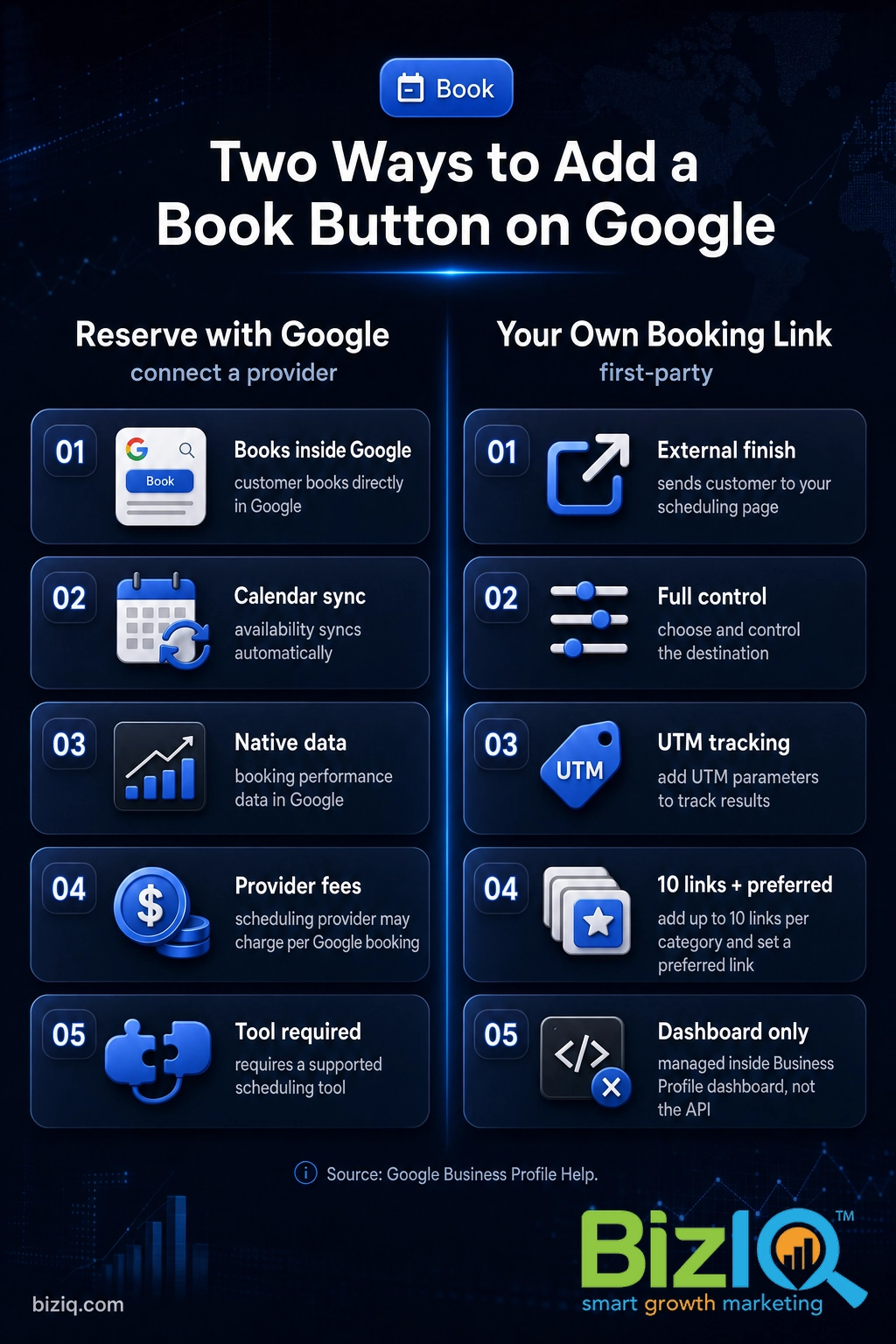
Route 1, a supported scheduling provider (Reserve with Google): if you already use a scheduling tool, Google may let it plug in directly so customers book inside Google. The booking happens in a Google window and your calendar fills automatically.
Route 2, your own booking link: if you prefer, you can add a first-party link that points to your website or scheduling page. The button still says “Book,” but it sends the customer to your page to finish.
Both are worth the effort because the booking button rides on a complete, active profile, and a complete profile is what earns the click in the first place.
Source: Google Business Profile (Google/Ipsos research)
A booking button is one of the most valuable pieces of that complete profile, because it captures intent at the exact moment a searcher decides to act. If you want the bigger picture on turning profile views into real leads, our guide on capturing leads from your Google Business Profile pairs well with this one.
Step 1: Confirm You’re Eligible
Before you touch any settings, make sure your business qualifies. This saves you the frustration of hunting for a button that was never going to appear.
What to do: check three things. First, your profile is claimed and verified (you cannot add booking links to an unverified profile). Second, your primary category is one that takes appointments, such as a salon, dentist, auto repair shop, or home-service trade. Third, booking is available in your country, since the list of supported providers and the link feature vary by region.
Why this step matters: Google only offers the booking link to eligible businesses, and eligibility is driven by category and region. If your category is not supported, the Bookings option will not show up, no matter how many times you refresh.
What success looks like: your profile shows a green verified status, and your primary category accurately describes a service customers schedule.
One link, one job. As of a 2025 policy update, Google requires that a booking link actually let the customer complete the action you label it with. A “Book” link that only opens a generic contact form or your homepage can be rejected or removed. Point it at a real scheduling page where a time slot gets confirmed.
Route 1: Connect a Scheduling Provider (Reserve with Google)
This is the smoothest option if you already run appointments through a scheduling tool. The customer books inside Google and the appointment lands on your calendar automatically.
Step 1: Confirm your scheduling tool supports Reserve with Google
What to do: check whether your current booking software is a Google partner. Common supported providers include tools like Square Appointments, Booksy, and Fresha, though the available list changes by country and by business type.
Why it matters: if your tool is not a partner, the automatic connection will not be offered, and you will want Route 2 instead.
What success looks like: your provider confirms a Reserve with Google or “get booked on Google” integration in its own settings.
Step 2: Open your Business Profile and select Bookings
What to do: sign in to the Google account that manages your profile, search your business name on Google (or open it in the Google Maps app), and select Bookings, then Get started.
Why it matters: the Bookings section is where Google surfaces the providers available to you. If you do not see it, revisit the eligibility check above.
What success looks like: a list of supported providers appears for your business.
Step 3: Choose your provider and select Done
What to do: pick your scheduling provider from the list and select Done. If you are prompted, follow the provider’s sign-in steps to link your account.
Why it matters: this is the handshake that tells Google which calendar to pull availability from.
What success looks like: your provider shows as connected in both Google and the provider’s dashboard.
Step 4: Wait for the button, then test it
What to do: give it time. Google says your booking provider shows up on your profile within a week. Once it does, search your business on a phone and tap the Book button to run a test booking.
Why it matters: a live button that leads to a broken or empty calendar is worse than no button at all.
What success looks like: the Book button appears on Search and Maps and a test appointment flows into your calendar.
Route 2: Add Your Own Booking Link (First-Party)
If you would rather send customers to your own scheduling page, or your tool is not a Google partner, add a first-party booking link. You stay in control of the destination and the booking experience.
Step 1: Open the Booking section of your profile
What to do: search your business name on Google while signed in and select the Booking option, or open the Google Maps app, tap Edit profile, then Booking.
Why it matters: local business links, including booking links, can only be managed inside the profile. They cannot be added through the Business Profile API or a spreadsheet upload, so this dashboard is the one place it happens.
What success looks like: you reach a screen with an option to add a link.
Step 2: Add your booking URL
What to do: select Add link, paste your booking or appointment URL, and save. If you already have a link, use Add another link (you can add up to 10 links per category), then set your preferred link so the right one powers the button.
Why it matters: the preferred link is the one Google uses for the Book button, so pointing it at your real scheduling page is what makes the button work.
What success looks like: your booking link is listed and marked as preferred.
Step 3: Add tracking, then wait for review
What to do: before you paste the link, add UTM parameters to the end of the URL (for example, a source and medium tag) so you can see these bookings in your analytics. Then save and wait for Google to review the link.
Why it matters: a first-party link does not get the same native performance breakdown a connected provider does, so UTM tags are how you prove the button is driving real appointments.
What success looks like: the link passes review, usually within a few days, and the Book button appears on your profile.
Adding a booking link is one small piece of keeping a profile current. If you want the full routine, our walkthrough on editing your Google Business Profile covers the rest of the fields worth keeping fresh, and it is the same menu you just used to add video to your profile.
When to Call a Professional
If you reach this point and the Bookings option never appears, your category is likely not eligible, your profile is not fully verified, or your link keeps getting rejected. Those are the moments it pays to hand it off. A professional can set the correct primary category, choose a provider that actually fits your business type, wire the link to tracking, and make sure the button is not fighting an old integration left over from a previous tool.
BizIQ sets this up for small businesses every day, so the button goes live correctly the first time and ties into the rest of your local search presence.
See how BizIQ manages Google Business Profiles
Here is a two-minute look at how the done-for-you version works:
And the payoff is real: when local businesses get the fundamentals right, the calls and bookings follow. Here are a few results from businesses we have helped.
Real results for real local businesses
How BizIQ clients turned their Google presence into customers.
Holloway Construction
Demolition & excavation — Jonesborough, TN
Down to their last $2,500 with no online presence, Holloway Construction had BizIQ launch a website in under 24 hours and optimize their Google Business Profile so customers could find them — and made $30,000 in 24 hours.
“BizIQ saved my business.” — Mark Holloway, Owner
10X Health
Health & wellness
Only 14% of 10X Health’s ranking keywords were non-branded. BizIQ grew their organic visibility during rapid growth — contributing to 20K products sold in one month and a +100% increase in average monthly website sessions.
“We literally 10X-d the business, and BizIQ was our digital partner in crime.” — Alana, 10X Health
Troubleshooting: Why Your Book Button Isn’t Showing
Most booking-button problems come down to a handful of causes. Work through these before you assume something is broken.
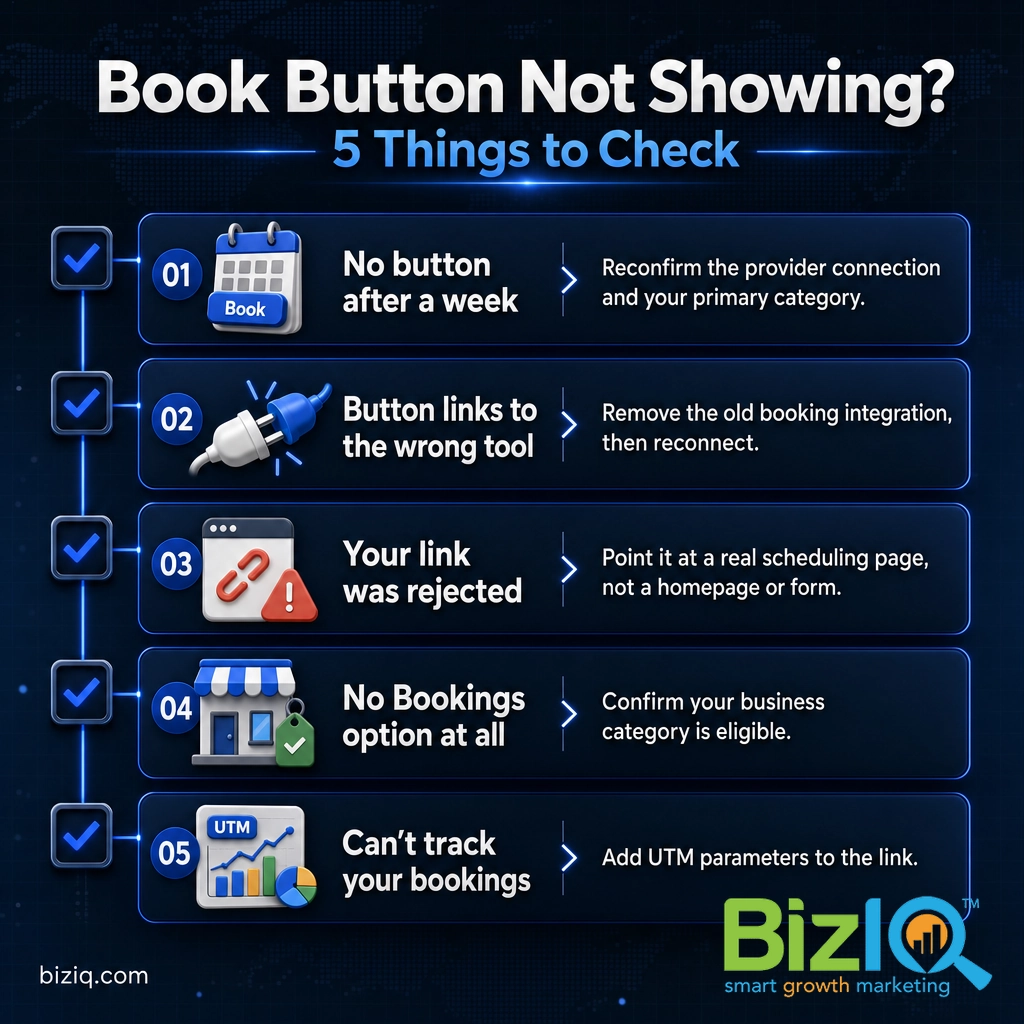
| Problem | Likely cause | Fix |
|---|---|---|
| No button after a week | Provider not fully connected, or category not eligible | Reconfirm the connection in both dashboards and check your primary category |
| Button links to the wrong tool | An old booking provider is still connected | Remove the old integration from your profile, then reconnect the correct one |
| Your link was rejected | The link does not let the customer complete a booking | Point it at a real scheduling page, not a homepage or contact form |
| No Bookings option at all | Your business category is not supported | Confirm eligibility; if unsupported, promote booking through a profile post instead |
| Bookings appear but you cannot track them | Custom links lack native reporting | Add UTM parameters so appointments show in your analytics |
Keep It Working: Maintain and Monitor
A booking button is not a set-and-forget setting. Check the link once a quarter to confirm it still opens a live calendar, keep your hours and services accurate so you are not taking bookings you cannot honor, and watch how many appointments the button drives. Pair it with fresh photos and steady reviews, because the button converts best on a profile that already looks active and trustworthy.
Source: Google Business Profile
Trust is the other half of the equation, and nothing builds it faster than a steady stream of genuine reviews next to that Book button.
Source: BizIQ reviews
Not sure your profile is ready for a booking button yet? A quick, free review will tell you where the gaps are before you turn anything on.
The Bottom Line
Adding a Book Now button to your Google Business Profile is one of the highest-return 20 minutes you can spend on local marketing. Connect a supported scheduling provider for the smoothest experience, or add your own booking link if you want full control, then verify the button is live and tracking real appointments. If your category is not eligible or the button will not cooperate, that is a sign to bring in help rather than lose the bookings. For a closer look at getting found and chosen on Google, see our guide on Google Business Profile optimization, browse the rest of our Google Business Profile resources, or explore BizIQ’s full local SEO (search engine optimization) services below.
Explore BizIQ’s local SEO services
So pleased
“I am so pleased with BizIQ. For the first time I did the right thing in hiring them to assist me with increasing my business. I have moved onto page one of the internet in my area and…”
— Jan W.
Fantastic
“Great company to work with. The people are fantastic and do a great job eliminating the hassle of what could otherwise be a very daunting and time consuming task. The increase in…”
— Tim M.
Help build your business
“BizIQ is a great company and the employees are extremely helpful. The representative that I used takes care of every request in a timely manner and calls me on a monthly basis just to…”
— Cheryl H.