
Yes, you can add a second location to Google My Business, but not as a second address on your existing listing. Google My Business (now called Google Business Profile, or GBP) gives every physical location its own profile. You create a new profile for the new site, keep it under the same Google account, verify it, and manage both from one place. This guide walks through the exact steps, what to do when you have 10 or more locations, and how to keep every listing ranking in its own town.
- Each location needs its own Google Business Profile. You do not add a second address to one listing, you create a second listing.
- Use the same Google account that owns your first location so both profiles live under one login.
- The new profile must be verified before it appears on Search and Maps, and it starts with zero reviews.
- Have 10 or more locations? Use the bulk spreadsheet upload and request bulk verification instead of adding them one by one.
- Keep name, address, and phone (NAP) accurate and consistent, and never create a duplicate listing for an address you already have.
What’s in This Guide

Can You Add a Second Location to One Profile?
Here is the part that trips up most owners: you cannot list two addresses on a single Google Business Profile. Google treats every staffed, customer-facing location as its own business, so opening a new shop, office, or branch means creating a second profile, not editing your first one.
The good news is that both profiles sit under the same Google account, so you sign in once and switch between them. If you later grow to many locations, you can group them together for easier management. So “adding a second location” really means “creating and verifying a second listing, then managing both from one login.”
It is worth the effort. A complete, verified profile for each location is how nearby customers find that specific branch when they search on Google or Maps.
If your second location has no profile, it will not show up at all when someone nearby searches for what you offer. That is a lot of calls and visits left on the table.
Source: Google Business Profile Help
Before You Begin: What You Need
Gather these before you start so the setup takes minutes, not days:
- The right login. The Google account that already manages your first location. Adding the new profile here keeps everything under one roof.
- A real address for the new location. Google will mail a verification postcard there, so it must be a genuine address you can receive mail at (even if you plan to hide it as a service-area business).
- Your correct NAP. Name, address, and phone number exactly as they appear on the new location’s signage, website, and other listings.
- The right business category. Usually the same primary category as your first location (we link to a full category guide below).
- Hours, website link, and a few photos for the new site, so the profile looks complete from day one.
Estimated time: about 10 to 15 minutes to create the profile. Skill level: beginner. Verification is a separate wait of up to roughly two weeks if Google uses a postcard.
How to Add a Second Location, Step by Step
Google occasionally changes where these buttons live and what they are called, so the labels below may read slightly differently on your screen. The sequence, though, stays the same.
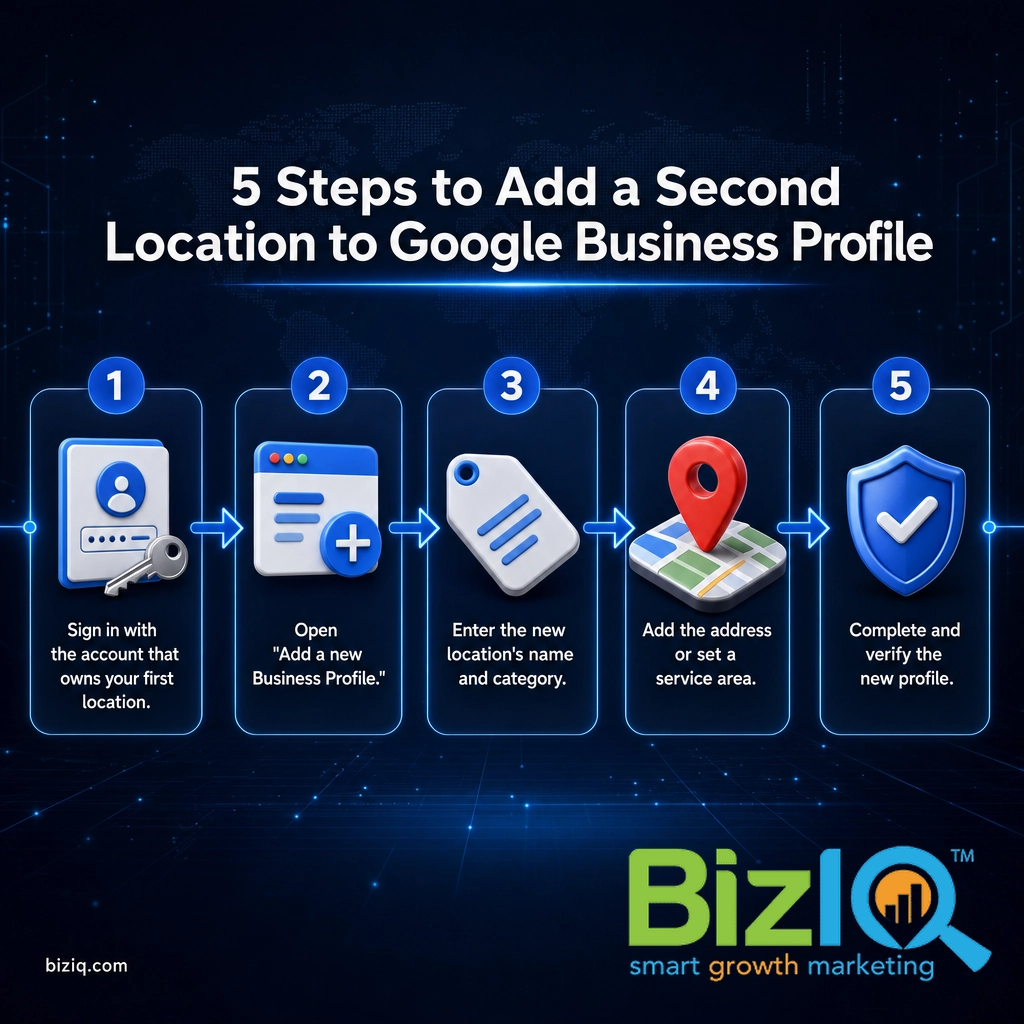
Step 1: Sign In With the Account That Owns Your First Location
What to do: Go to Google and sign in with the same email address that already manages your first Business Profile. If a colleague set up the original listing, ask them to add you as an owner or manager first.
Why it matters: Adding the new location under the same account keeps both profiles together, so you are not juggling two logins or accidentally creating an orphaned listing nobody can manage.
What success looks like: You can see your existing location when you search your business name on Google.
Step 2: Open the Option to Add Another Business
What to do: Search your business name on Google while signed in, then open the Business Profile menu and look for Add a new Business Profile or Add another business. You can also go to business.google.com and choose the option to add a business. If you see a list of your businesses, look for an “Add” control near the top of that list.
Why it matters: This is the path that attaches the new profile to your account instead of starting a disconnected listing someone else might claim.
What success looks like: A blank “business name” field appears, ready for your new location.
Step 3: Enter the New Location’s Name and Category
What to do: Type the business name for the new location. Use the same brand name as your first location (for example, “Bright Smile Dental”) and do not stuff in the city or keywords. Then choose a primary business category, usually the same one your first location uses.
Why it matters: A consistent name across locations builds a recognizable brand, and the right category tells Google which searches your location should appear in. The wrong category is one of the most common reasons a profile underperforms.
What success looks like: The name matches your other location, and the category reflects what you actually do there.
Not sure which category to pick? Your primary category carries the most ranking weight, so choose the one that best describes the location’s core service. Our guide to choosing the right Google Business Profile categories breaks down how to pick and when to add secondary ones.
Step 4: Add the Address (or Set a Service Area)
What to do: If customers visit this location, enter its street address. If the new location serves customers at their address instead (a plumber, mobile detailer, or in-home provider), choose the service-area option and list the areas you cover rather than showing a storefront address.
Why it matters: Google uses the address to place your pin on Maps and to decide which local searches you show up in. A wrong or shared address can trigger a suspension.
What success looks like: The map pin lands on the correct building, or your service areas are listed with the address hidden.
Do not reuse your first location’s address for a second profile. Two listings at the same address for the same business read as duplicates to Google and can get one or both suspended. If you genuinely operate separate departments at one address, contact support before creating a second listing.
Step 5: Complete and Verify the New Profile
What to do: Fill in the hours, phone number, website, and a few photos, then start verification. Google will offer a method (postcard, phone, email, or video) based on your business type. Follow the prompts and enter the code when it arrives.
Why it matters: An unverified profile will not appear publicly. Verification is Google confirming the location is real and that you control it.
What success looks like: The profile shows as verified and begins appearing on Search and Maps.
Postcard verification usually takes up to about two weeks. If the postcard does not arrive, you can request a new one after the stated waiting period. For a full breakdown of timelines and faster options, see how long Google Business verification takes.
The video embed below shows how BizIQ sets up and optimizes a Google Business Profile from start to finish, which is a helpful visual if this is your first time through the process.
Adding 10 or More Locations (Bulk Upload)
Adding locations one at a time is fine for two or three sites. Once you reach 10 or more, Google offers a faster path: a bulk upload through a business (location) group.
Here is how the bulk route works:
- Create a business group (sometimes called a location group) to hold all the locations together.
- Download Google’s spreadsheet template and fill in each location’s details: name, address, phone, category, hours, and a unique store code for every location.
- Upload the completed sheet, then review the import for errors. Fix any flagged rows and re-upload the corrected sheet.
- Request bulk verification. Chains with many locations can often verify them together rather than waiting on a postcard for each one. You typically select the chain business type to unlock this.
Get the store codes right the first time, since they are the key Google uses to match each row to the correct listing. If managing a spreadsheet of locations sounds like a lot, it is, and it is exactly the kind of setup a local marketing partner can handle for you.
Already juggling several listings and logins? Our guide to managing multiple Google My Business accounts and locations covers access, roles, and keeping everything organized.
Managing Multiple Locations the Right Way
Creating the profile is the easy part. Making each location actually win in its own area is where the work pays off. A few rules keep a multi-location presence healthy:
Keep NAP Consistent Everywhere
Name, address, and phone number should match across every profile, your website, and other directories. Inconsistent details confuse both customers and Google, and they weaken local rankings.
Treat Each Profile as Its Own Business
Every location earns its own reviews, posts, photos, and Q&A. You cannot copy reviews from one location to another, and you should not post identical updates to every profile. Local, location-specific content performs better.
The locations that pull ahead are rarely the ones with the fanciest setup. They are the ones that consistently gather fresh reviews and post local updates for that branch. A chain of five profiles that each look active will almost always beat five identical, neglected listings.
Reviews are the clearest proof of this. Each location builds trust in its own neighborhood one review at a time, which is why review generation should be part of every location’s routine. See our playbook on getting more Google Business reviews for tactics you can run per location.
Source: BizIQ reviews
Track How Each Location Ranks
Because every profile competes in its own local map, you should check each one’s visibility separately. One location might rank at the top locally while another needs work. Our guide on checking your Google Business Profile ranking shows how to measure each location on its own.

When managing multiple locations is done well, the results compound: more of your branches show up for nearby searches, and each one drives its own calls and visits. BizIQ has helped local and multi-location businesses across the country turn complete, well-managed profiles into measurable growth.
Real results for real local businesses
How BizIQ clients turned their Google presence into customers.
Holloway Construction
Demolition & excavation — Jonesborough, TN
Down to their last $2,500 with no online presence, Holloway Construction had BizIQ launch a website in under 24 hours and optimize their Google Business Profile so customers could find them — and made $30,000 in 24 hours.
“BizIQ saved my business.” — Mark Holloway, Owner
New Image by Hilary
Cosmetic enhancement services
A previous agency had her competing against herself, so customers couldn’t find her. BizIQ won a $3,000 refund, then built an optimized site with local keyword research — now customers find her again straight from a Google search.
The takeaway: set each location up correctly, then give it the same attention you give your first. A second location is a second front door, and it only works if people can find it.
When to Call a Professional
You can absolutely add a second location yourself. But if you reach a point where any of these are true, it is usually faster and safer to hand it off:
- You are adding many locations and the bulk spreadsheet or business group is not cooperating.
- A new listing was flagged, suspended, or shows up as a duplicate.
- You do not have time to keep each profile active with reviews, posts, and fresh photos.
- You want each location optimized to actually rank, not just exist.
BizIQ’s Google Business Profile setup service handles the whole process, from creating and verifying the profile to optimizing it for local search, so your new location starts strong.
Troubleshooting Common Problems
Most second-location setups hit one of a handful of snags. Here is how to fix them:
| Problem | What to do |
|---|---|
| The verification postcard never arrived | Wait the full stated period, confirm the address is exact, then request a new postcard. Do not edit the address while a code is pending. |
| Google flagged the new listing as a duplicate | Make sure the address is not shared with your first location. If it is a genuinely separate site, contact Google Business Profile support with proof. |
| The new profile got suspended during setup | Review Google’s guidelines, fix any issues (fake address, keyword-stuffed name, shared phone), then submit a reinstatement request. |
| You cannot find the “add business” option | Confirm you are signed in with the owner account and search your business name directly on Google, or try business.google.com. |
| The pin is on the wrong building | Open the profile, edit the address, and adjust the map marker to the correct spot before saving. |
“My existing reviews will transfer to the new location.” They will not. Every Google Business Profile starts at zero reviews, and there has never been a way to move reviews between locations. Plan to build each location’s reputation from scratch.
If you would rather hand the setup, verification, and ongoing optimization to a team that does this every day, BizIQ’s local SEO services cover every location you run.
We are very happy
“BizIQ has helped our business so much! They promised and delivered! We are very happy with their service, our web presence and all the follow up support we get!”
— CharLee B.
Highly recommend BizIQ
“Our business recently hired BizIQ to create our website. They have created the best website we have ever had. We have been impressed by their customer service and how quickly they do…”
— Norman S.
Remarkable job
“Our Client Success Manager has done a remarkable job building our website. Her professionalism and knowledge is great. I never dreamed my business could look so good on a website. All…”
— Michael C.
Frequently Asked Questions
Can I add a second location to one Google Business Profile?
How do I add another location to Google My Business?
Do my reviews carry over to the new location?
How do I create a second Google Business Profile for a business with no storefront?
How do I add multiple locations on Google My Business at once?
Will adding a second location hurt my first location’s rankings?
How long until the new location shows up on Google?
Adding a second location to Google My Business comes down to five things: use the right account, create a separate profile, pick the correct name and category, enter a real address, and verify. Do that, keep each listing active, and every location becomes its own source of local calls and customers. If you would rather skip the setup entirely, BizIQ can create, verify, and optimize each profile for you.