Yes, you can add your social media links directly to your Google Business Profile (GBP), the free listing that shows your business on Google Search and Google Maps. Google added a dedicated Social profiles field, so you no longer have to hope Google finds your pages on its own. The short version: open your profile, click Edit profile, go to Business information, then Contact, scroll to Social profiles, add each platform’s link, and save. This guide walks through every step, the platforms Google supports, and how to fix the most common problems.
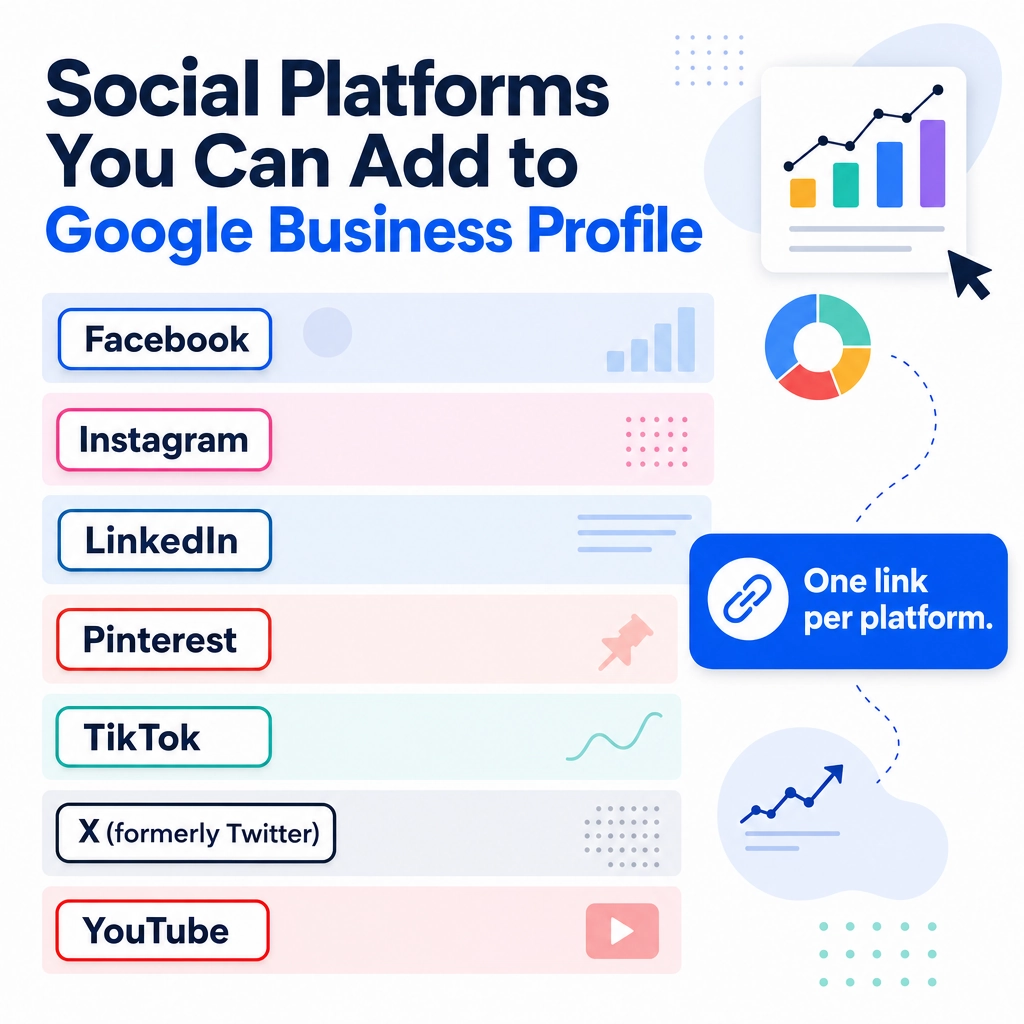
- Google Business Profile now has a built-in Social profiles field, so you can add links to Facebook, Instagram, LinkedIn, Pinterest, TikTok, X, and YouTube.
- The path is Edit profile, then Business information, then Contact, then Social profiles, then Add social profile.
- You can add one link per platform, and you must paste the full, correct profile URL for each one.
- Social links do not directly change your ranking, but a complete profile earns more clicks, calls, and visits.
- The feature rolls out by region, so if the section is missing, check your account access and try again later.
What’s in This Guide
- What Adding Social Links to Your Profile Actually Does
- Why This Small Step Is Worth 10 Minutes
- Before You Begin
- Social Platforms Google Supports
- How to Add Social Media Links, Step by Step
- How to Edit or Remove a Social Link
- When to Call a Professional
- Troubleshooting Common Problems
- Keep Your Profile Working After You Add Links
- Frequently Asked Questions
What Adding Social Links to Your Profile Actually Does
When someone searches your business name on Google, your Business Profile is often the first thing they see: your hours, phone number, reviews, photos, and a button to visit your website. The Social profiles field lets you add clickable links to your social media accounts right inside that panel, so a customer can jump from your Google listing straight to your Facebook page or Instagram feed.
Before this feature existed, Google would sometimes pull in social links on its own, and you had little control over which ones showed up. Now you can choose exactly which accounts appear, keep them current, and remove anything you do not want. Think of it as filling in one more section of a profile you already own, the same way you would set your hours or add a video to your Business Profile.
A complete profile is not just a nice-to-have. Google reports that a complete Business Profile also makes customers 70% more likely to visit and 50% more likely to consider buying. Every field you fill in, including your social links, nudges that completeness higher.
Source: Google Business Profile | Google Business Profile Help
Why This Small Step Is Worth 10 Minutes
For a busy small-business owner, the appeal is simple: you turn passive searchers into followers and repeat customers. Someone who finds you on Google and then follows you on Instagram sees your next promotion, your new hours, and your customer photos for free, long after that first search. It is one of the cheapest ways to keep your business in front of local customers.
It also builds trust. Active, linked social accounts signal that a real, current business is behind the listing. That matters most for newer or smaller businesses that do not yet have hundreds of reviews. The payoff shows up as more profile clicks, more website visits, and more calls, which are the numbers that actually fill your schedule.
At BizIQ, we treat the social links field as part of a bigger picture. A profile that links to accounts you never post to can do more harm than good, because a customer who clicks through to a dead Facebook page may wonder if you are still open. The goal is not just to add links, it is to point people toward accounts that show you are active and worth choosing.
Real results for real local businesses
How BizIQ clients turned their Google presence into customers.
Holloway Construction
Demolition & excavation — Jonesborough, TN
Down to their last $2,500 with no online presence, Holloway Construction had BizIQ launch a website in under 24 hours and optimize their Google Business Profile so customers could find them — and made $30,000 in 24 hours.
“BizIQ saved my business.” — Mark Holloway, Owner
US Post
Residential mailbox installation
US Post didn’t show up for “mailbox installers near us.” BizIQ’s combined SEO and Google Ads strategy grew their visibility on the way to $11 million in revenue.
“I wouldn’t be here without you guys.” — Lance, Owner
Before You Begin
What you need before you start:
- A verified Google Business Profile that you manage.
- The Google account that owns or manages the profile, and your password handy.
- The full web address (URL) of each social account you want to link, for example your Facebook page link, not just your handle.
- About 10 minutes, and a computer or the Google Maps app on your phone.
Good to know: this feature rolls out by region, so it may not be live on every profile yet. If you do not see the Social profiles section, it is usually availability or account access, not something you did wrong.
Social Platforms Google Supports
Google supports a fixed list of platforms in the Social profiles field. As of 2026, you can add one link for each of these:
| Platform | What to paste in the Web address field |
|---|---|
| Your Facebook Page URL (not a personal profile) | |
| Your full Instagram profile URL | |
| Your company or personal LinkedIn page URL | |
| Your Pinterest profile URL | |
| TikTok | Your TikTok profile URL |
| X (formerly Twitter) | Your X profile URL |
| YouTube | Your YouTube channel URL |
You can add one link per platform, so one Facebook and one YouTube link is fine, but you cannot add two separate YouTube links. Pick the account you most want customers to find.
Source: Google Business Profile Help
How to Add Social Media Links, Step by Step
These steps use the Edit profile view that opens when you manage your profile directly on Google Search. The Google Maps app follows the same path under your profile’s Edit option.
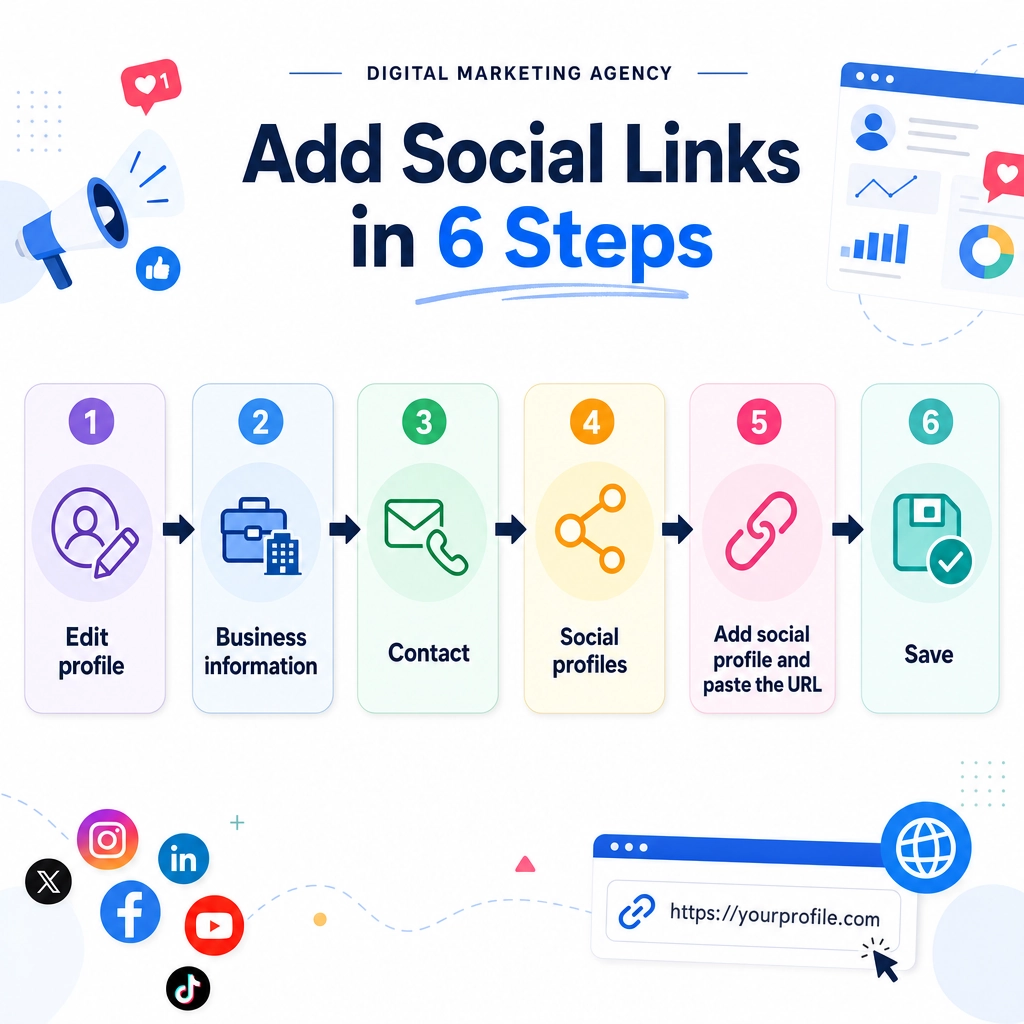
Step 1: Sign In and Find Your Business Profile
On a computer, sign in to the Google account that manages your business, then search your exact business name on Google. Your profile’s management panel appears at the top or side of the results. On a phone, open the Google Maps app, tap your account photo, and choose Your Business Profile. Why it matters: you can only edit a profile from the account that manages it. What success looks like: you see your own business panel with an Edit profile button, not the public view.
Step 2: Open Edit Profile
Click or tap Edit profile. A window opens with tabs for your business information. Why it matters: every change to your listing, including social links, happens inside this editor. What success looks like: the Edit profile window is open and showing your business details.
Step 3: Go to Business Information, Then Contact
In the editor, select Business information, then open the Contact tab. This is where Google keeps your phone number, website, and social links together. Why it matters: the Social profiles field lives under Contact, not under your main info. What success looks like: you can see your phone and website fields, with a Social profiles area below them.
Step 4: Find Social Profiles and Click Add Social Profile
Scroll to the Social profiles section and click Add social profile. Why it matters: this is the actual control that creates a new link. What success looks like: a small form appears asking you to choose a platform and enter a web address.
Do not skip this check: if there is no Social profiles section at all, the feature may not be available in your region yet, or you may be signed in to the wrong account. Confirm your account access before assuming the feature is broken. See the troubleshooting table below.
Step 5: Choose the Platform and Paste the Correct URL
Select the platform, then paste the full profile URL into the Web address field. Use the complete link (for example, the full address of your Facebook Page), not just your username or handle. Why it matters: a wrong or shortened link sends customers to the wrong place, or nowhere. What success looks like: the platform name and a valid-looking web address are both filled in.
Open each social account in another browser tab first and copy the address straight from the address bar. That way you paste the exact working link and avoid typos, redirects, or an app-only link that does not open on the web.
Step 6: Save, Then Repeat for Each Platform
Select Save. Your link is now attached to your profile. Repeat Steps 4 and 5 for every platform you want to show. Why it matters: changes do not take effect until you save, and each platform is added one at a time. What success looks like: each social account you added appears in the Social profiles list, and the links show on your public profile shortly after.
How to Edit or Remove a Social Link
Plans change, and so do your accounts. To update a link, add a new link for the same platform, and the new one replaces the old. To remove a link, open the Social profiles section, use the trash icon next to the link, and save.
Google sometimes adds social links automatically based on information it finds about your business online. If a link you did not choose shows up, you can delete it the same way. If an automatically added link keeps coming back, you may need to contact Google Business Profile support to have it removed. For a wider walkthrough of the editor, see our guide to editing your Business Profile.
Source: Google Business Profile Help
When to Call a Professional
Adding a few links is a 10-minute job. But if you reach this step and the Social profiles section never appears, your profile is unverified or suspended, or you manage listings for several locations and want them all consistent, that is where a local marketing partner saves you hours. The same is true if your social accounts are out of date and you need someone to actually keep them active once they are linked.
BizIQ sets up, verifies, and optimizes Business Profiles for small businesses across the U.S., and we manage the social accounts those links point to so they stay worth clicking. If you would rather hand it off, start with a free review of where your profile stands today.
Troubleshooting Common Problems
| Problem | Likely cause | Fix |
|---|---|---|
| No Social profiles section appears | Feature not yet rolled out in your region, or wrong account | Confirm you are signed in to the managing account and the profile is verified, then check back later as the feature expands |
| Link will not save | The web address is incomplete or formatted incorrectly | Paste the full URL copied from the account’s address bar, then save again |
| The wrong or an old account shows | A previous link or an automatically added link is still attached | Open Social profiles, delete the link with the trash icon, and add the correct one |
| Link points to the wrong page | A handle or app link was used instead of the public web URL | Replace it with the complete web address for that profile |
| An auto-added link keeps returning | Google is pulling it from public data about your business | Remove it, and if it returns, contact Google Business Profile support |
Adding social links is a direct ranking booster. In reality, social links are not a ranking factor on their own. What helps your local search performance is a complete, trustworthy profile that earns clicks and engagement. Social links support that goal, but they are one ingredient, not a shortcut to the top of the map results.
Keep Your Profile Working After You Add Links
Links are only useful if they lead somewhere active. After you add them, set a simple rhythm: post to each linked account regularly, keep your profile photos and hours current, and respond to reviews. A profile that links to busy, up-to-date accounts tells customers you are open, responsive, and worth choosing. This is also the foundation of strong local SEO (search engine optimization), the work of helping your business show up when nearby customers search.
If keeping all of that fresh is more than you have time for, that is the ongoing work we handle. Linking the accounts is step one, and keeping them worth visiting is where results compound. For the bigger strategy, read how to optimize your Business Profile for local search, and browse the full Google Business Profile FAQ for related questions.
Get Help Keeping Your Social Accounts Active
Highly professional
“I have been working with this organization for a while now. They are highly professional and have helped me immensely. I have worked with other similar groups in the past only to find…”
— John G.
We are very happy
“BizIQ has helped our business so much! They promised and delivered! We are very happy with their service, our web presence and all the follow up support we get!”
— CharLee B.
Highly recommend BizIQ
“Our business recently hired BizIQ to create our website. They have created the best website we have ever had. We have been impressed by their customer service and how quickly they do…”
— Norman S.
Frequently Asked Questions
Can you add a Facebook link to your Google Business Profile?
How do I link my social media profile to Google My Business?
Which social media platforms can I add to a Google Business Profile?
Can I add more than one link for the same platform?
Why don’t I see the Social profiles section on my Business Profile?
Does adding social media links help my local search ranking?
Google added a social link I didn’t choose. How do I remove it?
Put Your Social Links to Work
Adding social media links to your Google Business Profile takes about 10 minutes and gives searchers an easy path from your Google listing to the accounts where you stay in touch with customers. Add each platform, double-check the URLs, keep those accounts active, and you have turned a one-time search into a lasting connection. If you want it set up right the first time, or handled for good, BizIQ is ready to help.