
To change your Google Business hours, open your Business Profile from Google Search or the Google Maps app, select Edit profile, choose Hours, click the pencil icon, set your times, and save. That covers your regular weekly schedule. For holidays and one-off changes, you use a separate Special hours setting instead, which this guide walks through step by step. Keeping your Google Business Profile (GBP) hours accurate is one of the fastest ways to protect the calls, visits, and local rankings your small business depends on.
- Change your regular hours from Google Search or the Google Maps app: Edit profile, then Hours, then the pencil icon.
- Use Special hours (not your regular schedule) for holidays and one-off changes, and add them early because Google does not carry them over from year to year.
- Set More hours for delivery, pickup, or senior hours so each service shows separately.
- Edits usually appear within minutes but can take up to 24 hours, and some go to review first.
- Accurate hours protect your calls, visits, and local search ranking, because wrong hours send customers away.
Why Keeping Your Google Business Hours Accurate Matters
Your hours are often the first thing a customer checks before they drive over or pick up the phone. When Google shows “Open now” and your door is actually locked, that customer leaves frustrated, and they rarely come back. Wrong hours also quietly hurt your visibility: Google wants to send searchers to businesses that are open and reliable, so an out-of-date profile can cost you placement in the local map results.
A complete, trustworthy profile does the opposite. According to research Google commissioned with Ipsos, a complete Business Profile makes customers significantly more likely to choose you.
The same research found customers are 2.7 times more likely to consider a business reputable and 50% more likely to consider buying when its Business Profile is complete. Hours are a core part of “complete,” right alongside your address, phone number, and photos. Fix them once, keep them current, and you remove a reason for customers to pick a competitor.
Think of your hours as a promise, not a setting. Every holiday you forget to update, every “temporarily closed” you leave stale, is a small broken promise that chips away at trust. The businesses that win locally treat their profile like their front window: always accurate, always current.
Source: Google Business Profile (Google / Ipsos research)
Keeping a profile accurate, week after week, is also what builds a reputation customers trust. It is the same discipline behind our own track record.
Source: BizIQ customer reviews
Real results for real local businesses
How BizIQ clients turned their Google presence into customers.
Holloway Construction
Demolition & excavation — Jonesborough, TN
Down to their last $2,500 with no online presence, Holloway Construction had BizIQ launch a website in under 24 hours and optimize their Google Business Profile so customers could find them — and made $30,000 in 24 hours.
“BizIQ saved my business.” — Mark Holloway, Owner
A.R.S. Video Inc
Film & audio conversion — Tallmadge, OH
After rebuilding a tangled site structure, A.R.S. Video reclaimed their rankings — over 2,000 more web visits and an 88% increase in sessions.
Before you make a single edit, it helps to know exactly what you need and where the controls live, so the whole update takes a few minutes instead of a frustrating half hour.

Before You Begin: What You Need
You can update your hours in about five minutes once you have these ready:
- A verified Business Profile. If your listing is not verified yet, you cannot edit it. Verify it first.
- The right Google account. Sign in to the account that owns or manages the profile. A personal account with no access to the listing will not show the edit controls.
- Your correct hours written down. Have your real weekly schedule (and any upcoming holiday changes) in front of you so you only touch the profile once.
- A device. You can edit on a computer through Google Search or on your phone using the Google Maps app. Both reach the same profile.
How to Change Your Regular Google Business Hours (Step by Step)
These steps cover your standard weekly schedule, the hours customers see the other 50-some weeks a year. The screens look nearly identical on desktop and mobile.
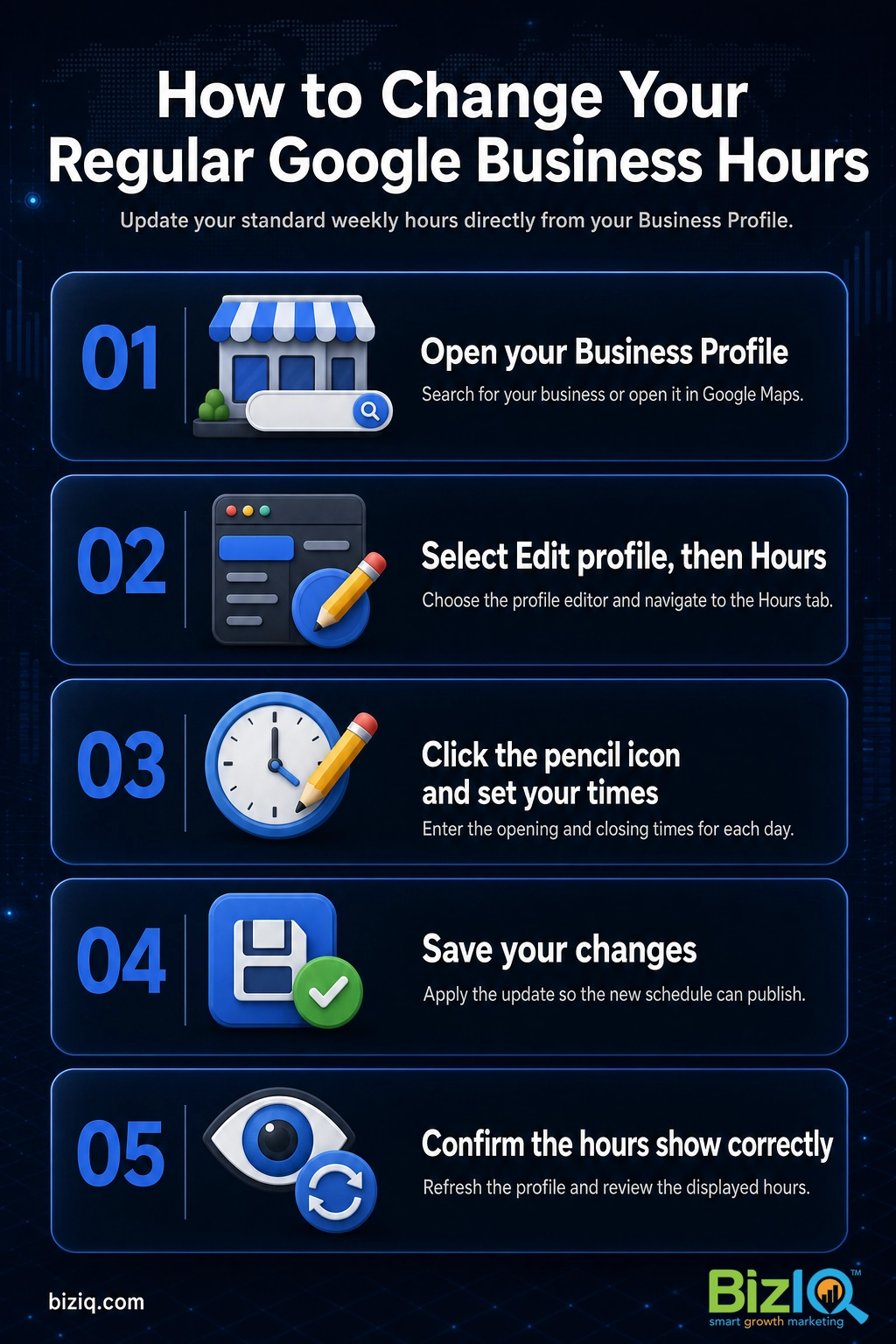
Step 1: Open Your Business Profile
On a computer, sign in to your Google account and search for your business name, or search “my business,” on Google. Your Business Profile appears with a menu of management options. On your phone, open the Google Maps app, tap your profile picture, and choose Your Business Profile. Why this matters: editing directly from the profile is now the standard way to manage a listing, since the separate Google My Business (GMB) app was retired. What success looks like: you see buttons like Edit profile, Promote, and Customers.
Step 2: Select “Edit Profile,” Then “Hours”
Click Edit profile, then open the Hours tab. You will see your current opening hours listed by day. Why this matters: hours live in their own tab, separate from your address and contact details, so you can update them without touching anything else. What success looks like: a list of the seven days with your current times beside each.
Step 3: Click the Pencil Icon and Set Your Times
Click the pencil (edit) icon next to your hours. For each day, set the opening and closing time, mark the business as Open or Closed, and add a second time block if you close midday (useful for restaurants with a lunch and dinner service). Why this matters: getting each day exactly right is the whole point, so slow down here. What success looks like: every day reads the way your doors actually operate.
Double-check days you rarely think about, like Sundays and the day you close early for deliveries. A single wrong day is enough to send a ready-to-buy customer to a competitor who looks “Open now.”
Step 4: Save Your Changes
Click Save. Your new hours are submitted to Google. Why this matters: an edit that is typed but not saved never goes live. What success looks like: the Hours tab now shows your updated schedule, sometimes with a short “pending” note if the change is being reviewed.
Step 5: Confirm the Hours Show Correctly
Wait a few minutes, then search your business again (or open it in an incognito window) to see your profile the way a customer does. Why this matters: confirming on the public listing is the only way to be sure the change took. What success looks like: the live profile shows your new hours and the correct “Open” or “Closed” status for the current time. Google notes that most changes appear within minutes but can take up to 24 hours.
Source: Google Business Profile Help
If you would rather see the whole process in motion, the short walkthrough below shows exactly where each setting lives.
How to Set Holiday and Special Hours
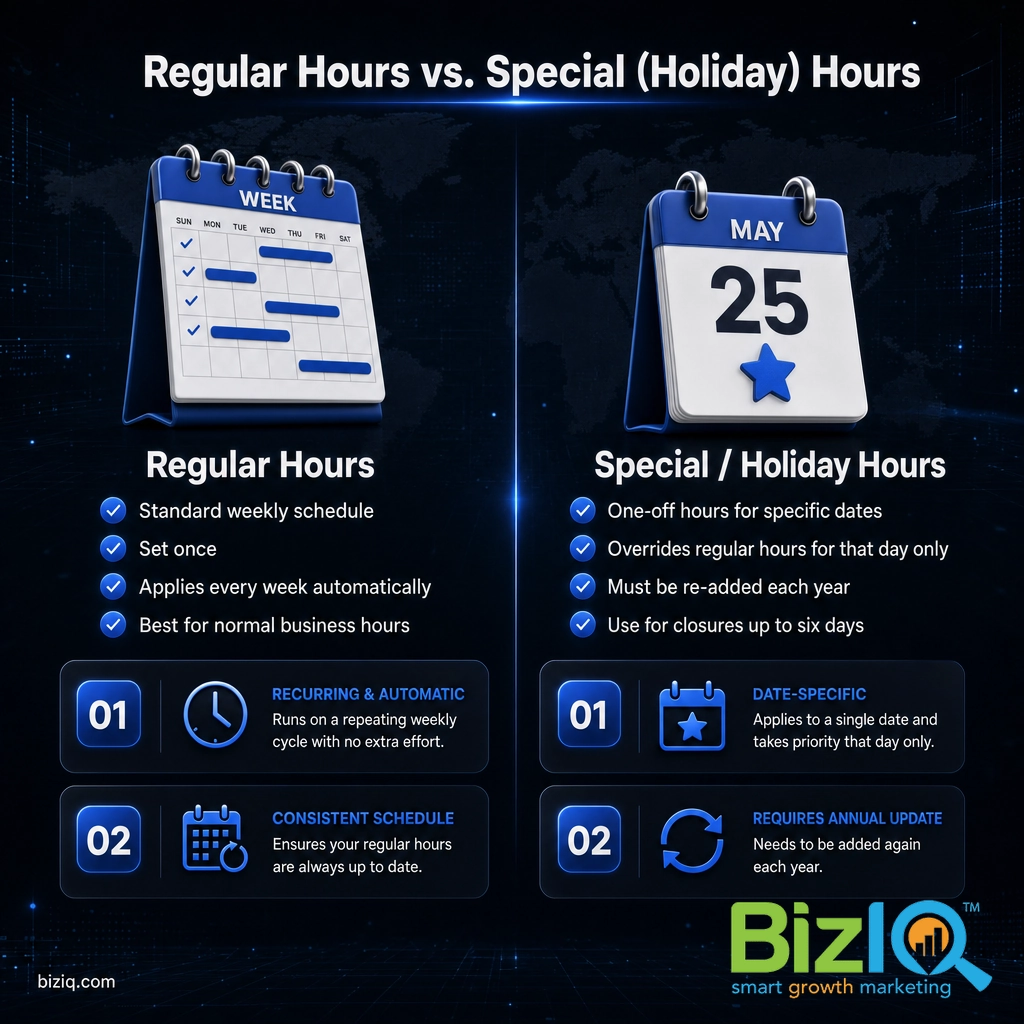
Holidays are where most businesses trip up. The mistake is editing your regular hours for a single day, then forgetting to change them back. Google built Special hours exactly to avoid that: special hours override your normal schedule for specific dates only, so your regular week stays untouched.
Adding Special or Holiday Hours
From Edit profile, open Hours, then find Special hours and choose Edit (or the pencil icon). Add the date, then either enter the open and close times for that day or mark it Closed, and save. Around major holidays, Google often prompts you to confirm your hours even when nothing changes, which reassures customers that the listing is accurate.
Add your holiday hours as early as you can, ideally weeks ahead. Google does not copy holiday hours from one year to the next, so each Thanksgiving, Christmas, or Fourth of July needs to be entered fresh. A quick annual calendar reminder to “update GBP holiday hours” saves you every year.
Short Closures and Early Closes
Closing for a staff retreat, a remodel, or a family event? Special hours handle brief closures too. Google recommends using special hours for a closure of up to six consecutive days, marking each date as closed. For anything longer, mark the business as temporarily closed instead (covered below) so customers understand it is a planned break, not a permanent one.
Source: Google Business Profile Help: Special hours
Adding “More Hours” for Delivery, Pickup, and Senior Hours
Your main hours tell customers when your doors are open, but many small businesses run different schedules for specific services. The More hours section lets you publish those separately so no one guesses.
In the Hours area, look for More hours (also called additional or secondary hours), choose the service type, and set its schedule. Common options depend on your business category and can include:
- Delivery and Pickup windows for restaurants and retailers
- Drive-through hours
- Senior hours for dedicated shopping times
- Kitchen, takeout, or online service hours, depending on your category
Each one appears beside your main hours, so a customer searching at 8 p.m. can see that your dining room is closed but delivery runs until 10. That clarity turns a near-miss into an order.
Marking Your Business Temporarily or Permanently Closed
Two settings handle closures that go beyond a single date:
- Temporarily closed keeps your profile live and visible while telling customers you are not operating right now. Use it for extended renovations, seasonal businesses, or a longer break. Your profile can still earn reviews and show photos, and you flip it back to open when you return.
- Permanently closed signals that the location has shut for good. Only use this when it is true, because it heavily limits the listing. If you are moving, update your address instead of marking the old spot closed.
You will find both options in the Hours area or under the profile’s management menu. Choosing the honest status protects your credibility with both customers and Google.
When to Call a Professional
Updating hours is a do-it-yourself task for most owners. But if you reach this step and you are juggling several locations, cannot get access to a profile someone else created, or you keep finding duplicate listings fighting over the same business, the cleanup is worth handing off. Those issues sit at the intersection of profile management and local SEO (search engine optimization), and getting them wrong can suppress your visibility for months.
That is where a partner helps. BizIQ sets up, verifies, and manages Google Business Profiles for small businesses every day, so your hours, services, and photos stay accurate while you run the shop.
Troubleshooting: Hours Not Updating or Showing Wrong
If your new hours are not sticking, the fix is usually one of a handful of known causes. Work through these in order.
| Problem | Likely cause | What to do |
|---|---|---|
| Change will not save or the edit buttons are missing | Profile not verified, or you are signed in to the wrong account | Verify the listing and sign in with the owner or manager account that has edit access |
| Old hours still showing after saving | Normal processing delay or a pending review | Wait up to 24 hours, then recheck in an incognito window; re-save if still wrong |
| Two sets of hours for the same business | Duplicate listings | Report or merge the duplicate so one profile is the source of truth |
| Holiday hours disappeared | Special hours were set for last year’s dates | Add fresh special hours for this year’s dates, since Google does not carry them over |
| Hours greyed out or listing frozen | The profile is suspended or under review | Resolve the suspension through Google before editing; do not repeatedly re-submit |
If you have run through all of these and your hours still refuse to update, it is often a sign of a deeper account or verification issue. Our complete walkthrough for editing every part of your profile covers the related settings, and our guide to day-to-day profile management explains how to keep everything in sync.
Source: Google Business Profile Help
Keep Your Profile Working After You Update Your Hours
Changing your hours is a great first step, but a profile that converts needs more than an accurate clock. Once your hours are right, use the momentum to tidy the rest of your listing, since each accurate detail compounds the trust signal Google and customers are reading.
- Refresh your other core details while you are in there. Here is how to update your business address and how to change your profile picture.
- Add current photos and keep posting updates, because active profiles look alive to searchers.
- Make sure the whole listing is working for local search with these local SEO optimization tips, and browse more Google Business Profile guides as questions come up.
Think of accurate hours as the foundation. Build reviews, photos, and regular updates on top of it, and your profile starts pulling in calls and visits instead of just sitting there.
Explore BizIQ’s Google Business Profile services
Fantastic
“Great company to work with. The people are fantastic and do a great job eliminating the hassle of what could otherwise be a very daunting and time consuming task. The increase in…”
— Tim M.
Help build your business
“BizIQ is a great company and the employees are extremely helpful. The representative that I used takes care of every request in a timely manner and calls me on a monthly basis just to…”
— Cheryl H.
Orders keep coming
“BizIQ has helped my business grow, the calls and orders keep coming every day. I didn't think I needed to expand to this kind of help but I'm so glad I did. BizIQ is very affordable…”
— Deborah F.
Frequently Asked Questions
How do I change my Google business hours?
How do I add holiday hours to my Google Business Profile?
What are special hours on a Google Business Profile and when should I use them?
How long does it take for new hours to show on Google?
Why can’t I edit my Google business hours?
Do Google holiday hours carry over to the next year?
Can I set different hours for delivery, pickup, or senior hours?
Your Hours, Done Right
Changing your Google Business hours takes minutes, but the payoff runs all year: customers who show up to an open door, phones that ring at the right times, and a profile Google is happy to rank. Update your regular hours from Edit profile, use Special hours for every holiday and one-off change, add More hours for services like delivery, and check the live listing to confirm. Do that consistently and your profile quietly earns its keep.
If keeping your profile sharp is one more thing you do not have time for, let BizIQ handle it. See our $97 Google Business Profile setup