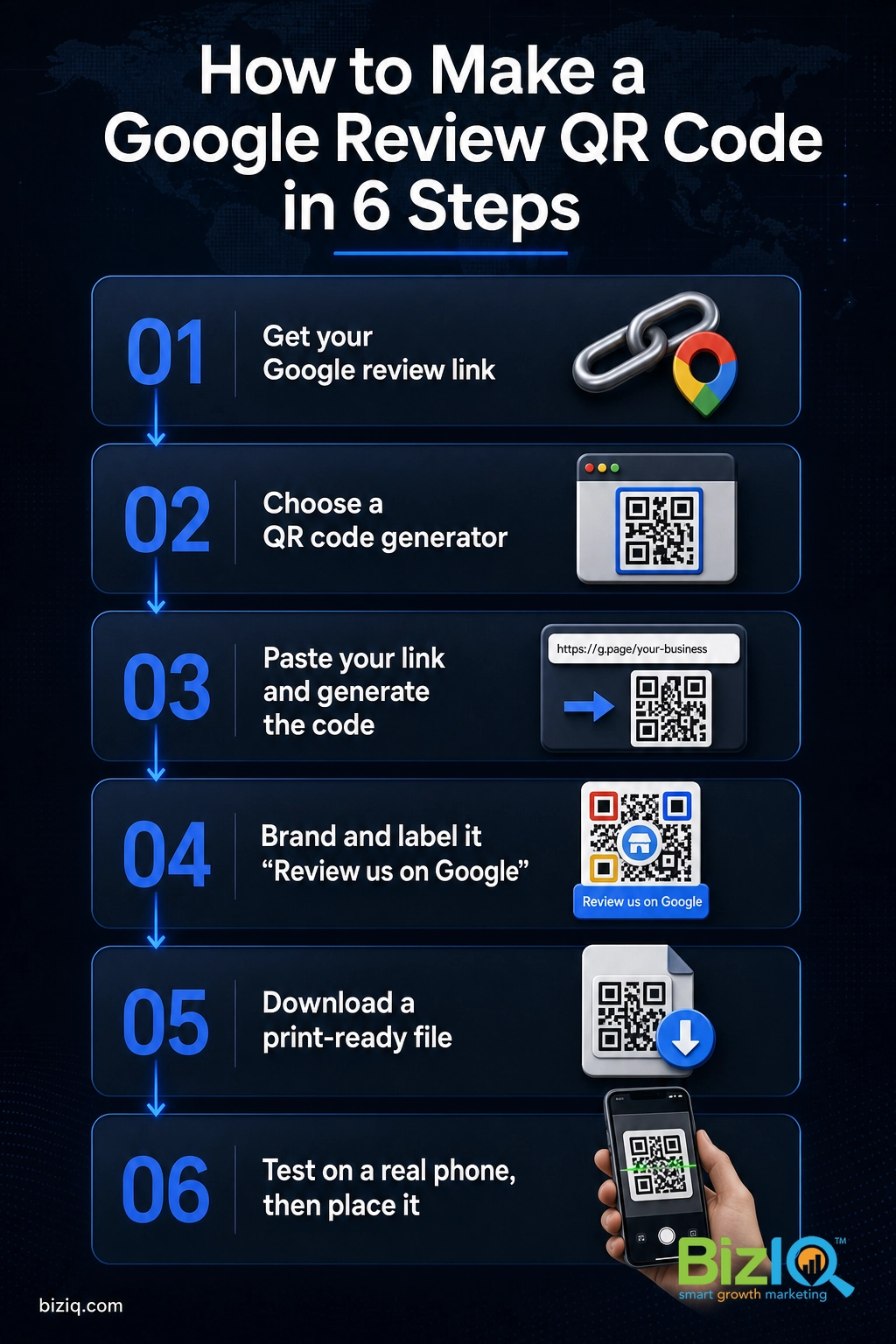
To make a QR code for Google Business reviews, copy your Google review link from your Business Profile, paste that link into a free QR code generator, brand and download the code, then print it wherever customers can scan it. A QR (Quick Response) code turns the awkward “could you leave us a review sometime” into a one-second camera scan that drops a customer straight into your review box while they are still happy and still holding their phone. This step-by-step guide shows you exactly how to make the code, how to brand it so people trust it, and where to put it so it actually earns you reviews.
A quick note on names: your Google Business Profile (GBP) is the free listing that shows your business on Google Search and Maps. It used to be called Google My Business (GMB), and you will still see that older name around, but it is the same tool and the same reviews.
- The whole trick is one link: get your Google review link first, then everything else (text, email, QR code) reuses it.
- Any free QR code generator works. Paste the link, generate, and download a high-resolution file for printing.
- Brand the code with your colors and a short “Review us on Google” label so customers know it is safe to scan.
- Always test the finished code on a real phone before you print a stack of signs.
- Place it where customers are happiest and have a phone in hand: the counter, receipts, table tents, and cards.
What’s in This Guide
- Why a Review QR Code Is Worth the Five Minutes
- Before You Begin
- Step 1: Get Your Google Review Link
- Step 2: Choose a QR Code Generator
- Step 3: Create the QR Code From Your Link
- Step 4: Brand and Label the Code
- Step 5: Download a Print-Ready File
- Step 6: Test It on a Real Phone
- Step 7: Put It Where Customers Will Scan It
- Static vs Dynamic: Which QR Code to Use
- When to Let a Pro Handle It
- Troubleshooting a QR Code That Will Not Work
- Frequently Asked Questions
Why a Review QR Code Is Worth the Five Minutes
The number one reason customers do not leave a review is friction. They have to remember your name, find you on Google, scroll to the right spot, and tap through to the review box, all after they have left your shop. A QR code deletes every one of those steps. The customer points their camera, taps the link that pops up, and they are typing a review in seconds, while they are still standing in front of you and still feeling good about the visit.
That matters because reviews are not just nice to have. They shape the star rating people judge you by in a split second, and they feed the signals Google uses to rank your business in the local map pack, the short ranked list of nearby businesses that sits above the regular search results. More recent, higher-rated reviews mean more calls, more direction requests, and more people walking in.
Source: Google Business Profile
Reviews are the clearest, cheapest proof a local business can show, and a QR code is the fastest way to collect more of them. A review QR code is also the perfect partner to the other methods in our guide on 11 proven ways to get more Google Business reviews, because it captures the in-person moments that texts and emails miss.
Before You Begin
What you need: a verified Google Business Profile, about five minutes, and a phone to test the finished code. That is it. You do not need a designer or any paid software to make a working review QR code.
Time: five to ten minutes from start to a printed, tested code.
Skill level: beginner. If you can copy a link and click a download button, you can do this.
One thing to confirm first: your profile must be verified, or Google will not give you a review link. If you are not sure, our guide on how to tell if your Google Business Profile is verified walks through the check.
Step 1: Get Your Google Review Link
Everything starts with one link. Your Google review link is a short web address that opens the review box for your business directly, skipping the search entirely. This single link powers your QR code and every other review request you ever send.
What to do: sign in to your Google Business Profile, open your business, and look for the “Ask for reviews” button (Google sometimes labels it “Get more reviews” or “Share review form”). Click it, and Google hands you a short review link. Copy that link and paste it somewhere safe, like a note on your phone, because you will reuse it constantly.
Why this step matters: the QR code is only ever as good as the link inside it. Get the real Google review link now and the code will send people straight to the star box instead of a confusing search page.
What success looks like: you have a short link that, when you open it on your phone, lands directly on the “Rate your experience” screen for your business.
Step 2: Choose a QR Code Generator
A QR code generator is a free online tool that turns any web link into a scannable square. There are many good ones, and for a basic review code they all do the same core job: you give them your link, they give you a QR code image.
What to do: open any reputable QR code generator in your browser. The main choice to make here is static versus dynamic, which we cover in detail below. In short, a static code is free and permanent, and a dynamic code costs a little but lets you edit the link later and count how many times the code is scanned. For most small businesses whose review link will not change, a free static code is perfectly fine.
Why this step matters: picking the right type now saves a reprint later. If you think you will want to track scans or ever repoint the code, start with dynamic.
What success looks like: you have a QR code generator open with a box ready for your review link.
Step 3: Create the QR Code From Your Link
This is the easy part. The generator does the real work the moment you hand it your link.
What to do: paste the Google review link you copied in Step 1 into the generator’s URL field, then click “Generate” or “Create.” A QR code appears on screen almost instantly. Make sure you pasted the full review link and not your general website address, since the whole point is to land customers on the review box.
Why this step matters: the code is now a permanent shortcut to your review box. Paste the wrong link here and every sign you print sends customers to the wrong place.
What success looks like: a finished QR code is on your screen, built from your real review link.
Step 4: Brand and Label the Code
A plain black square works, but a branded, clearly labeled code gets scanned far more often because people can see at a glance what it is and that it is safe. Most generators let you customize the look for free.
What to do: add a short, obvious call to action next to or around the code, such as “Review us on Google” or “Scan to leave a review.” Match the code’s colors to your brand if the tool allows it, and add your logo in the center if there is an option. Keep the contrast strong (dark code on a light background) so phone cameras can read it easily.
Do not over-style the code. Very low contrast, a huge logo in the middle, or busy colors can make a code hard or impossible for a camera to read. Keep it clean, dark on light, and always test the finished design before you commit it to print.
Why this step matters: a code that says what it does removes hesitation. People scan what they understand and trust.
What success looks like: a clean, on-brand code with a clear “leave a review” message that still scans reliably.
Step 5: Download a Print-Ready File
How you download the code decides how good it looks on signs, cards, and stickers. A low-resolution image that looks fine on screen can turn blurry and unscannable when it is blown up on a window cling.
What to do: download the code in the highest quality the tool offers. For anything you will print, choose a vector format such as SVG or PDF if it is available, because vectors stay crisp at any size. If only image formats are offered, pick PNG at the largest resolution rather than a small JPG. Save the file somewhere you can find it again, because you will reuse it across signs, receipts, and cards.
Why this step matters: a print-ready file scans cleanly whether it is on a business card or a four-foot banner. A low-res file fails exactly where you need it most.
What success looks like: you have a high-resolution or vector file of your branded review code saved and ready to use.
Step 6: Test It on a Real Phone
Never skip this step. Test the finished code on an actual phone, ideally more than one, before you print a single copy. This is where you catch a wrong link, a design that is too busy to read, or a code that only opens on a desktop browser instead of a mobile device.
What to do: open the plain camera app on a phone, point it at the code, and confirm two things: that it scans quickly, and that it lands on your business’s review box, not a login page, a search page, or an error. If possible, test on both an iPhone and an Android phone, since customers use both.
If the code scans but opens the wrong screen, the problem is almost always the link, not the code. Go back to Step 1, confirm your review link opens the review box directly on a phone, then regenerate the code with the corrected link.
Why this step matters: printing is the expensive, slow part. A two-minute test on your own phone saves you from a box of useless table tents.
What success looks like: the code scans fast on a real phone and opens your review box every time.
Step 7: Put It Where Customers Will Scan It
A review QR code only works if people see it at the right moment: when they are happy and have a phone within reach. Put it everywhere that moment happens.
What to do: print and place the code where customers already wait, pay, or linger. The best spots for most local businesses are the checkout counter, a table tent, the receipt, business cards, window clings, product packaging, and the back of a service vehicle. Hand it over with a friendly line like “If you have a second, a quick Google review really helps a small business like ours.”
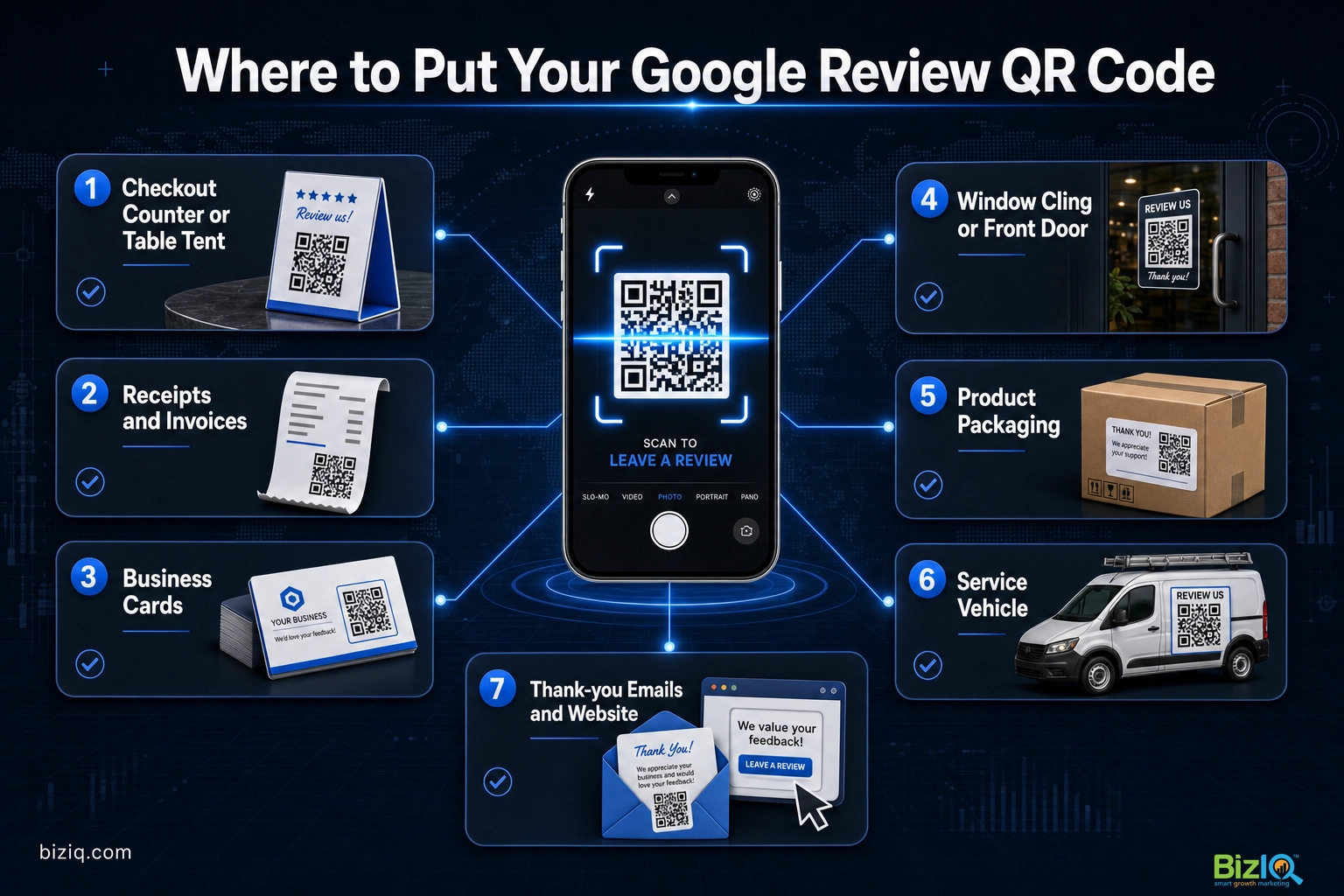
Do not stop at the physical world. The same code works online: drop it into thank-you emails, add it to your website’s contact or thank-you page, and include it on invoices. One tested code can live in a dozen places at once.
Pair the QR code with a complete, active profile and it works even harder. The customers your code sends to Google see your photos, hours, and services before they review, and a complete profile is what turns that attention into calls and visits. The code earns the review; the profile closes the sale.
Source: Google Business Profile
Real results for real local businesses
How BizIQ clients turned their Google presence into customers.
Rosalia’s Mexican Restaurant
Restaurant — Orangeburg, SC
An out-of-date Google Business Profile was sending customers to competitors. BizIQ revamped the website and optimized their GBP so patrons can easily find them online, see the latest deals, and read reviews.
“They make us louder, they help us demand attention, and we get it.” — Kim, Owner
A.R.S. Video Inc
Film & audio conversion — Tallmadge, OH
After rebuilding a tangled site structure, A.R.S. Video reclaimed their rankings — over 2,000 more web visits and an 88% increase in sessions.
Static vs Dynamic: Which QR Code to Use
This is the one real decision in the whole process, so it is worth 60 seconds of thought. Both types scan exactly the same way for the customer. The difference is what you, the owner, can do with them afterward.
| Feature | Static QR code | Dynamic QR code |
|---|---|---|
| Cost | Usually free | Small subscription or fee |
| Edit the link after printing | No, the link is fixed | Yes, repoint it anytime |
| Track how many scans | No | Yes, with scan analytics |
| Expires | No, works as long as the link works | Only if you stop paying for the service |
| Best for | A simple, permanent review link | Measuring results or links that may change |
For most small businesses, a free static code is all you need, because your Google review link will not change. Choose dynamic if you want to see which signs and cards actually drive scans, or if you think you might repoint the code later without reprinting everything.
Want the bigger picture on turning those reviews into revenue? See how Google Business Profile reviews drive sales, and keep the Google Business Profile FAQ hub handy for quick answers as you optimize the rest of your listing.
When to Let a Pro Handle It
Making one QR code is quick. Building a review engine that keeps new reviews coming in week after week, answering them, and feeding that proof back into your local rankings is the part that tends to fall apart for a busy owner. Creating the code, printing the signs, training the team to ask, sending the texts and emails, and replying to every review is simple work that only pays off when it happens consistently.
That is exactly what BizIQ’s reputation management service does for you. We set up the review link and QR code, build the request flow, and keep reviews arriving and getting answered, so your profile stays active and your rating keeps climbing while you run your business.
See how BizIQ earns and manages reviews for you
Source: BizIQ reviews
Troubleshooting a QR Code That Will Not Work
If a code misbehaves, it is almost always one of these five things. Here is how to fix each one.
| The problem | What to do |
|---|---|
| The code will not scan at all | Increase the contrast (dark code on a light background), shrink the center logo, and reprint larger. Very busy or low-contrast codes defeat phone cameras. |
| It scans but opens the wrong page | The link inside is wrong. Confirm your review link opens the review box on a phone, then regenerate the code with the corrected link. |
| It works on a computer but not a phone | Some auto-generated review links behave differently on mobile. Use the short “Ask for reviews” link from your profile and test it on both an iPhone and an Android before printing. |
| The code is blurry when printed | You downloaded a low-resolution image. Re-download as SVG or PDF, or as the largest PNG available, then reprint. |
| Reviews are not appearing after people scan | New reviews can take a short time to post, and Google filters ones it suspects are fake or coordinated. Keep requests genuine and spread across real customers, and never offer incentives. |
Source: Google’s official guidance on reviews | Google’s review content policy
A common myth is that a QR code can be “banned” by Google for collecting reviews. It cannot. A QR code is just a shortcut to your review link, which Google itself provides. What does break the rules is how you ask: offering discounts or gifts for reviews, screening out unhappy customers, or posting fake reviews. Keep the ask honest and the code is completely safe.
Exceeded my expectations
“I have owned my business for 36 years and have advertised in different markets through the years. My decision to work with BizIQ has met and exceeded my expectations. In this day of…”
— Neal H.
Highly professional
“I have been working with this organization for a while now. They are highly professional and have helped me immensely. I have worked with other similar groups in the past only to find…”
— John G.
We are very happy
“BizIQ has helped our business so much! They promised and delivered! We are very happy with their service, our web presence and all the follow up support we get!”
— CharLee B.
Frequently Asked Questions
How do I get the QR code for my Google Business reviews?
How do I get my Google review link?
Is there a free Google review QR code generator?
How do I share or send my Google review link to customers?
Does a Google review QR code expire or stop working?
Should I use a static or dynamic QR code for Google reviews?
Where should I put my Google review QR code?
Keep Growing Your Local Presence
A review QR code is one easy win. These guides pick up where this one leaves off:
- 11 proven ways to get more Google Business reviews, for every other channel beyond the QR code.
- How to respond to Google Business reviews, because replying is what keeps reviews coming.
- The complete guide to Google Business Profile, if you want to optimize the whole listing, not just reviews.
- BizIQ’s Google Business Profile management, if you would rather hand the whole thing off.
Make the code once, test it, and put it in front of every happy customer. It is one of the simplest, cheapest things a local business can do to turn good service into the reviews that bring in the next customer.