
You cannot delete a customer’s photo from your Google My Business listing yourself. Google My Business (now called Google Business Profile, or GBP) only lets you delete photos that you uploaded. For a photo that a customer or random visitor added, your single option is to report it and ask Google to take it down, and Google will only remove it if the photo breaks one of their content rules. This guide walks you through exactly how to flag a user-added photo on both desktop and mobile, what Google will and will not remove, and what to do while you wait.
- Business owners cannot directly delete photos uploaded by customers or other users, only report them.
- Google removes a reported photo only when it violates a content policy, not because it is unflattering.
- Report on desktop through your Business Profile Photos tab, or in the Google Maps app on your phone.
- Reviews take several business days, and removal is never guaranteed.
- Any photo you uploaded yourself can be deleted instantly from the Photos tab.

What’s in This Guide
- Can You Delete a Customer’s Photo on Google?
- First, Confirm It Is a Customer Photo (Not Your Own)
- When Google Will Actually Remove a Customer Photo
- How to Report a Customer Photo on Desktop
- How to Report a Customer Photo in the Maps App
- What to Do While You Wait (and If Google Says No)
- When to Hand This to a Professional
- Troubleshooting Common Problems
- Keep Your Profile Working for You
- Frequently Asked Questions
Can You Delete a Customer’s Photo on Google?
Short answer: no, not directly. Google treats photos as two separate kinds of content. Photos you upload are owner content, and you control them completely. Photos that customers, visitors, or Local Guides upload are user content, and Google intentionally does not give owners a delete button for them. That design keeps your profile looking current and trustworthy to searchers, but it also means a single bad photo can sit on your listing until Google agrees to remove it.
This matters more than most owners realize, because photos drive real customer action. Your profile photos are often the first thing a searcher sees, so one off-topic or misleading image at the top of your gallery can quietly cost you clicks and calls.
So removing a photo that misrepresents your business is not vanity, it is protecting the listing that sends you calls, directions, and website visits. The catch is that you have to go through Google’s reporting process, and you have to give a reason Google will accept.
Source: Google Business Profile
First, Confirm It Is a Customer Photo (Not Your Own)
Before you report anything, check who actually uploaded the photo, because the fix is completely different depending on the answer.
If you uploaded the photo yourself, you do not need to report it to anyone. Open your Business Profile, go to Photos, filter to By owner (sometimes shown as “Your photos”), select the image, and use the trash icon or Remove button. It is gone in seconds. Our full walkthrough on deleting your own Business Profile photos covers that side in detail.
If the photo shows up under By customer (or has no owner tag and you know you never added it), it is user content. You cannot delete it, so the rest of this guide is for you. While you are in there, it is worth learning the correct photo sizes for a Business Profile and how to geotag the photos you add, so the images you control look sharp and rank well.
“I can delete any photo I do not like from my own listing.” Not true. Owners can only delete owner-uploaded photos. Every customer and visitor photo has to be reported and reviewed by Google, and plenty of reported photos stay up because disliking an image is not a policy violation.
When Google Will Actually Remove a Customer Photo
A report only works if the photo genuinely breaks Google’s content rules. Google reviews every report and decides whether the content stays or goes, so going in with the right reason is the difference between a removal and a rejection.
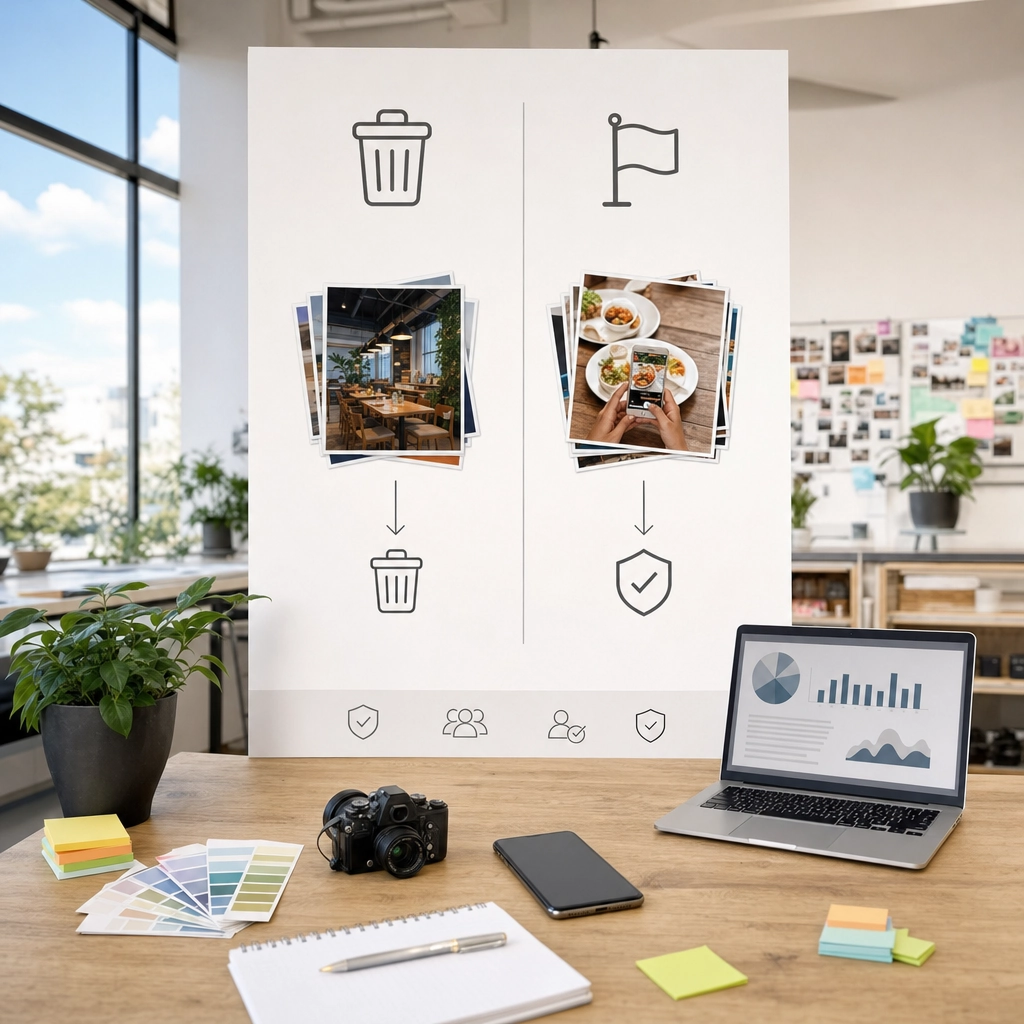
Google is likely to remove a customer photo when it is:
- Not a photo of your place, for example a screenshot, a meme, or a picture taken somewhere else entirely.
- Spam or fake, including promotional images, logos from another company, or content posted to mislead.
- Private or personal information, such as a photo that exposes someone’s face, license plate, or documents in a harmful way.
- Offensive, explicit, or harassing, which breaks Google’s prohibited and restricted content policies.
- Off-topic or misleading, meaning it does not reflect the real nature of your business.
Google is unlikely to remove a photo that is just unflattering, poorly lit, slightly outdated, or just not how you would style it. Those are judgment calls about taste, not policy violations, and taste is not something Google polices. Pick the reason that honestly fits the problem, because an inaccurate reason weakens the report.
Source: Google Business Profile Help: Report inappropriate photos or videos
How to Report a Customer Photo on Desktop
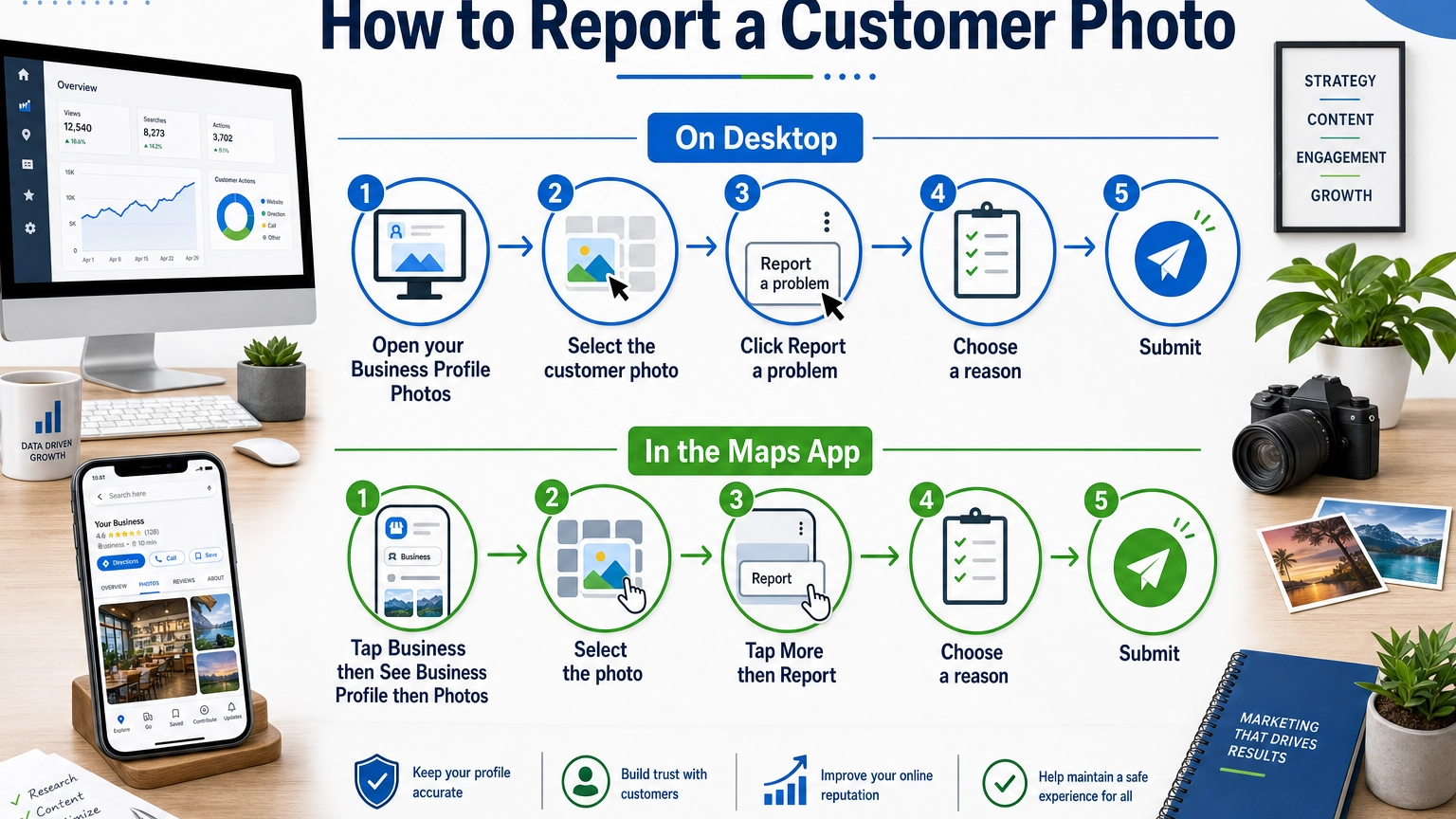
This is the method most owners use, because it is easy to see the full gallery on a larger screen. Make sure you are signed in to the Google account that manages your Business Profile first.
Step 1: Open Your Business Profile Photos
Go to your Business Profile at business.google.com, or search your business name directly on Google while signed in so your profile tools appear. Select Photos, then View all photos.
Why it matters: you have to view the photo inside your managed profile for the reporting option to appear. Success looks like: your full photo gallery, with tabs or filters that separate owner photos from customer photos.
Step 2: Select the Photo You Want Removed
Switch to the customer photos, find the exact image you want gone, and click it so it opens full size. Reporting works on one photo at a time, so if several photos are a problem you will repeat these steps for each one.
Success looks like: the single customer photo enlarged on screen with an options row around it.
Step 3: Click “Report a problem”
With the photo open, look at the bottom right and select Report a problem.
Why it matters: this is the official flag that sends the photo to Google’s review team. Success looks like: a short form asking you to choose what is wrong with the content.
Step 4: Choose the Reason and Submit
Select the reason that best matches the real problem, such as “Not a photo or video of the place” or a privacy concern, then select Submit.
Do not submit the same photo over and over hoping to speed things up. Google specifically warns that multiple removal requests for the same content can delay the review. Report it once, accurately, and let the review run.
Source: Google Business Profile Help
How to Report a Customer Photo in the Maps App
If you manage your profile from your phone, the Google Maps app gets you to the same place. Sign in with the account that manages the business first.
Step 1: Open Maps and Go to Your Profile
Open the Google Maps app, tap Business at the bottom right, then tap See Business Profile, then Photos.
Step 2: Select the Photo and Open the Menu
Tap the customer photo you want removed so it opens, then tap More (the three-dot menu) at the top right and choose Report.
Success looks like: a reason list appears for why you are flagging the content.
Step 3: Pick the Reason and Submit
Choose the reason that fits, for example Spam or Personal information, then tap Submit. In Maps you can also report the user profile that keeps posting content that breaks the rules, which is useful if the same person repeatedly uploads bad photos.
What to Do While You Wait (and If Google Says No)
Google says a photo review can take several business days, and the outcome is not guaranteed. That waiting window is not wasted time, because the smartest move is to make the bad photo matter less while the review runs.
Upload a batch of strong, recent, on-brand photos of your own. Profiles reward fresh owner content, and the more good images you add, the further down the gallery a single bad customer photo drops. A complete, well-photographed profile also builds trust before a customer ever reads a word.
If Google declines the removal, do not spam the report. Re-check whether the photo truly breaks a policy. If it genuinely does and the first review missed it, you can report it again with a clearer reason, or use the Business Profile help community and Google support to escalate a real violation. If it does not break a policy and you just dislike it, the honest answer is that burying it under better photos is your best tool. The same mindset applies to reviews: you cannot delete a negative review you dislike either, which is why owners ask about turning off Google reviews and learn to manage them instead.
Source: Google Business Profile
When to Hand This to a Professional
If you reach this step and the photo is still up, the same person keeps re-uploading bad images, or your gallery is cluttered with off-topic and misleading content that is hurting your calls, it is worth bringing in help. Cleaning up a profile, documenting genuine policy violations, and filling the gallery with strong owner photos is exactly the kind of ongoing local-search work a marketing partner handles so you can run your business.
BizIQ manages Google Business Profiles for small and local businesses across the country, from photo cleanup to full local SEO (search engine optimization), and our reputation management service keeps your listing working in your favor.
Real results for real local businesses
How BizIQ clients turned their Google presence into customers.
Holloway Construction
Demolition & excavation — Jonesborough, TN
Down to their last $2,500 with no online presence, Holloway Construction had BizIQ launch a website in under 24 hours and optimize their Google Business Profile so customers could find them — and made $30,000 in 24 hours.
“BizIQ saved my business.” — Mark Holloway, Owner
Signmakers
Custom signage — Los Angeles, CA
This 25-person LA sign maker — serving brands like Ferrari, Louis Vuitton, and Piaget — got the phone ringing with higher-quality clients after partnering with BizIQ.
“We definitely got the phone ringing with higher quality clients.” — Paul Stoakes, Owner
Troubleshooting Common Problems
| Problem | What to do |
|---|---|
| There is no “Report a problem” option on the photo | You are probably not signed in to the account that manages the profile, or you are viewing the photo outside your profile. Sign in with the managing account and open the photo from your Business Profile Photos tab. |
| I reported the photo but it is still showing | Reviews take several business days and removal is not guaranteed. Wait it out, and do not resubmit the same photo, which slows the review. Add your own photos in the meantime. |
| Google rejected my report | The photo likely does not break a content policy. Re-check the real reason. If it clearly violates a rule, report once more with the most accurate reason or escalate through Google support. |
| The same user keeps uploading bad photos | In the Google Maps app you can report the user profile itself, not just the single photo, which addresses repeat offenders. |
| I just want to turn off customer photos entirely | Google does not offer that setting. Manage the gallery by reporting policy violations and consistently adding your own high-quality images. |
Remarkable job
“Our Client Success Manager has done a remarkable job building our website. Her professionalism and knowledge is great. I never dreamed my business could look so good on a website. All…”
— Michael C.
Count on them
“These folks are great! They DO what they say they DO unlike others that just promise. You can count on them.”
— Mike B.
10 stars
“I have been solicited by hundreds of people but nobody could ever compare to BizIQ's first class service and professionalism. Very fair pricing and unparalleled expertise. Couldn't be…”
— Don S.
Keep Your Profile Working for You
Removing one bad photo is a fix. Keeping your profile clean is a habit, and it is the habit that compounds into more calls and visits. Check your Photos tab regularly, report genuine policy violations as they appear, and keep a steady stream of fresh, accurate owner photos flowing so your best images always lead.
Treat your photo gallery like your digital storefront window. Customers decide in seconds whether you look open, professional, and real. The owners who win locally are not the ones who delete every photo they dislike, they are the ones who consistently publish better ones. BizIQ holds a 4.6-star rating from 1,000+ Google reviews because we help small businesses do exactly that, day after day.
A tidy, trusted profile is the foundation of local visibility. If you want a second set of eyes on yours, a professional audit will flag the photos, categories, and gaps that are quietly costing you leads.
Get a Free Google Business Profile Analysis