
There is no button that literally says “pause” on a Google Business Profile (GBP), the free Google listing that shows your business on Google Search and Google Maps. If you are closing for a season, a long remodel, an extended trip, or a break of any kind, the correct move is to mark the profile “Temporarily closed.” Done right, that keeps your reviews, photos, and ranking history intact and tells customers you will be back, instead of quietly vanishing or getting mistaken for a business that has shut down for good.
- “Pausing” a Google Business Profile means setting a Temporarily closed status in the Hours section, not deleting anything.
- Use special hours for a short break of about a week or less, and Temporarily closed for anything longer, seasonal, or open-ended.
- Temporarily closed is reversible in a few clicks, so you never lose reviews, photos, or your listing history.
- Keep the profile active while you are closed (posts, review replies, accurate reopening date) to protect local visibility.
- Permanently closing or deleting is a different, far harder-to-undo action meant for a business that is truly gone.
What’s in This Guide
- What “Pausing” a Profile Really Means
- Which Status Should You Use?
- Before You Begin
- How to Temporarily Close Your Profile, Step by Step
- How to Reopen Your Business on Google
- Does Temporarily Closed Hurt Your Rankings?
- How to Stay Visible While You’re Closed
- When to Get Help
- Troubleshooting
- Frequently Asked Questions
What “Pausing” a Profile Really Means
Most owners search for how to “pause” their listing because they want the same thing a pause button would do: stop sending customers to a closed door, without throwing away everything they have built. Google does not use the word “pause,” but it gives you exactly that tool under a different name. You set your profile to Temporarily closed, and Google adds a clear “Temporarily closed” label to your listing on Search and Maps. The listing stays live, your reviews stay put, and your reopening is a quick edit away.
If you managed your listing years ago, you may remember it as Google My Business (GMB). Google retired that name and the standalone app, and the product is now called Google Business Profile, managed right inside Google Search and Maps. The temporary-closure feature works the same way it always has, so older guides that mention the “GMB dashboard” are describing the same setting in an older interface.
Why bother flipping the status at all instead of just not answering the phone? Because an accurate profile is what turns a search into a customer, and a stale or wrong one quietly costs you business even while you are away.
That is the whole reason to close the right way rather than disappear: your profile keeps working for you while the lights are off, and it is ready to send you customers again the day you flip it back on.

Which Status Should You Use?
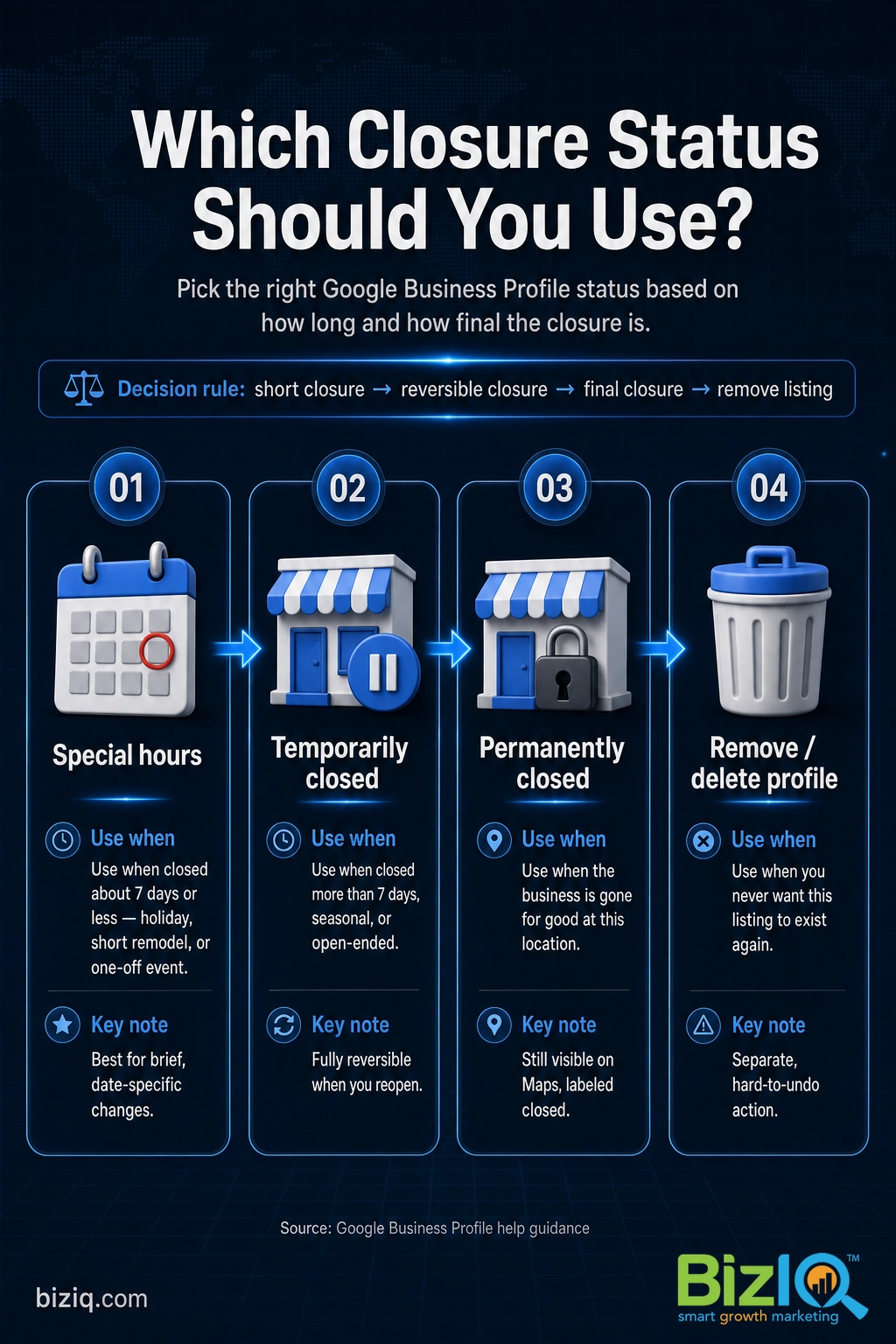
Before you touch anything, match the length and nature of your closure to the right setting. Choosing the wrong one is the single most common mistake owners make, and it is also the easiest to avoid. Here is how Google frames the options.
| Your situation | Use this | Why |
|---|---|---|
| Closed about 7 days or less (holiday, short remodel, one-off event) | Special hours | Shows a short, dated closure without the heavier “Temporarily closed” label. |
| Closed more than 7 days, seasonal, or open-ended | Temporarily closed | Tells searchers the business is paused but coming back. Fully reversible. |
| Business is gone for good at this location | Permanently closed | Marks the business as closed for good. Still visible on Maps, labeled closed. |
| You never want this profile to exist again | Remove / delete the profile | A separate, harder-to-undo action for a listing you want gone entirely. |
For a quick closure of a week or less, you do not need Temporarily closed at all. Entering a dated closure through special hours is cleaner, and our guide on changing your Google Business hours walks through both regular and holiday hours. If your business is closing for good rather than pausing, that is a permanent action, and you will want our walkthrough on how to delete a Google Business Profile instead of this one.
“Temporarily closed means I lose my reviews and have to start over.” Not true. Temporarily closed is a status flag, not a reset. Your reviews, photos, description, categories, and ranking history all stay exactly where they are. The only thing that changes is the “Temporarily closed” label customers see, and that disappears the moment you reopen.
Source: Google Business Profile Help
Before You Begin
Give yourself two minutes to line these up first:
- Access to the profile. You need to be an owner or manager of the Business Profile, signed in with the Google account that controls it.
- A rough reopening plan. You do not have to enter an exact reopen date, but knowing whether this is weeks or months helps you decide between special hours and Temporarily closed.
- Where you will edit. You can make the change in Google Search, in the Google Maps app, or in Business Profile Manager if you handle more than one location.
- Estimated time: about 2 minutes. Skill level: beginner. No code, no support ticket.
How to Temporarily Close Your Profile, Step by Step
The fastest path is right inside Google Search on a desktop or phone. These steps follow Google’s current documented process, so you are not guessing at an old menu.
Step 1: Open your Business Profile
Sign in to the Google account that manages the business, then search your business name on Google, or go to your profile at business.google.com. Your profile’s management options appear directly in the results. This confirms you are editing the real, verified listing and not an unmanaged duplicate.
What success looks like: you see your own business with buttons like Edit profile, Promote, and Customers.
Step 2: Open Edit profile, then Hours
Click Edit profile, then open the Hours section. In the Google Maps app the path is Edit profile, then Business information, then Hours. This is the same place you would set holiday hours, which is why many owners never realize the closure control lives here.
What success looks like: you see your current weekly hours with an edit (pencil) icon beside them.
Step 3: Select Temporarily closed
Click the edit (pencil) icon next to Hours. Instead of entering open and close times, choose Temporarily closed. Be careful not to pick Permanently closed by mistake, since that sends a very different signal and is far more painful to reverse.
Double-check that you selected Temporarily closed, not Permanently closed. They sit right next to each other in the same menu, and an accidental “Permanently closed” can leave your listing labeled as shut down for good until Google processes a correction.
Step 4: Save and confirm
Click Save. Google applies the change and begins showing the “Temporarily closed” label on your Search and Maps listing, usually within a short time rather than instantly. Google may also send an email confirming the status change.
What success looks like: when you search your business, the listing now reads “Temporarily closed” in gray near your name.
Closing several locations at once
If you run multiple locations, open Business Profile Manager, select the locations you want to pause, click Actions, choose Mark as temporarily closed, and confirm in the dialog. This saves you from editing each listing one at a time, which matters for franchises, multi-location brands, and seasonal operators.
Prefer to watch it done rather than read the steps? This short walkthrough covers the same process end to end.
How to Reopen Your Business on Google
Reopening is the mirror image of closing, and it is just as quick. Return to Edit profile, then Hours, click the edit icon, remove the Temporarily closed status by entering your regular business hours, and Save. The “Temporarily closed” label drops off your listing once the update processes.
If your location was marked closed by accident, Google provides a separate “mark as reopened” option that restores an open status, including for a listing that was mistakenly flagged permanently closed. Either way, reopening on time is important: a profile left in “Temporarily closed” long after you are back is actively turning customers away.
What success looks like: your normal hours show again and the gray “Temporarily closed” label is gone from Search and Maps.
Does Temporarily Closed Hurt Your Rankings?
This is the question that stops a lot of owners from closing the right way, so here is the honest answer. Google’s official position is that the Temporarily closed status should not damage your rankings. At the same time, Google’s own help page is careful to note that temporarily closed businesses can appear below open ones for broad searches, and that the effect depends on your category, the type of search, and how many nearby businesses are also closed.
In the real world, some local search experts have reported a temporary dip in the local pack (the three-business map box near the top of local results) while a listing is flagged closed, with visibility recovering after the business reopens. The takeaway is not to avoid closing correctly. It is to close correctly and keep the profile active so it bounces back quickly. If local visibility is a core part of your revenue, our local SEO services team watches exactly these signals before, during, and after a closure.
Source: Google Business Profile Help | Whitespark local search analysis
Real results for real local businesses
How BizIQ clients turned their Google presence into customers.
Holloway Construction
Demolition & excavation — Jonesborough, TN
Down to their last $2,500 with no online presence, Holloway Construction had BizIQ launch a website in under 24 hours and optimize their Google Business Profile so customers could find them — and made $30,000 in 24 hours.
“BizIQ saved my business.” — Mark Holloway, Owner
US Post
Residential mailbox installation
US Post didn’t show up for “mailbox installers near us.” BizIQ’s combined SEO and Google Ads strategy grew their visibility on the way to $11 million in revenue.
“I wouldn’t be here without you guys.” — Lance, Owner
How to Stay Visible While You’re Closed
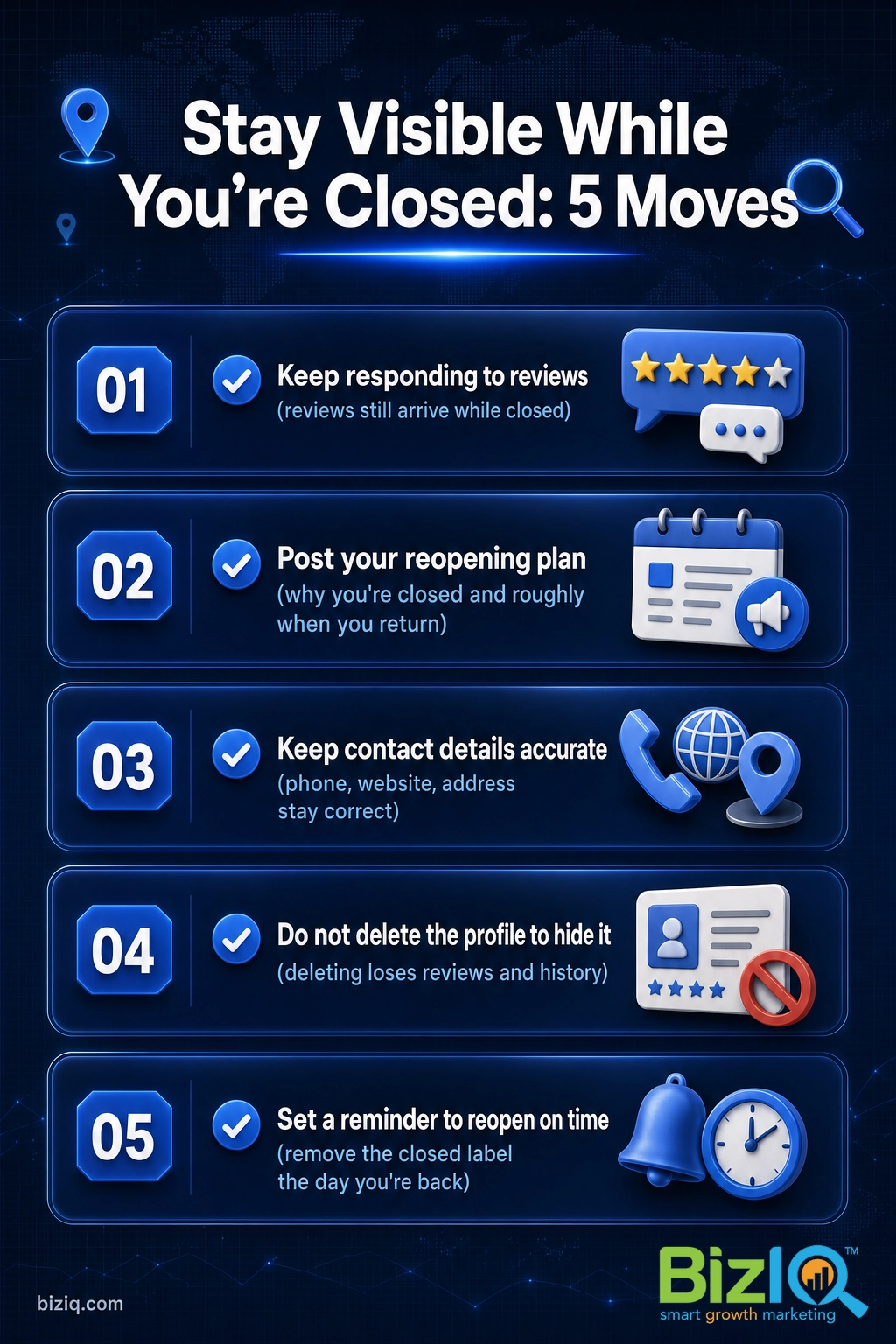
A paused profile does not have to be a dormant one. The businesses that reopen strong are the ones that kept their listing warm while the doors were locked. Treat the closure as a short intermission, not an exit, and keep doing the small things that tell Google and customers you are still here.
- Keep responding to reviews. New reviews still arrive while you are closed, and replying shows the business is managed and alive. Steady, well-handled reviews are a trust signal you do not want to pause.
- Post an update with your reopening plan. A simple Google post explaining why you are closed and roughly when you will return reassures regulars and reduces confused calls.
- Keep your contact details accurate. Phone, website, and address should stay correct so customers can still reach you or plan ahead.
- Do not delete the profile to “hide” it. Deleting throws away reviews and history. Temporarily closed does the job without the damage.
- Set a reminder to reopen on time. The fastest way to lose the momentum you protected is to leave the closed label up after you are back.
If you are weighing whether to keep the profile at all during a long break, our rundown of why your Google Business Profile matters makes the case for keeping it live and working.
Owners who go completely silent during a closure almost always reopen into a slower start, because the profile looks neglected the day customers come looking again. A profile that kept answering reviews and posting the occasional update reopens into warm demand, not a cold start. The closure is unavoidable sometimes. The silence is a choice.
When to Get Help
Flipping the status yourself takes two minutes. Getting the business back to full local visibility after a long or seasonal closure is the part that trips owners up. If you reach the end of a closure and your listing is not ranking the way it did, or you are juggling several locations and cannot risk a wrong click, that is the right moment to bring in a team that manages Google Business Profiles every day.
BizIQ has helped small and local businesses show up on Google for more than a decade, and a managed profile means the close, the reopen, the reviews, and the local SEO all get handled for you.
Get help managing your Google Business Profile
Not sure where your profile stands after a closure, or before one? A quick, no-cost look at how your listing is performing tells you exactly what to shore up so a pause never turns into a slump.
Troubleshooting
A few things can go sideways when you pause or reopen. Here are the ones owners hit most, and how to fix each.
| Problem | What to do |
|---|---|
| The “Temporarily closed” label is not showing yet | Give it time. Google processes status changes within a short window rather than instantly. Recheck after a few hours before editing again. |
| You accidentally chose “Permanently closed” | Go back to Hours, switch the status, or use Google’s “mark as reopened” option to restore the listing, then save. |
| You do not see an Edit profile or Hours option | You may not be an owner or manager of the profile, or you are signed into the wrong Google account. Confirm your access and sign-in first. |
| Listing did not come back right away after reopening | Enter your regular hours, save, then keep the profile active with posts and review replies. Visibility usually normalizes as fresh signals catch up. |
| Your listing is not just closed, it is suspended | That is a different issue from a closure. A suspension needs a reinstatement request, not an hours edit, so start there. |
Still stuck after trying these? Our guide on the most common Google Business Profile questions covers the adjacent issues that come up around closures and access.
Help build your business
“BizIQ is a great company and the employees are extremely helpful. The representative that I used takes care of every request in a timely manner and calls me on a monthly basis just to…”
— Cheryl H.
Orders keep coming
“BizIQ has helped my business grow, the calls and orders keep coming every day. I didn't think I needed to expand to this kind of help but I'm so glad I did. BizIQ is very affordable…”
— Deborah F.
BizIQ is AWESOME
“The professional team at BizIQ is AWESOME. They have been very attentive to my business objective and understand the complexities of my marketing challenges. Search results are always…”
— Robert N.
Frequently Asked Questions
Can you pause a Google Business Profile?
How do I temporarily close my Google My Business listing?
How do I put “temporarily closed” on my Google Business Profile?
Should I use temporarily closed or special hours?
Does marking my profile temporarily closed hurt my rankings?
Is temporarily closed the same as deleting my Google Business Profile?
How do I reopen my business on Google after a temporary closure?
Pause the Right Way, Reopen Even Stronger
Pausing a Google Business Profile is not about hiding, it is about telling the truth clearly: closed for now, back soon. Set Temporarily closed for a longer break, use special hours for a quick one, keep the profile active while you are away, and reopen on time. Do that, and your listing holds its reviews, its history, and its place in local search, ready to send you customers again the day you flip it back on. If you would rather hand the whole thing off and come back to a profile that never missed a beat, we are ready when you are.