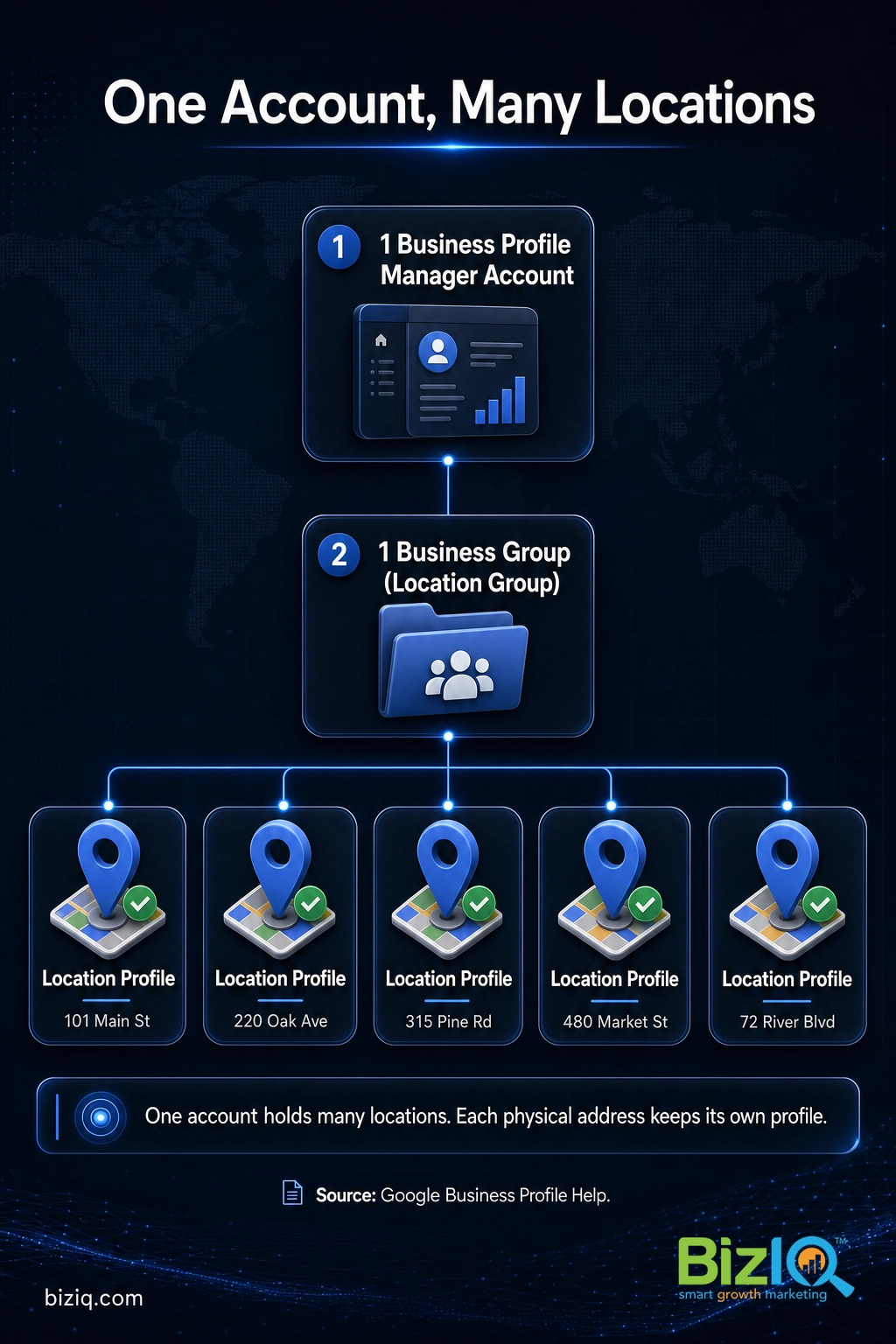
You do not need a separate Google account for every store, clinic, or branch. The right way to manage multiple Google My Business accounts and locations is to keep every location inside one account and organize it with a business group (Google now calls this a location group) in Business Profile Manager. That single structure lets you verify, edit, post, and track all of your locations in one place, while each physical address keeps its own profile. Google My Business, now officially Google Business Profile (GBP), is where most local customers first find you, so a clean multi-location setup directly affects how many calls, direction requests, and visits each location earns.
- One account, many locations: use a business group (location group) in Business Profile Manager instead of a Google account per location.
- Each physical address needs its own Business Profile, but all of them live under one account.
- Businesses with 10 or more locations can use bulk management and chain (bulk) verification.
- Add teammates as users with the right access level rather than sharing one login or creating new accounts.
- Duplicate listings are the top multi-location problem: they split reviews and rankings, so find and resolve them early.
What’s in This Guide
- How Many Google Business Accounts Can You Have?
- The 4 Business Profile Account Types
- Before You Begin
- Step 1: Sign In to One Business Profile Manager Account
- Step 2: Create a Business Group for Your Locations
- Step 3: Add Each Location as Its Own Profile
- Step 4: Bulk Verify 10 or More Locations
- Step 5: Add Users and Set Access Levels
- Step 6: Keep Every Listing Consistent
- Step 7: Post, Reply, and Track at Scale
- Why a Clean Multi-Location Setup Pays Off
- When to Call a Professional
- Troubleshooting Common Problems
- Maintain and Monitor
- Frequently Asked Questions
How Many Google Business Accounts Can You Have?
This is the question that trips up most multi-location owners, and the answer removes a lot of stress: you only need one. A single Google account can own and manage dozens or even hundreds of locations. There is no need to make a new account for each site, and doing so almost always backfires.
The real limit is at the profile level, not the account level. Each physical address needs its own Business Profile, because that profile is what appears on Google Search and Google Maps for that specific location. So a five-clinic group has one account, one business group, and five profiles inside it. The account is the folder; the profiles are the files.
That number is per location, which is exactly why structure matters when you run several. When all of your locations are claimed, verified, and complete under one roof, every address gets the full benefit instead of some being complete and others sitting half-built or unclaimed.
“I should make a new account for each store so the teams stay separate.” Separate accounts do not keep teams tidy. They create duplicate ownership, verification headaches, and listings that compete with each other. The clean way to separate teams is user access inside one account, which Step 5 covers.
Source: Google Business Profile Help | Google Business Profile account types
The 4 Business Profile Account Types
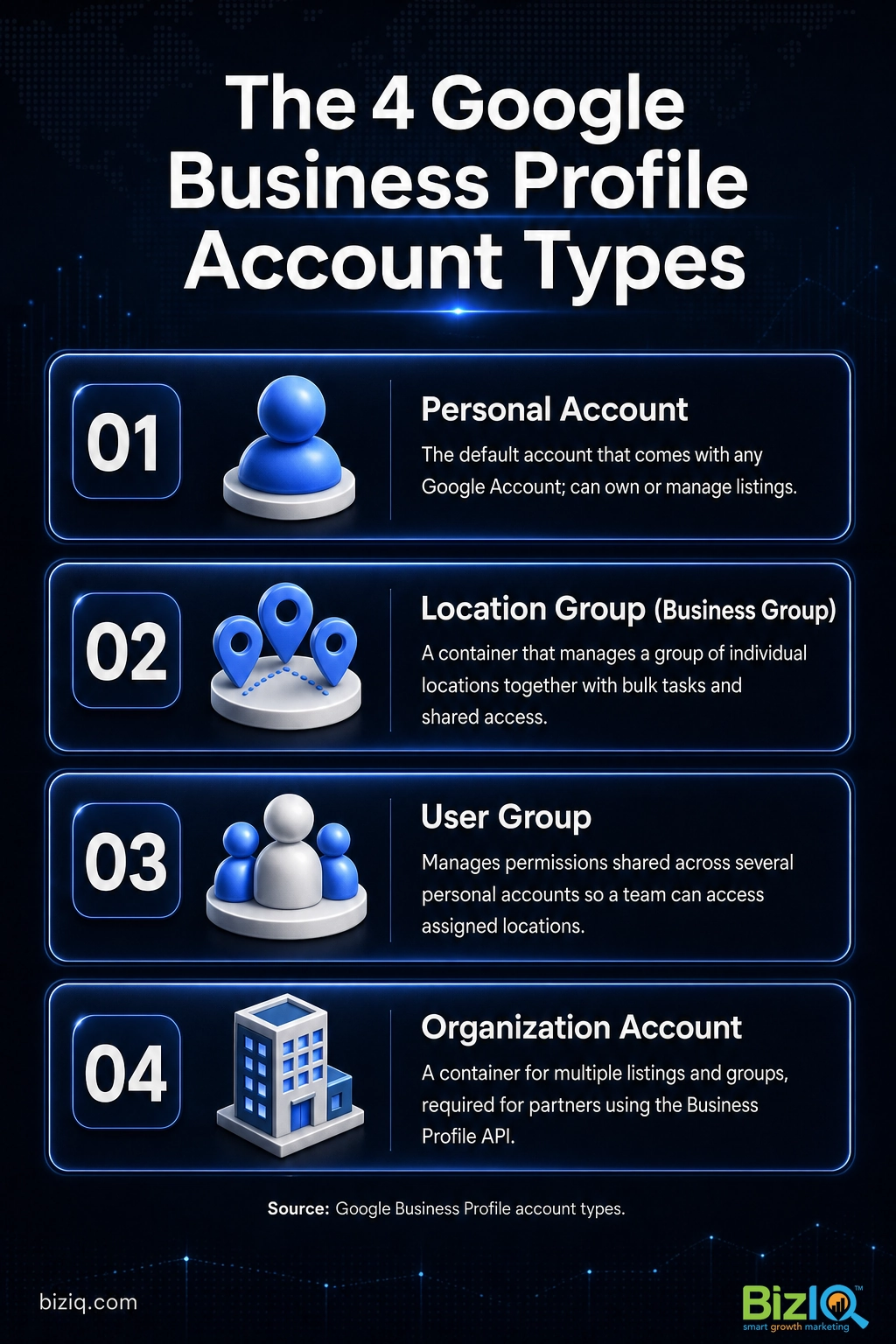
Google organizes multi-location management around four account types. You do not need all four, but knowing what each one does makes the rest of this guide click into place. This also answers a question many owners ask: what is a Google Business Profile location group?
| Account type | What it is | Who uses it |
|---|---|---|
| Personal account | The account you get automatically with any Google Account. It can be an owner or manager of listings. | Individual owners and team members |
| Location group (business group) | A container used to manage a group of individual locations together, with bulk tasks and shared access. | Multi-location brands and chains |
| User group | Manages account permissions shared across several personal accounts, so a team can access the locations a group grants them. | Teams managing the same locations |
| Organization account | A container for multiple listings and groups, required for partners that use the Business Profile API. Locations can belong to more than one organization. | Agencies and partners |
For most businesses running several of their own locations, the location group is the workhorse. Agencies that manage listings for many different clients lean on the organization account instead. If you ever plan to connect software that updates hours, posts, or reviews automatically, that is where the Business Profile Google Business Profile API comes in, and an organization account is the entry point.
Source: Google Business Profile account types
Before You Begin
What you need before you start:
- One Google account you control and trust for the long term (not a personal account tied to one employee who might leave).
- A list of every location with its exact name, address, and phone number, known as your NAP (name, address, phone).
- Admin access to any profiles that are already claimed, so you can pull them into one place.
- About 30 to 60 minutes for the initial setup, plus time for verification, which can take days.
- Your business category, hours, and photos ready for each location.
Skill level: Beginner to intermediate. If several of your locations are already claimed by former staff or an old agency, set aside extra time for the cleanup in Step 1.
Step 1: Sign In to One Business Profile Manager Account
Pick the single Google account that will be the long-term home for every location, then sign in to Business Profile Manager (business.google.com). This is the dashboard built for handling more than one location at a time, which is different from editing a single profile straight from Google Search.
Why this step matters: The account you choose becomes the owner of record. Choosing a stable, business-owned account now saves you from a painful ownership transfer later.
What success looks like: You land in Business Profile Manager and can see every location you already manage in one list. If some locations are missing, they are probably still under another login, which you will consolidate next.
Do not build your multi-location setup on a personal Gmail tied to one employee. When that person leaves, your listings can leave with them. Use a business-owned account, and before you consolidate, sign in to every existing account so you can spot duplicate or orphaned listings early.
Step 2: Create a Business Group for Your Locations
Inside Business Profile Manager, create a business group (this is the same thing Google’s developer docs call a location group). Give it a clear name, such as your brand plus a region if you operate in several. This group becomes the container that holds all of your locations.
Why this step matters: A business group is what lets you act on many locations at once and share access cleanly. When the main owner of the group is verified, all eligible profiles in the group are verified as well, which saves enormous time as you grow.
What success looks like: You have a named group, and you can see an empty or partly filled location list ready to receive every address.
If you run a franchise or a brand where each location has local owners, this structure matters even more. Our guide to Google Business Profiles for franchises walks through shared-versus-local ownership in detail.
Step 3: Add Each Location as Its Own Profile
Now add your locations to the group. You can add them one at a time, or, if you run 10 or more, upload them in bulk with a spreadsheet. Remember the golden rule: one Business Profile per physical address. Two addresses never share a profile, and one address never gets two profiles.
Why this step matters: Google ranks and displays each address separately, so each needs its own complete profile with accurate category, hours, and service details.
What success looks like: Every active location appears in your business group with its correct name and address, and none of them are duplicates of each other.
Adding a single new site to an existing brand? You do not need the full bulk flow. Follow our focused walkthrough on how to add a second location to Google My Business, then come back here once you cross into bulk territory.
Real results for real local businesses
How BizIQ clients turned their Google presence into customers.
Holloway Construction
Demolition & excavation — Jonesborough, TN
Down to their last $2,500 with no online presence, Holloway Construction had BizIQ launch a website in under 24 hours and optimize their Google Business Profile so customers could find them — and made $30,000 in 24 hours.
“BizIQ saved my business.” — Mark Holloway, Owner
10X Health
Health & wellness
Only 14% of 10X Health’s ranking keywords were non-branded. BizIQ grew their organic visibility during rapid growth — contributing to 20K products sold in one month and a +100% increase in average monthly website sessions.
“We literally 10X-d the business, and BizIQ was our digital partner in crime.” — Alana, 10X Health
Step 4: Bulk Verify 10 or More Locations
Verification proves you really operate each location. For a business with 10 or more locations of the same brand, Google offers bulk verification (also called chain verification), which saves you from verifying each site by hand.
How to do it: In Business Profile Manager, prepare a spreadsheet listing all of the profiles you manage, then go to Verifications, select Chain, choose Start, fill out the form, and submit. Uploading the spreadsheet alone does not submit the request, so do not skip the submit step.
Why this step matters: Unverified profiles have limited visibility and editing power. Bulk verification unlocks all of your locations at once instead of across weeks of one-by-one requests.
What success looks like: Your chain request is submitted and, once approved, every eligible location shows as verified.
A few bulk-verification rules catch people off guard. Your spreadsheet must include 10 or more profiles from the same business, and duplicate, suspended, or disabled profiles do not count toward that minimum. Agencies with more than one business in a single account cannot bulk verify, and service-area businesses are not eligible. If the process stalls, our bulk verification walkthrough covers the common holdups.
Source: Google Business Profile Help, manage multiple locations
Step 5: Add Users and Set Access Levels
This is how you keep teams separate without creating separate accounts. Inside your business group, add teammates as users and give each the right role. A manager can edit listings and respond to reviews, while more limited roles can do less. User groups let you grant a whole team access to a set of locations at once.
Why this step matters: Shared logins and one-off accounts are where multi-location messes begin. Proper user access gives each person exactly what they need and lets you remove someone cleanly when roles change.
What success looks like: Your regional managers, local staff, and marketing partner each have access scoped to the right locations, and you can see who has access to what.
For the exact click path, see our step-by-step guide on how to add users to your Google Business Profile.
Step 6: Keep Every Listing Consistent
With the structure in place, the daily job becomes consistency. Across every location, keep your business name identical, your categories accurate, your hours current, and your NAP matching what appears on your website and other directories. Then add real photos to each profile, not just the flagship location.
Why this step matters: Inconsistent details confuse both customers and Google, and thin profiles lose out to complete ones. Photos in particular move the needle.
What success looks like: Open any three locations at random and they read as one coherent brand, each with accurate hours, the right category, and a set of genuine photos.
Categories and labels are your organizing tools here. Labels let you tag locations by region or type so you can filter them fast, and getting categories right is one of the highest-impact choices you make. See what labels do in Google My Business and how to choose the right Business Profile categories.
Source: Google Business Profile Help
Step 7: Post, Reply, and Track at Scale
Running many locations means doing the small things many times: publishing updates, answering questions, and replying to reviews. From Business Profile Manager you can filter by location or label, which keeps the workload sane.
Why this step matters: Reviews and fresh activity are visible ranking and trust signals. A location that never replies to reviews looks neglected next to one that does.
What success looks like: Each location gets timely review responses and regular posts, and you can see performance (calls, direction requests, searches) for any location or for the whole group.
For the ongoing work, lean on our guides to complete Business Profile management and the most-asked Business Profile questions.
Why a Clean Multi-Location Setup Pays Off
All of this structure serves one goal: every location showing up, complete and verified, when a nearby customer searches. Multi-location brands that get this right turn the local map pack into a steady source of calls and visits across every market they serve. The ones that skip it end up with duplicate pins, suspended profiles, and locations that quietly disappear from search.
The businesses that win locally are not the ones with the most locations. They are the ones where every location is treated like the flagship: claimed, verified, complete, and active. Structure is what makes that repeatable across 5 sites or 500, instead of a scramble you redo every quarter.
If search visibility across many markets is the real goal, the Business Profile work connects directly to broader local SEO for multiple locations, where SEO stands for search engine optimization, the practice of earning higher placement in search results.
When to Call a Professional
If you reach this point and you are staring at duplicate listings you cannot merge, locations stuck in verification, or profiles claimed by an old agency you have lost contact with, that is the moment to bring in help. Untangling multi-location ownership is slow and error-prone when you do it alone, and a wrong move can suspend a listing that is earning real revenue.
BizIQ manages local search for small and multi-location businesses across the United States, and our team handles exactly this: consolidating accounts, cleaning up duplicates, and getting every location verified and optimized. We back our local work with a Local Marketing Guarantee: for eligible packages, if we do not get you onto the first page of Google’s local map or organic results for at least two geo-tagged keyword phrases within 60 days, you do not pay the next month’s fee and we keep working until you rank.
Troubleshooting Common Problems
| Problem | What’s happening | Fix |
|---|---|---|
| Duplicate listings for one location | The same address was claimed twice, splitting reviews and rankings. | Sign in to all of your accounts to find both, then report the extra as a duplicate so Google can merge or remove it. |
| A location is suspended | Often an inconsistency (name, address, or category) or a policy flag. | Fix the underlying detail, make all data consistent with your website, then request reinstatement. |
| Agency account cannot bulk verify | More than one distinct business sits in a single account, which blocks bulk verification. | Verify each business separately, or restructure so each business has its own group. |
| A profile is claimed by someone else | A former employee or old agency owns the listing. | Request access from Business Profile Manager and ask the current owner to transfer or grant ownership. |
| Can’t find a location in your dashboard | It is still under a different login. | Sign in to the other account and transfer ownership into your main business group. |
Maintain and Monitor
A multi-location setup is not a one-time project. Google can de-verify accounts that do not actively manage their profiles, so quiet neglect carries a real cost. Build a simple monthly rhythm: confirm hours (especially around holidays), check for new duplicate listings, reply to every review, refresh photos, and scan performance by location to catch any site that is slipping.
As you add locations, keep each new one inside the same business group with the same standards. Consistency is what lets the whole network grow without turning into a cleanup project later. If maintaining dozens of profiles is pulling you away from running the business, that is precisely the ongoing work BizIQ takes off your plate.
BizIQ is AWESOME
“The professional team at BizIQ is AWESOME. They have been very attentive to my business objective and understand the complexities of my marketing challenges. Search results are always…”
— Robert N.
BizIQ delivers!
“I am very impressed with the service BizIQ delivers! Not only are my calls with them informative but they have patience and suggestions for me. BizIQ is taking the time to show me they…”
— Cindy M.
Response has been terrific
“I'm not sure why I tried BizIQ instead of the other 500 Google solicitation calls I get but I'm so glad I did! They are very professional and have taken over our neglected Google…”
— Mark E.
BizIQ is a full-service digital marketing agency serving small businesses since 2013, with a 4.6-star rating from 1,000+ Google reviews. If you would rather hand off the whole multi-location setup, our team can take it from here.