
Yes, you can schedule posts on Google My Business, and it is easier than it used to be. In late 2025 Google added a built-in scheduler to Google Business Profile (the current name for Google My Business), so you can write a post today and have it publish automatically next week. If that option has not reached your profile yet, a free or low-cost third-party tool does the same job. Either way, scheduling means your profile keeps showing up with fresh updates while you get back to running your business, instead of going quiet for weeks because posting slipped down the to-do list.
First, a quick note on names. Google My Business (GMB) was renamed Google Business Profile (GBP) in 2021, and the standalone GMB app was retired. The product is the same, and you now manage everything, posts included, from Google Search and Google Maps. This guide uses both names since many owners still search for “Google My Business.”
- Google Business Profile now has a native post scheduler (added in late 2025): write a post, pick a date and time, and it publishes on its own.
- You can plan a full week or month of posts in one sitting, and apply a single post to multiple locations at once.
- If the built-in scheduler has not rolled out to your profile, tools like Buffer, Hootsuite, and SocialPilot schedule GBP posts through Google’s API.
- Scheduling keeps your profile active and complete, which is what drives more calls, visits, and clicks from local search.
- Aim for a steady cadence (weekly is a good target) rather than a burst of posts followed by silence.

What’s in This Guide
- Can You Schedule Posts on Google My Business?
- Why Scheduling Your Google Posts Matters
- How to Schedule Posts With Google’s Built-In Scheduler
- How to Schedule GBP Posts With a Third-Party Tool
- When to Hand Google Posting to a Professional
- Troubleshooting Common Scheduling Problems
- What to Post and How Often
- Frequently Asked Questions
Can You Schedule Posts on Google My Business?
Yes. There are now two reliable ways to do it, and you only need one of them.
The first is Google’s own scheduler. For years, Google had no way to schedule a Business Profile post, so owners either posted live in the moment or used an outside app. That changed in late 2025, when Google rolled out native post scheduling along with the ability to publish one post to several locations at the same time, as Search Engine Roundtable reported. The feature arrived in stages, so some profiles saw it before others.
The second is a third-party scheduler. Social media management tools connect to your profile through Google’s official system and let you queue posts in advance, often across every channel you run. This route still works even if the native scheduler has not shown up in your account yet.
“Google got rid of posts, so there’s no point scheduling them.” Not true. Google Posts (also called updates) are alive and well, and they appear on your profile in Search and Maps. What changed is that Google made posting better by adding scheduling and multi-location publishing. If anything, posts are easier to keep up with now than ever.
Why Scheduling Your Google Posts Matters
Scheduling is not busywork. The point is consistency, because a profile that looks active and complete is the one local customers trust and click. A profile that has not been touched in months quietly tells shoppers you might be closed or inattentive.
The numbers back this up. A complete, active Business Profile does real work for a local business.
Posting does not flip a ranking switch on its own. Google has been clear that publishing a post is not a direct ranking factor. What posts do is keep your profile fresh, give searchers a reason to click, and show off offers, events, and news at the moment people are deciding where to call or visit. Scheduling is simply the way you keep that up week after week without having to remember to do it by hand. For a fuller look at the payoff, see our breakdown of Google Business Profile optimization statistics.
The businesses that win on Google locally are rarely the ones with the flashiest single post. They are the ones that show up consistently. Scheduling turns “I’ll post when I get a chance” (which usually means never) into a system that runs whether you remember it or not. That reliability is the real advantage.
Real results for real local businesses
How BizIQ clients turned their Google presence into customers.
Holloway Construction
Demolition & excavation — Jonesborough, TN
Down to their last $2,500 with no online presence, Holloway Construction had BizIQ launch a website in under 24 hours and optimize their Google Business Profile so customers could find them — and made $30,000 in 24 hours.
“BizIQ saved my business.” — Mark Holloway, Owner
A.R.S. Video Inc
Film & audio conversion — Tallmadge, OH
After rebuilding a tangled site structure, A.R.S. Video reclaimed their rankings — over 2,000 more web visits and an 88% increase in sessions.
How to Schedule Posts With Google’s Built-In Scheduler
If the scheduling option has reached your profile, this is the simplest path because everything happens inside Google. Here is what to do.
Before you begin
- What you need: a verified Google Business Profile and manager or owner access to it.
- Where you work: Google Search or Google Maps while signed in to the Google account that manages the profile.
- Time: about 5 minutes per post, or 20 to 30 minutes to plan a full month at once.
- Skill level: beginner. If you can write an email, you can do this.
Step 1: Open Your Business Profile
Sign in to the Google account that manages your business, then search your business name on Google, or open Google Maps and tap your profile. You will see your business dashboard with options like Edit profile, Promote, and Add update.
Why it matters: you have to be signed in as an owner or manager, or the posting tools will not appear.
What success looks like: you see your own management menu, not the public view a stranger sees.
Step 2: Start a New Post
Choose Add update (sometimes shown under Promote). Pick the post type that fits your message: a standard update, an offer, an event, or a product. Offers and events include start and end dates, which is handy for seasonal promotions.
Why it matters: the post type sets what fields you fill in and how the post displays to searchers.
What success looks like: a blank post editor opens, ready for your text and photo.
Step 3: Write the Post and Add a Photo
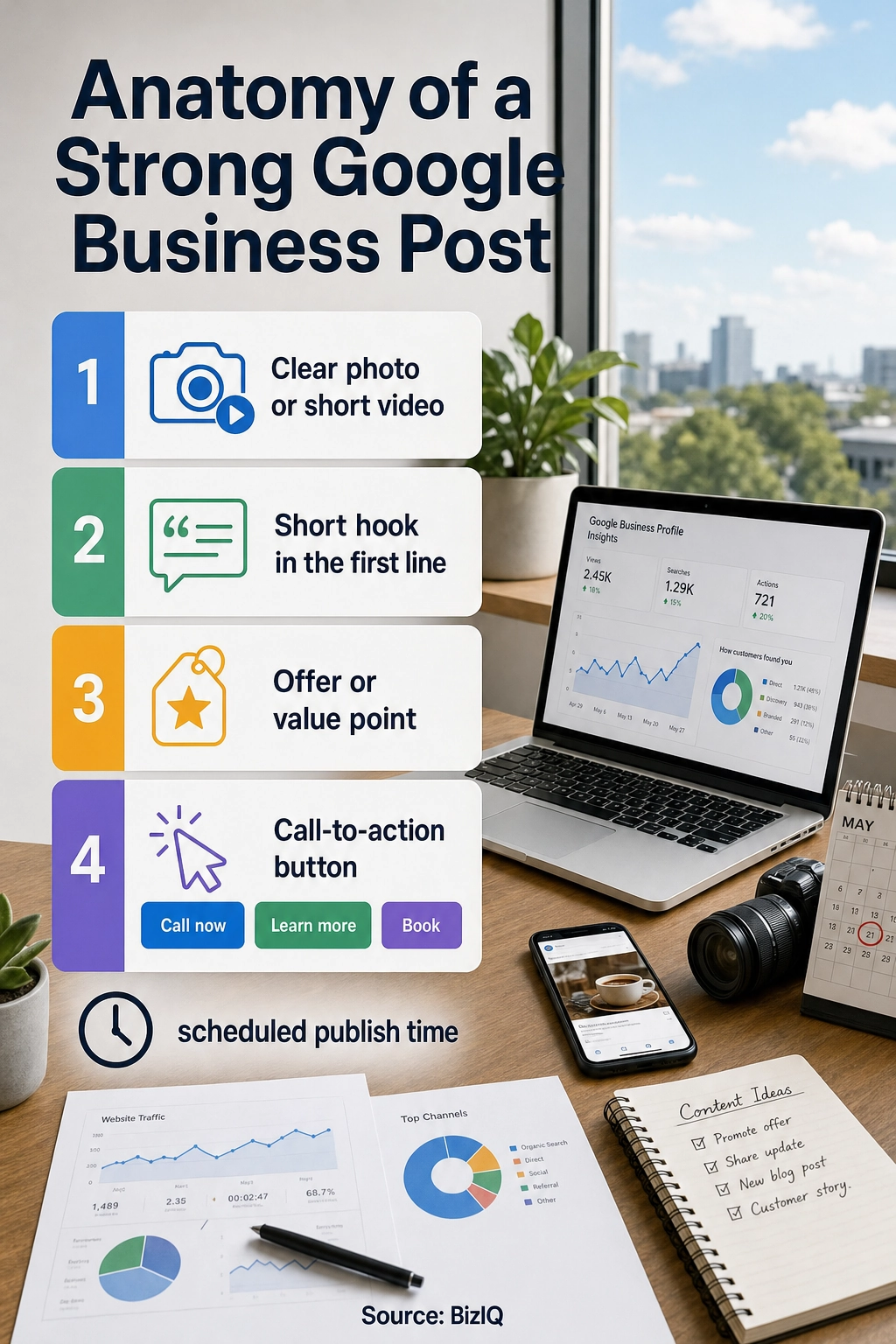
Add a short, clear message, a photo or short video, and a button if you want one (such as Call now, Learn more, or Book). Keep the text tight and lead with the useful part in the first line, since that is what shows before a reader taps “more.”
Why it matters: posts with a strong image and a clear action get noticed and clicked, not scrolled past.
What success looks like: a finished post with a photo, a line or two of copy, and a button that points somewhere useful.
Step 4: Choose Schedule and Set the Date and Time
Instead of publishing right away, look for the scheduling option in the post editor and pick the date and time you want the post to go live. This is the step that is new as of late 2025. Google lets you plan a week or a month of posts in advance, so you can line up several at once and walk away.
Why it matters: this is the whole point. Setting a future time means the post publishes on its own, even if you are with a customer or closed for the day.
What success looks like: the post shows a future publish time rather than going live immediately.
Keep scheduled posts honest and within Google’s content rules. Do not stuff keywords, make claims you cannot back up, or put a phone number where the button belongs. Posts that break Google’s guidelines can be rejected or removed, and a pattern of violations can put your whole profile at risk. Write each post for a real person deciding whether to call you.
Step 5: Review, Confirm, and Repeat (Including Multiple Locations)
Double-check the text, image, button link, and publish time, then confirm. If you manage more than one location, use the multi-location option to apply the same post to several profiles in one click rather than rebuilding it for each. Then repeat the process for the next few posts so your calendar stays full a week or month out.
Why it matters: a quick review catches a wrong link or date before it goes live, and multi-location publishing saves hours for brands with several storefronts.
What success looks like: a queue of upcoming posts with the right dates, each one pointing to the right place.
Not seeing a Schedule button at all? You are not doing anything wrong. The feature rolled out in stages, so it reached some profiles before others. Until it arrives, the third-party route below does the exact same thing.

How to Schedule GBP Posts With a Third-Party Tool
A third-party scheduler is worth using in a few situations: the native scheduler has not reached your profile yet, you want to post to Google and your other channels (Facebook, Instagram, and the rest) from one calendar, you need to queue posts months out, or you want reporting on how each post performed.
Several well-known tools support Google Business Profile, including Buffer’s Google Business Profile integration, Hootsuite, Sprout Social, and SocialPilot. The exact buttons differ by tool, but the flow is the same everywhere.
- Connect your profile. In the tool, add a channel and sign in with the Google account that manages your business. You will approve access through Google itself, so your login stays private.
- Create the post. Write your copy, add a photo or video, and choose a button and link, just as you would inside Google.
- Pick Google as the channel. Select your Business Profile (and any other channels you want the post on) so the tool knows where to publish.
- Set the date and time. Add the post to the calendar at the time you want it live, or drop several into a recurring queue.
- Review and schedule. Confirm the preview, then let the tool publish for you. Most tools then show you views and clicks after the post goes live.
At real scale (dozens or hundreds of locations), businesses often go a step further and use software built directly on the Google Business Profile API, which can push posts to many profiles at once. For a single location, the native scheduler or a simple tool like Buffer is plenty.
When to Hand Google Posting to a Professional
If you reach this step and realize the honest problem is not how to schedule a post but finding the time to plan good ones every week, that is a sign to hand it off. Many small business owners schedule a flurry of posts, run out of ideas by week three, and go quiet again. A marketing partner keeps the calendar full with posts worth reading, watches what each one does, and ties your Google posting to the rest of your local search strategy so it all pulls in the same direction.
BizIQ manages Google Business Profiles for small and local businesses across the country, and our local marketing is backed by a Local Marketing Guarantee: on eligible packages, we aim to get you onto the first page of Google’s local map results or organic search for at least two geo-tagged keyword phrases within 60 days, or you do not pay the next month’s fee until we do. We have earned 4.6 stars from 1,000+ Google reviews doing exactly this kind of work.
Fantastic
“Great company to work with. The people are fantastic and do a great job eliminating the hassle of what could otherwise be a very daunting and time consuming task. The increase in…”
— Tim M.
Help build your business
“BizIQ is a great company and the employees are extremely helpful. The representative that I used takes care of every request in a timely manner and calls me on a monthly basis just to…”
— Cheryl H.
Orders keep coming
“BizIQ has helped my business grow, the calls and orders keep coming every day. I didn't think I needed to expand to this kind of help but I'm so glad I did. BizIQ is very affordable…”
— Deborah F.
Troubleshooting Common Scheduling Problems
If something does not go to plan, it is almost always one of these five issues.
| Problem | Likely cause and fix |
|---|---|
| I don’t see a Schedule option | The native scheduler rolled out in stages. Update the Google app, make sure you are signed in as an owner or manager, and use a third-party tool in the meantime. |
| My scheduled post never published | Confirm your profile is verified and in good standing, that the image meets Google’s size rules, and that the post follows Google’s content guidelines. A post held for review can miss its time. |
| The post was rejected or removed | Usually a policy issue: a phone number or raw link in the body (put links and numbers in the button), prohibited content, or keyword stuffing. Rewrite it for a real reader and resubmit. |
| I manage several locations and it’s slow | Use Google’s multi-location publishing to apply one post across profiles in a click, or a tool built on the Business Profile API for bulk scheduling. |
| The post isn’t showing publicly | New or unverified profiles, and posts still pending review, will not appear right away. Verify the profile first and give a published post time to appear in Search and Maps. |
What to Post and How Often
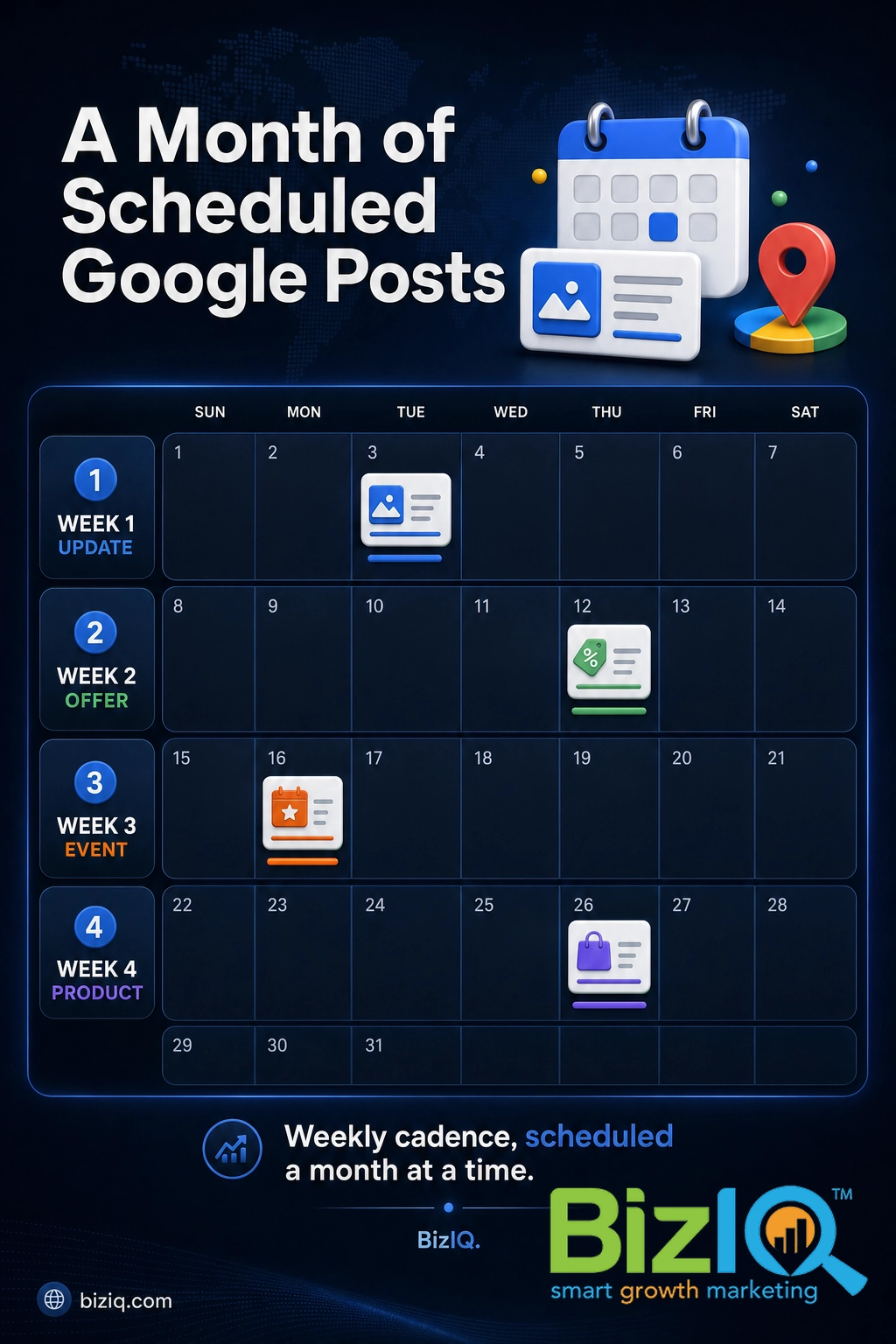
Scheduling only pays off if you are scheduling the right things on a steady rhythm. A weekly post is a solid target for most local businesses. Mix the formats so your profile stays interesting:
- Updates: news, tips, behind-the-scenes, a project you just finished.
- Offers: a time-limited deal with a clear start and end date.
- Events: a sale, open house, class, or seasonal hours change.
- Products: a featured item or service with a photo and price.
The exact right number depends on your business and your capacity. We cover that in detail in how often you should post on Google My Business. The short version: pick a cadence you can keep, schedule a month at a time so you never fall behind, and keep each post tied to something a customer actually cares about. For a broader primer on getting the most from your listing, our Google Business Profile guide and our full library of Google Business Profile resources walk through the rest.
Explore BizIQ’s local SEO services
Frequently Asked Questions
Can you schedule posts on Google My Business?
How far in advance can you schedule Google Business Profile posts?
How do I automate Google Business Profile posts?
Does Buffer support Google Business Profile?
Do scheduled Google posts help my local SEO?
What is the difference between Google My Business and Google Business Profile?
Source: Google Business Profile Help | Search Engine Roundtable